75BDL3151T
18
4. Operation
NOTE: Thecontrolbuttondescribedinthissectionismainlyonthe
remotecontrolunlessspeciedotherwise.
4.1. Watch the Connected Video Source
1. Press
[ ] SOURCEbutton.
2. Press[ ]
or[ ]buttontochooseadevice,thenpress[ ]
button.
4.2. Change Picture Format
Youcanchangethepictureformattosuitthevideosource.Eachvideo
sourcehasitsavailablepictureformats.
Theavailablepictureformatsdependonthevideosource:
1. Press[ ] FORMATbuttontochooseapictureformat.
• PCmode:{Full}/{4:3}.
• Videomode:{Full}/{4:3}.
4.3. Overview
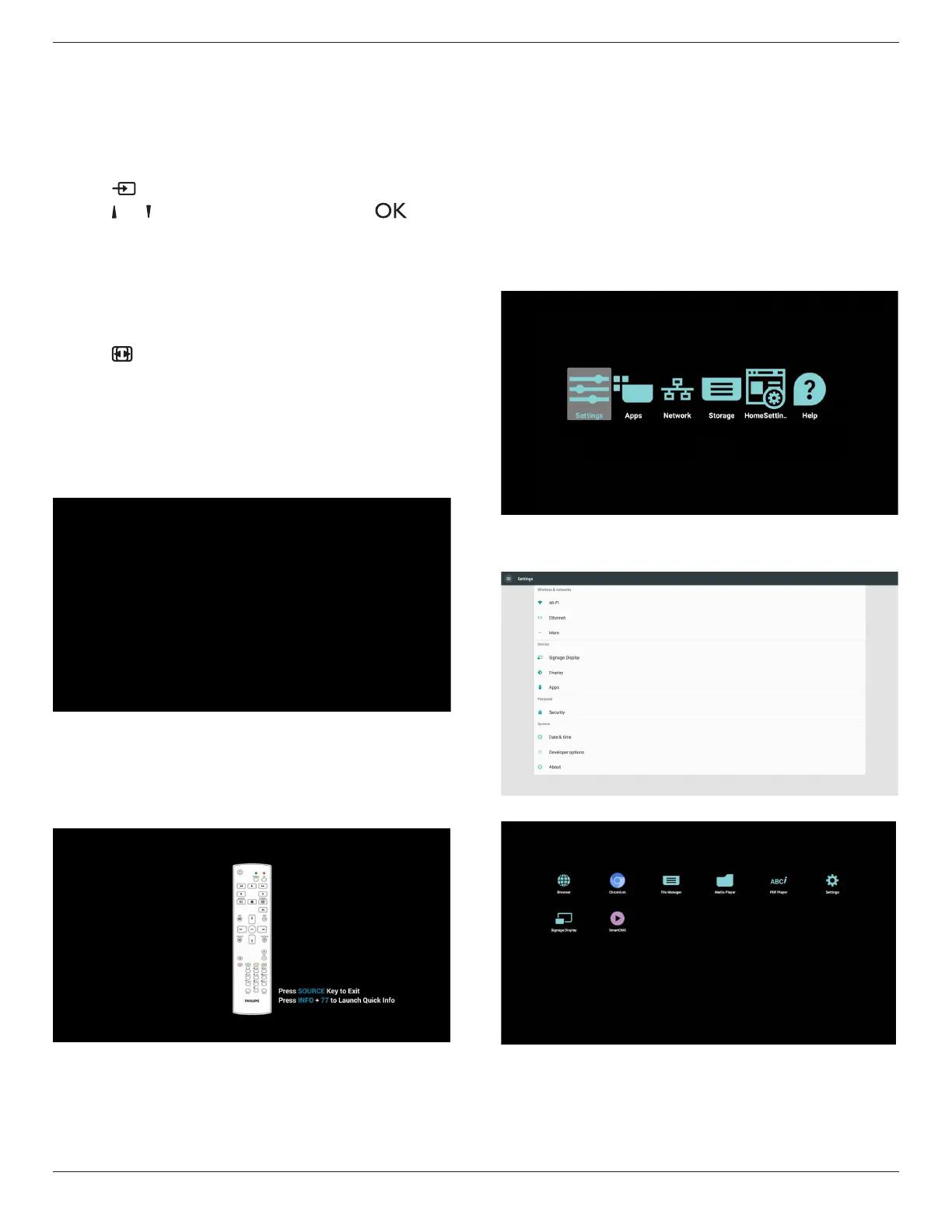
1. AndroidPDlauncher:
• AndroidPDlauncherisblackpage,asbelow:
• Everyappsleavebypressbackkey,thescreenwillgotoandroid
PDlauncher.
• WhenyoureturntoandroidPDlauncher,thescreenwillshow
hintimage,thehintimageonlyshow5second,asbelow:
• Thehintimagewillnotifyyoucanpresssourcekeytochange
source.
2. Adminmode:
• Youcanpress“Home+1888”toenteradminmode.Please
makesureyouseetheHomeOSDmenuafter“Home”is
pressed,andthenpress1888insequence.Twocontinuous
“Home”keyswillnotbeavalidhotkey.
• Adminmodewillshowveicons:“Settings”,“Apps”,“Network”
“Storage”and“Help”.
• Whenyouleaveadminmode,systemwillreturntolastsource.
1.)Homepageofadminmode,thispagehasitems:“Settings”,“Apps”,
“Network”“Homesetting”“Storage”and“Help”.
Settings:gotosettingsapp.
Applications:showallapps.
Network:setWi-Fi(optional),Ethernet
Storage:displaycurrentPDAndroidstorageinformation.
Homesetting:gotoHomesettingpage.
Help:displayQRcode.
2.)Settingspage:
Settings:gotosettingspage.
SignageDisplay:gotosignagedisplaysettingspage.
3.)Applicationpage:






 To Next Page