Subtitle Language 33
• With some DVDs, you may select a
subtitle language only in the Disc
menu.
• If the desired language does not
appear after pressing the SUBTITLE
button several times, the Disc does
not have subtitles in that language.
• The subtitles may be delayed for a
few seconds.
• Opening the disc tray or turning off
the Player’s power will cancel your
subtitle setting. The default setting of
the DVD will be active again.
• When “Subtitle Not Available”
appears on the TV screen, no subtitle
is available for the current scene.
Helpful Hints
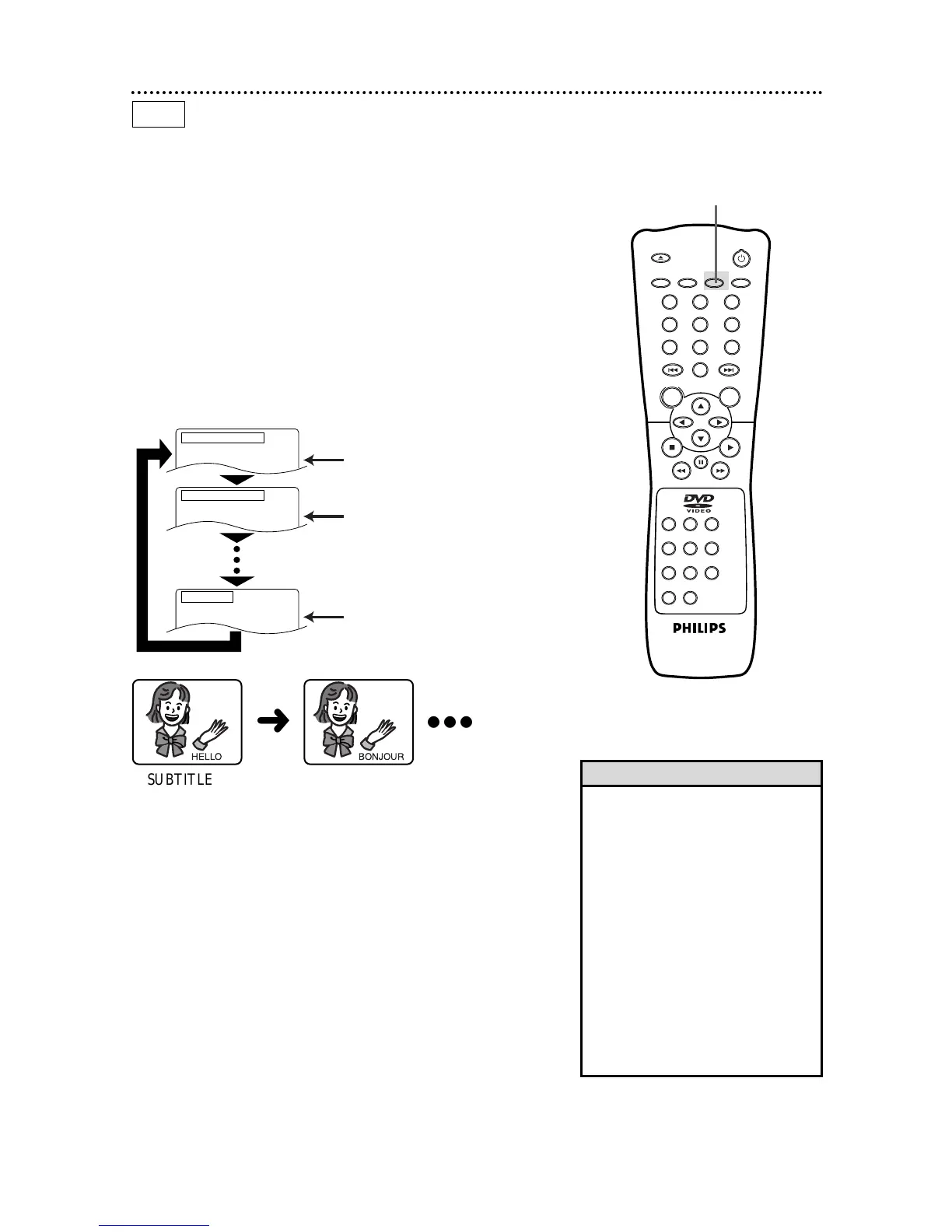
The DVD Player allows you to select a language for subtitles dur-
ing playback. You may select only the languages that are available
on the Disc.
1
Press the SUBTITLE button during playback so that the
subtitle display appears on the TV screen.
2
Within 5 seconds, press the SUBTITLE button repeatedly
to select a subtitle language. The number of available lan-
guages appears at the right of the audio display. In this example,
eight languages are available ( /8).
3
The subtitle display will disappear after about 5 seconds.
Press the SUBTITLE button.
Press the SUBTITLE button to
select another language.
Subtitle 2
To turn off subtitles, press the
SUBTITLE button repeatedly until
OFF appears in the subtitle display.
No subtitles
Subtitle 1. English / 8
Subtitle 2. French / 8
Subtitle Off



 To Next Page