22 23First steps First steps
Table of contents
Table of contents
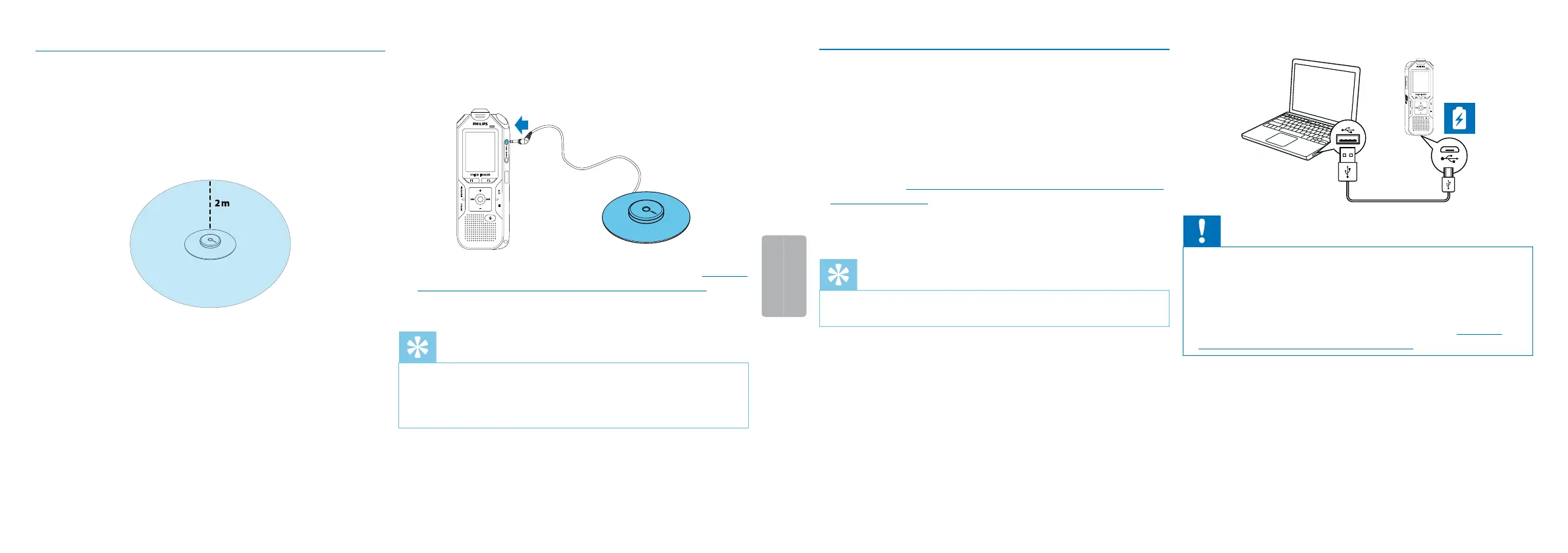
4.10.4 How to use the meeting microphone
Scope of delivery: DVT8010
Further microphones (for cascading) are available as optional
accessories. Philips Meeting Microphone LFH9173.
The meeting microphone can be used during a meeting or a multi-
participant conference. For optimum sound quality, the participants
should not be more than two meters away from the microphone.
1
Stop the recording currently in progress.
2
Insert the jack into the microphone connection MIC on the side of
the device.
3
Switch the external source settings to mono microphone (see also
chapter 9.1.14 Selecting an external sound source, page 45).
4
Start recording.
Tip
• If a recording is to be made in larger rooms or at meetings
with a larger number of participants, the recording range may
be extended by connecting up to a maximum of three meeting
microphones.
4.11 Connecting to a computer
You can select one of the following options once you have connected
the device to a computer
• A USB mass storage device: You can use the File Explorer to
access the device data without installing additional software. It is
automatically displayed as a mass storage device similarly to a USB
memory stick or card. It is a convenient way to store, back up and
and move files. (see also chapter 4.11.1 Transferring files from or to
the device, page 24).
• Power supply via USB: Record while powered through USB
without draining the battery. You can record until the memory is
full.
Tip
• To start recording press the record key g for at least two
seconds while the device is connected to the computer.
1
Plug the USB connector into a USB port on your computer.
2
Insert the micro USB plug into the USB port on the bottom of the
device.
X The device is displayed as a mass storage device in File
Explorer.
Caution
• Do not disconnect the device from the computer while files are
transferred from or to the device (the status LED indicatorflashes
orange when data is being transferred). This this may damage or
corrupt the files.
• Do not format the drive of the device on a computer. If you want
to delete all data, use the
Format memory function (see also
chapter 10.1.2 Memory formatting, page 51).





 To Next Page