52 53Service Service
Table of contents
Table of contents
Tip
• Press the j key to cancel the operation without saving and return
to the stop mode.
10.2 Replacing the remote control battery
(DVT8010)
Note
• Follow the instructions on handling the device, especially the
batteries shown in 1 Important safety information. Only use
CR2025 type batteries for the remote control.
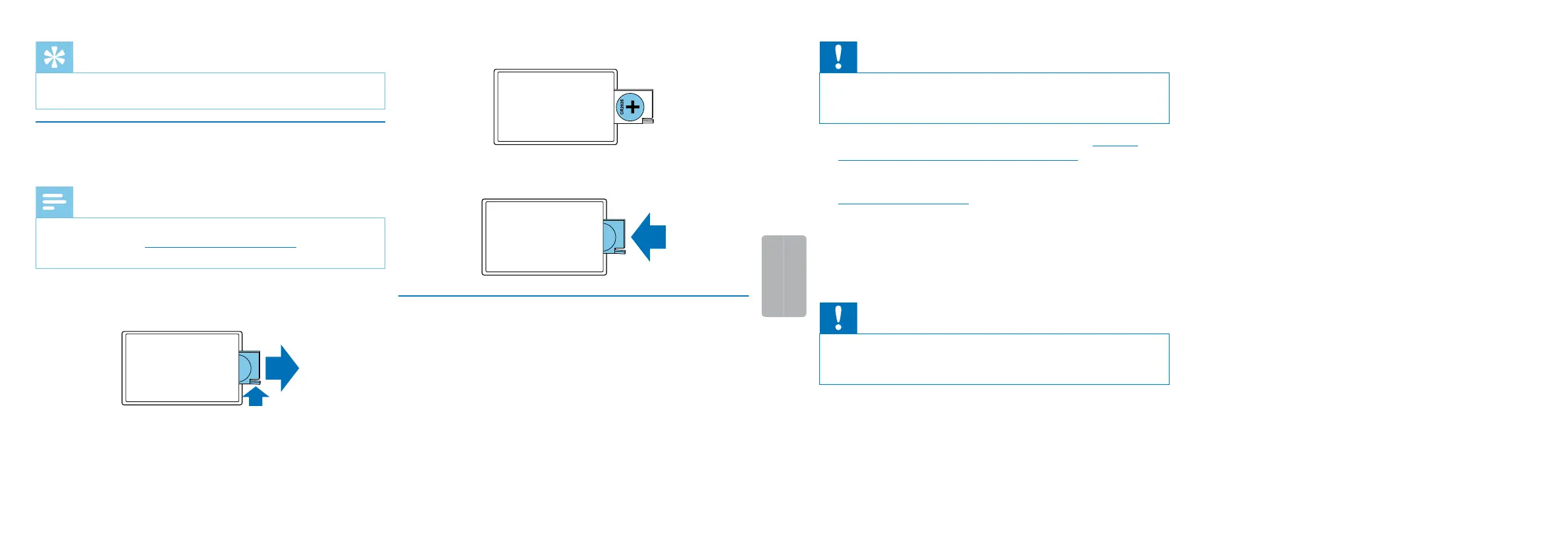
1
Remove the battery cover from the remote control by opening
the latch of the battery compartment on the back of the remote
control and take out the battery compartment.
2
Insert the battery as shown. Make sure the polarity is correct.
3
Insert the battery compartment into the remote control until it
snaps into place.
10.3 Updating the firmware
Your device is controlled by an internal program called firmware. As
a part of ongoing product maintenance, the firmware is upgraded and
errors are corrected.
It is possible that a newer version (an “update”) of the firmware has
been released since you purchased the device. In this case you can
easily update your device to the latest version.
Caution
• New batteries should be inserted into the device when updating
the firmware, or the rechargeable batteries should be fully
charged. This is to prevent the power supply being interrupted.
1
Connect the device to your computer as described (see also
chapter 4.11 Connecting to a computer, page 23).
2
Download the firmware update for your model from the website
www.philips.com/dictation onto your computer.
3
Copy the new firmware file to the root directory of the device.
4
Disconnect the device from the computer.
X The firmware is automatically updated. This will only take a
few minutes. The device will then switch o.
Caution
• Wait until the firmware update is complete before calling up other
device functions. Failure to properly update the firmware may
result in the device malfunctioning.





 To Next Page