12
English
Using the TV as a PC Monitor
Press the H key to display the PC menu.
Use the Î ï keys to access the settings.
Use the Í Æ keys to select or adjust the
setting. (The settings are automatically saved).
PC menu settings
• Picture :
– Brightness / Contrast: to adjust the
brightness and contrast.
– Horizontal / Vertical*: to adjust the
horizontal and vertical placing of the image.
– Colour Temp : this changes the colour
rendering : Cool (bluer), Normal (balance)
or Warm (redder).
• Audio Selection : to choose the sound
reproduced on the TV (TV, PC or FM).
• Features:
– Phase/Clock* : eliminates the horizontal
(Phase) and vertical (Clock) interfering lines.
– Format : For widescreen set, you can choose
between full screen or native format. For 4:3
set, only Native format is available.
– Auto Adjust* : Picture position and
Phase/Clock are set automatically.
• Reset To Factory Setting: to return to the
factory settings (default settings).
* These adjustments are only available when
connected to a computer with VGA output.
NOTE
• When using the TV as a PC monitor, slight diagonal interference lines may be observed when
it is operated under electromagnetic interference environment. This does not affect the
performance of the TV.
• For better performance, use a good quality DVI cable.
IMPORTANT
For the TV to function as PC monitor, the
following step must be taken :
The DVI-I input of your TV MUST be
connected to
the DVI output of the PC.
Device
with only VGA connector can be connected with
a VGA to DVI adaptor. For more information on
connection, see page 16.
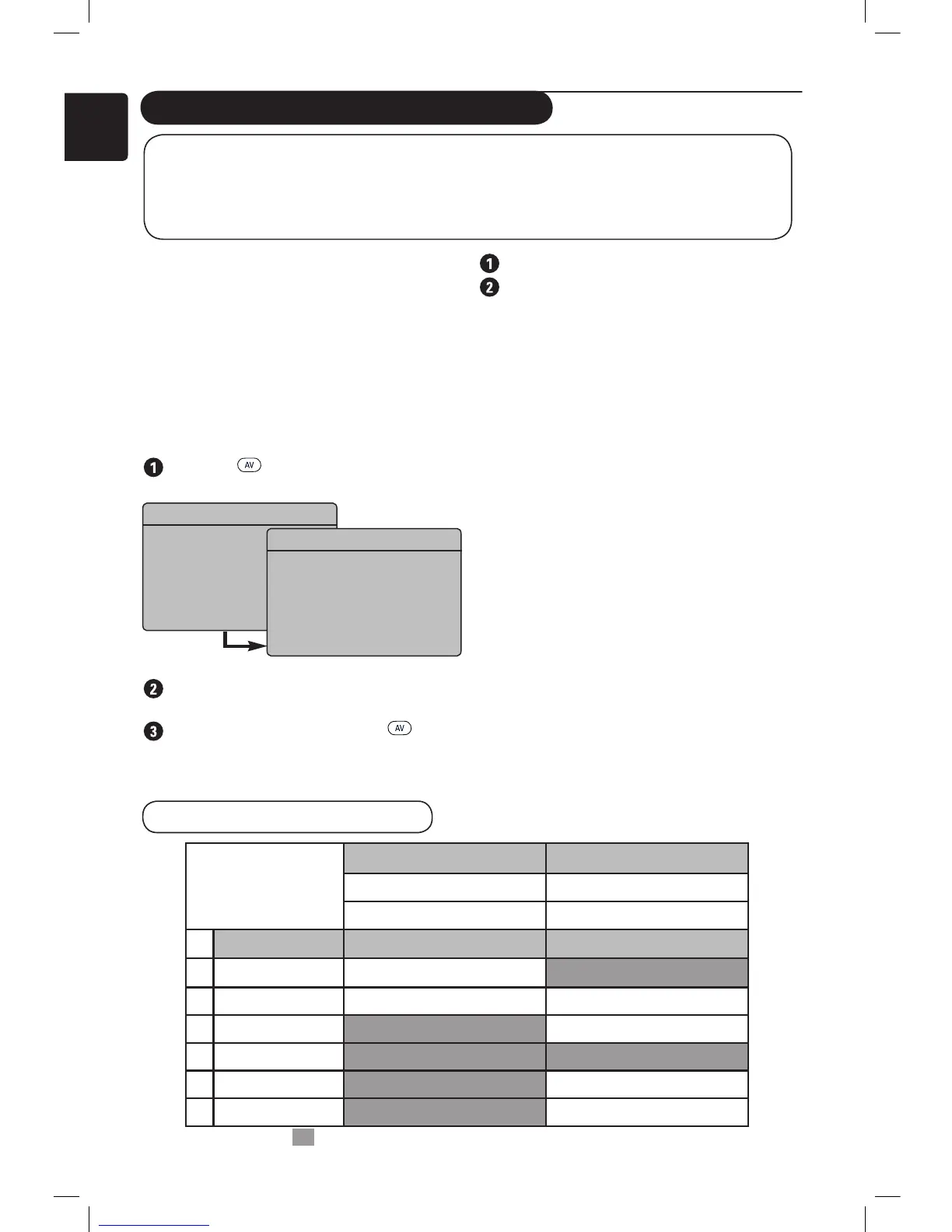
Choosing PC mode
Press the key on the remote control
to display the Source List.
Use the Î ï key to select PC. Use the Æ
key to switch the TV to PC mode.
To return to TV mode, press the key,
select TV and confirm with the Æ key.
Using the PC menus
Supported PC display format
Æ
Source
TV
EXT1
AV / SVHS
PC
HD
FM Radio
Æ
Source
TV
EXT1
AV / SVHS
PC
HD
FM Radio
Analogue and
Digital PC mode
20’/51cm 23’/58cm
4:3 16:9
VGA WXGA
Resolution
1
640 x 350
√
X
2
640 x 480
√√
3
800 x 600
X
√
4
832 x 624
XX
5
1024 x 768
X
√
6
1280 x 768
X
√
√ Supported X Not Supported





 To Next Page