UsingmoreofyourHDrecorder28
Renaming favourite lists
From the Favouritesmenu,use / to
highlight either TV channels or Radio
channelsandpress or OK.
Themenunowdisplaysthedefaultchannel
list(All TV or All Radio)andanyexisting
favourite lists.
Use / to highlight the favourite list that you
wanttorename,andpressthebluebutton.
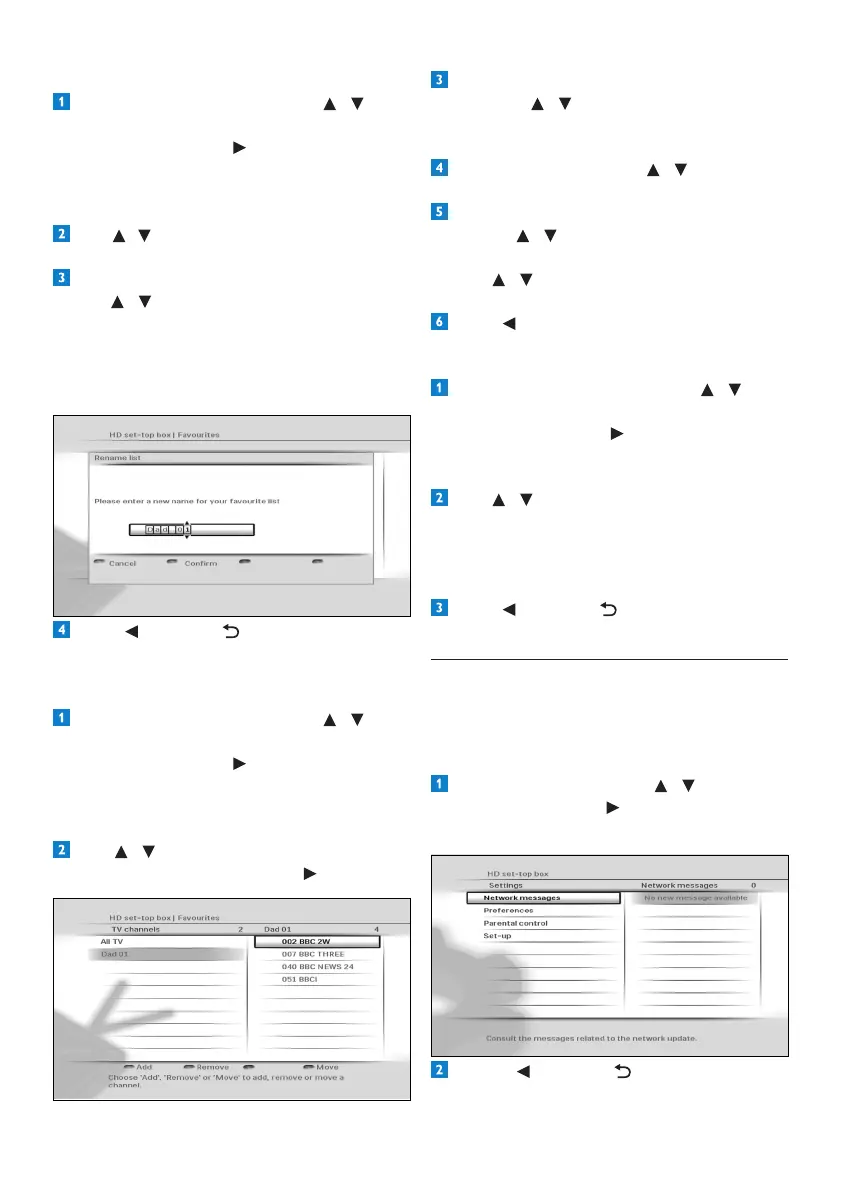
IntheRename listmenuthatpopsup,
use / or the numberbuttonsto
renameyourfavouritelist.Pressthegreen
buttontoconrmorpresstheredbutton
toreturntothepreviousmenuwithout
savinganychanges.
Press or BACK toreturntothe
Favouritesmenu.
Modifying/Editing favourite lists
From the Favouritesmenu,use / to
highlight either TV channels or Radio
channelsandpress or OK.
Themenunowdisplaysthedefaultchannel
list(All TV or All Radio)andanyexisting
favourite lists.
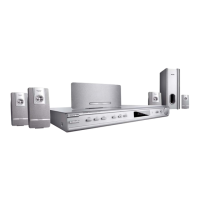
Use / to highlight the favourite list that
youwanttomodify,andpress or OK.
Toaddachannel,presstheredbutton.
Thenuse / tohighlightthechannelyou
wanttoaddandpressOK. Press the green
buttontosaveyourchanges.
Toremoveachannel,use / to highlight
itandpressthegreenbutton.
Toreorderthechannelsinyourfavourite
list,use / tohighlightachannelyouwant
tomoveandpressthebluebutton.
Use / tomovethechannelupordown
andpressOK.
Press toreturntotheFavouritesmenu.
Deleting favourite lists
From the Favouritesmenu,use / to
highlight either TV channels or Radio
channelsandpress or OK.Themenu
nowdisplaysthedefaultchannellist(All TV
or All Radio)andanyexistingfavouritelists.
Use / to highlight the favourite list that
youwanttodelete,andpressthegreen
button.Amessageappearsaskingyouto
conrm.Ifyouaresure,pressthegreen
button;ifnot,presstheredbutton.
Press or BACK toreturntothe
Favouritesmenu.
5.4.2 Using the Settings menu
You use the Settingsmenutocustomiseyour
HDrecorder.Forexample,youcanlockcertain
channels,changedisplaysettings,etc.
Accessing the Settings menu
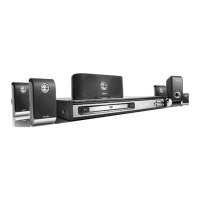
From the Mainmenu,use / to highlight
Settingsandpress or OK.
TheSettingsmenuappears.
Press or BACK toreturntothe
Mainmenu.





 To Next Page