UsingmoreofyourHDrecorder30
Digital output
• HDMI output resolution - Use this to
settheHDMIvideoresolutionto576i,
576p, 720p, 1080i, 1080p,Auto (default)
or Original.Notethatyoucanalso
changethissettingusingtheRESbutton
onthefrontpanelofyourHDrecorder.
• Audio capabilities on HDMI - Use this
tosettheHDMIaudioformattoPCM
(default)orAuto*.
• Audio capabilities on S/PDIF - Use this
tosettheS/PDIFaudioformattoPCM
(default)orDolby Digital*.Youcanalso
set this to Not connected.
• Easy Link mode - For future use.
• TV format - Use this to set the format
ofthehigh-denitionvideothatisoutput
ontheHDMI connectorofyourHD
recorder.Youcansetthisto16/9 Pillar
Box (default), 16/9 Full Screen or 16/9
Zoom.Theseoptionsdeterminehow
standard(4:3)programmesshowona
TVwithaspectratioof16:9.Notethat
youcandirectlychangethissettingusing
the picture formatbutton onyour
remotecontrol.
*TheAutoandDolby Digitalsettingson
HDMIorS/PDIFarenotrecommendeduntil
yourHDrecorderhasbeenupdatedwiththe
appropriate software.
Visitwww.philips.com/supportregularlyto
checkiftherelevantsoftwareupdateisavailable.
Automatic eco mode
Use this to set the time after which your
inactiveHDrecorderautomaticallyenters
intotheactivestandbymode.Youcanset
this to off, 3 hours (default),4 hours,
5 hours, 6 hours,7 hours or 8 hours.
Return channel
UsethistocongureyourHDrecorder
toconnecttotheinternet,whichthen
servesasareturnchanneltoyourDigital
TVserviceprovider.Thereturnchannelis
necessarytouseanyinteractiveapplications
thatyourDigitalTVserviceprovidermay
offer.Beforeconguringthereturnchannel,
besuretoconnectyourHDrecorderto
yournetworkrouterusinganEthernet
cable.ThenchooseeitherDHCP to set up
yourconnectionautomaticallyormanually
enteralltheparameterslikeIP address,
Network mask,GatewayandDNS
settingstomatchyourrouter’ssettings.
Default volume
Usethistosetthedefaultvolumeatwake-
upofyourHDrecorder.
Recording auto deletion
Whenyouselectaprogrammetorecord,
yourHDrecordercheckswhetherthere
isenoughdiskspacetorecordit.Ifthe
diskisnearlyfull,yourHDrecorderwill
automaticallydeletesomeofyouroldand
unprotectedprogrammestomakespacefor
thenewprogramme.Usethissettingtoturn
offoron(default)thisfeature.
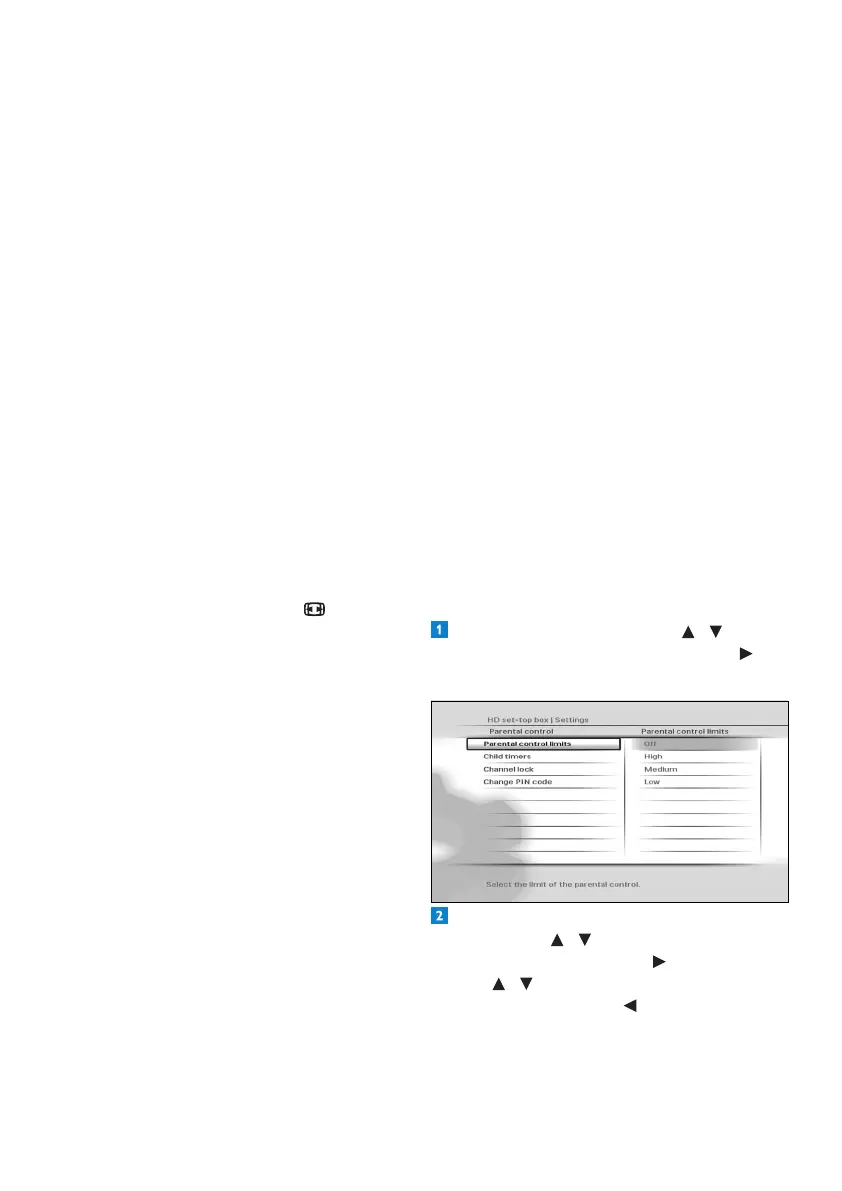
Changing parental control settings
From the Settingsmenu,use / to
highlight Parental controlandpress or
OK.TheParental controlmenuappears.
Tochangetheparentalcontrolseverity
settings,use / to highlight Parental
control limits,andpress or OK.
Use / to highlight the severity level you
wanttoset,andpress or OK to save your
changesandreturntothepreviousmenu.
Note that if you set the Parental control
limits to Off,thechildtimersandchannel





 To Next Page