16
Chapter 2—Using the remote control
WHICH BUTTONS CAN BE PROGRAMMED?
Direct-access buttons, Left and Right buttons, and buttons on the touchscreen
can all be programmed. You can set the direct-access and Left/Right buttons to
always perform the same function. Or, you can program them to perform
different functions depending on the device. For instructions, see “To program
a button globally” on page 37.
Getting started
To turn the display on
•
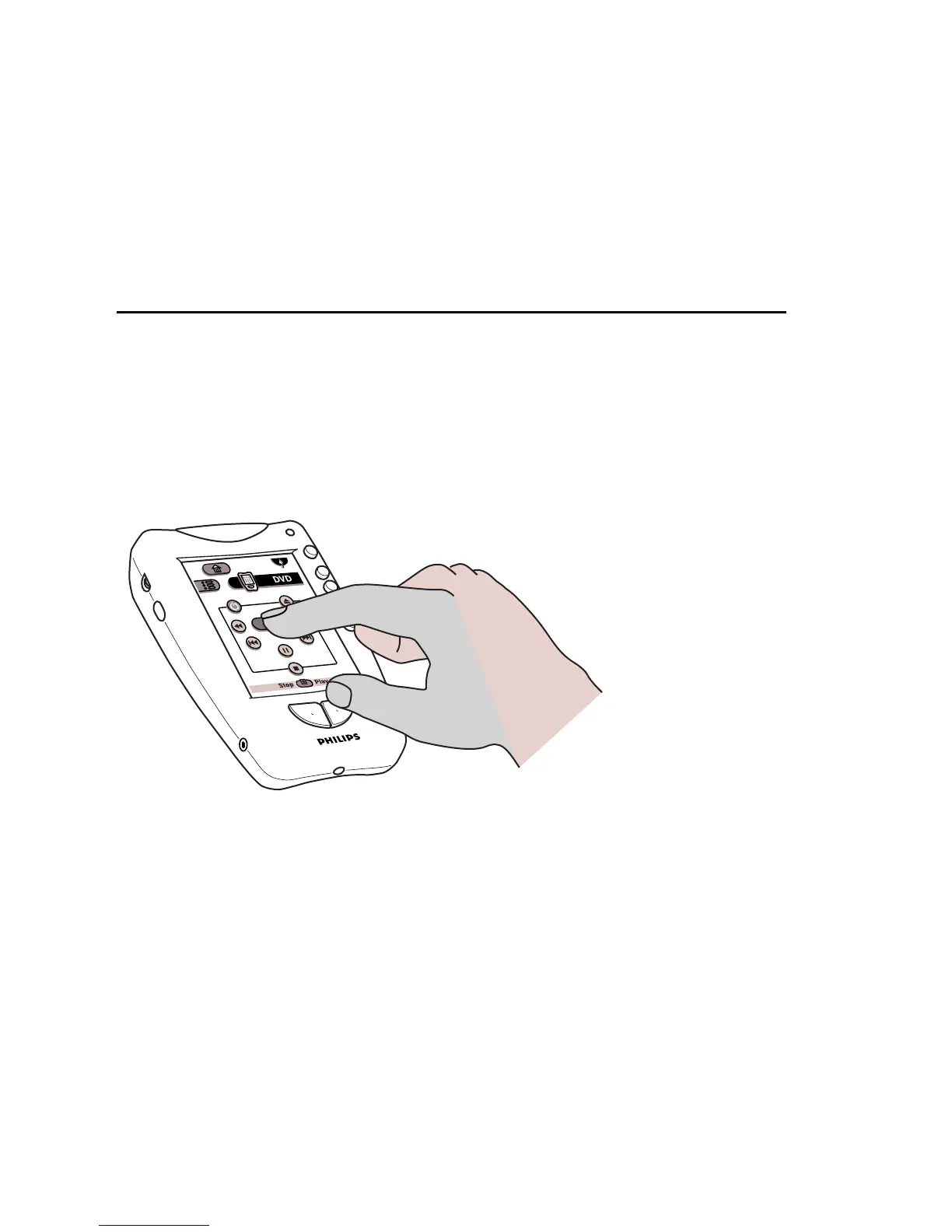
Touch the screen with your finger, then let go.
This is called
tapping
the screen.
NOTE
There’s no need to turn the remote control off. The display shuts off
automatically a few seconds after you stop using the remote control. To change
how long the display stays on, see Chapter 5, “Settings.”
When the remote control is new, it displays the first panel of Home. From
Home, you can choose devices to control; for more information, see “Home”
on page 18. (If your dealer or installation technician has configured the remote
control, you might see a different screen when you turn on the display.)
Gently tap anywhere
on the touchscreen to
turn on the display.


 To Next Page