38
Chapter 3—Customizing the remote control
2 Complete steps 2 through 6 of the instructions in “To program a button
on the display (soft button)” on page 31. Instead of pressing a button on
the display, press the button you want to program.
When you press a button in Learn mode, the name of the button, such as
chan+
or
left
, flashes on the display.
If you encounter problems, refer to “Troubleshooting” on page 33.
As long as you’re in Learn mode, you can continue to program other buttons.
3 When you’re done, return to Use mode to test the new commands: Tap
to open the Mode menu, and then tap .
4 (Optional) If you programmed the Left and Right buttons, give them new
labels.
To program a direct-access button on a per-device basis
You program a button on a per-device basis by making sure the device’s control
panels are displayed before teaching the command to the button. To program a
button on a per-device basis:
1 Switch to the device for which you want to program the button.
2 Complete steps 2 through 6 of the instructions in “To program a button
on the display (soft button)” on page 31. Instead of pressing a button on
the display, press the button you want to program.
When you press a button in Learn mode, the name of the button, such as
chan+
or
left
, flashes on the display.
If you encounter problems, refer to “Troubleshooting” on page 33.
As long as you’re in Learn mode, you can continue to program other buttons on
a per-device basis. Use the Device menu to change the active device.
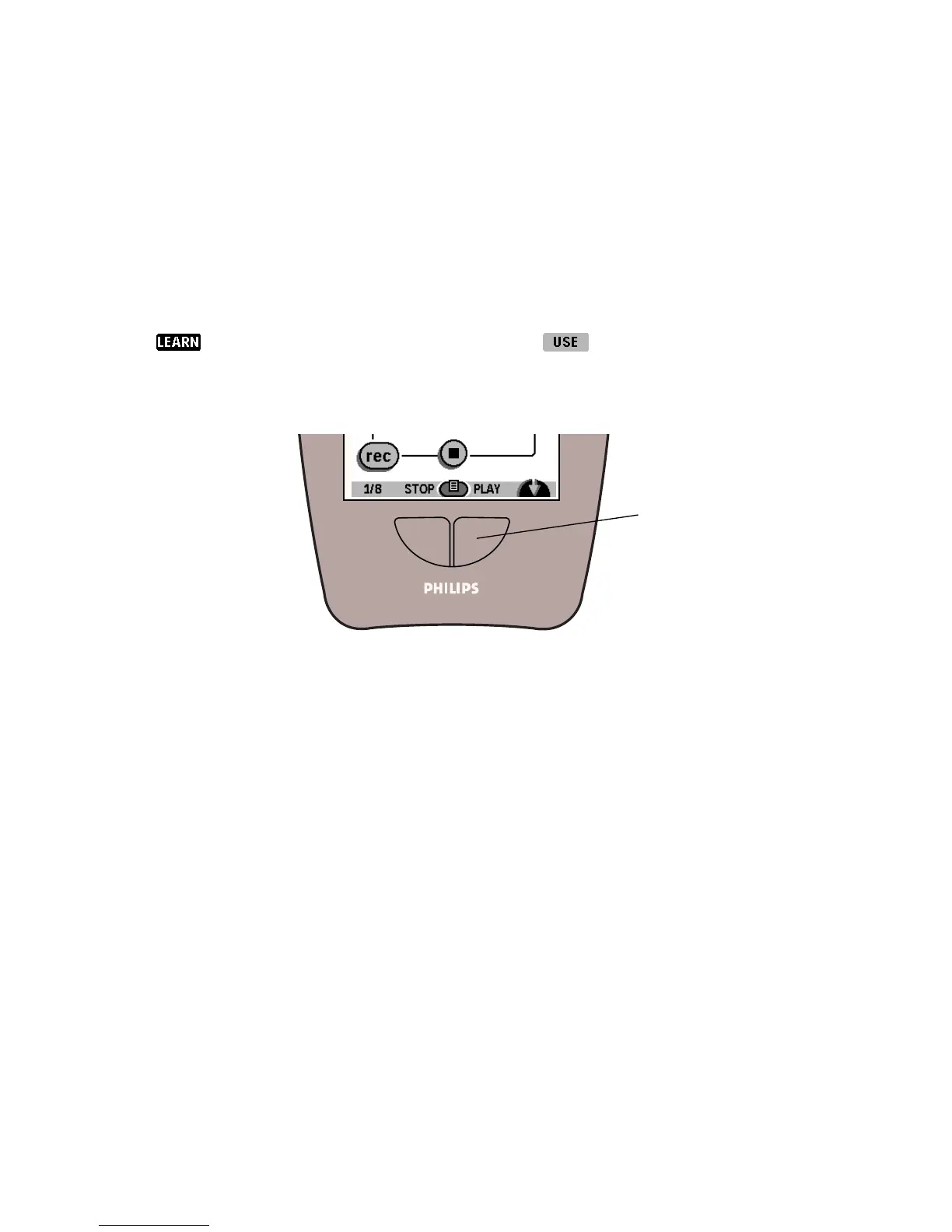
You can relabel the
Left and Right
buttons; see “To
relabel a button” on
page 41.


 To Next Page