10 EN
Use the screen
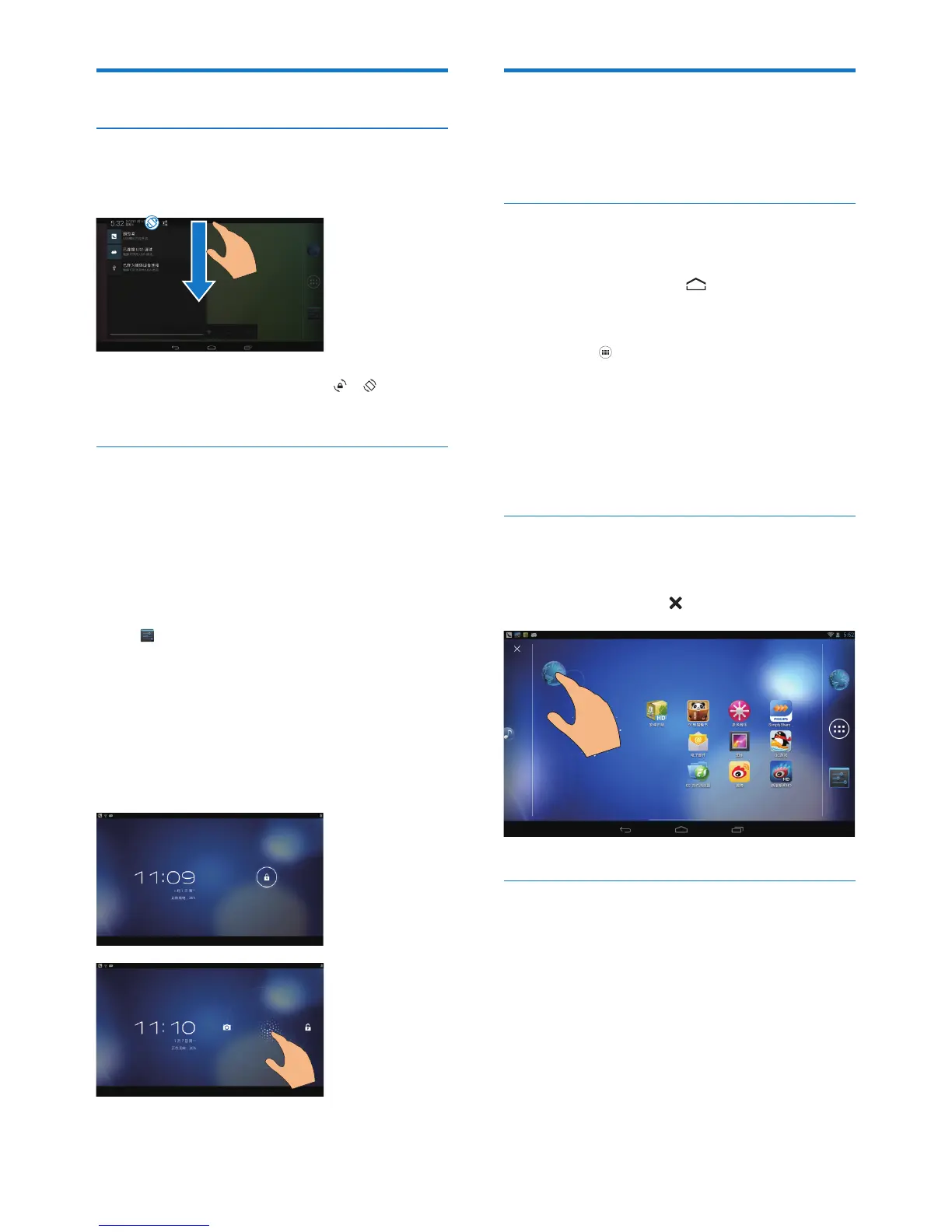
Switch screen rotation on or off
1 Drag down the top bar.
2 In the pull-down menu, tap / to
switch screen screen rotation on or off.
Lock/ unlock the screen
By locking the screen, you can lock all the
touch controls on the screen. Thus, undesired
operations are prevented.
Auto lock
After a time duration, the screen dims and is
locked automatically. To set the time duration,
go to > Display > Sleep.
To lock the screen manually
• Press the power/ lock button.
To unlock the screen
1 If necessary, press the power/ lock button
to display the lock.
2 Drag the lock to an icon.
Customize the Home screen
To access functions quickly from the Home
screen, you can add and rearrange items.
Add application icons and widget
1 Swipe left/ right to select a page.
• If necessary, tap to return to the
Home screen.
• Make sure that the page isn't lled.
• Tap . Tap APPS or WIDGET to open
the list of apps or widgets.
2 Tap and hold an icon or widget until the
page is displayed.
» The icon or widget is added to the
selected page.
Delete items
1 Tap and hold an item to unlock.
2 Drag the item to .
Relocate items
1 Tap and hold an item to unlock.
2 Drag the item to a space on the page.
3 Release the item.
» The item moves to the space.


 To Next Page