13EN
5 Connections
Connect to the Internet
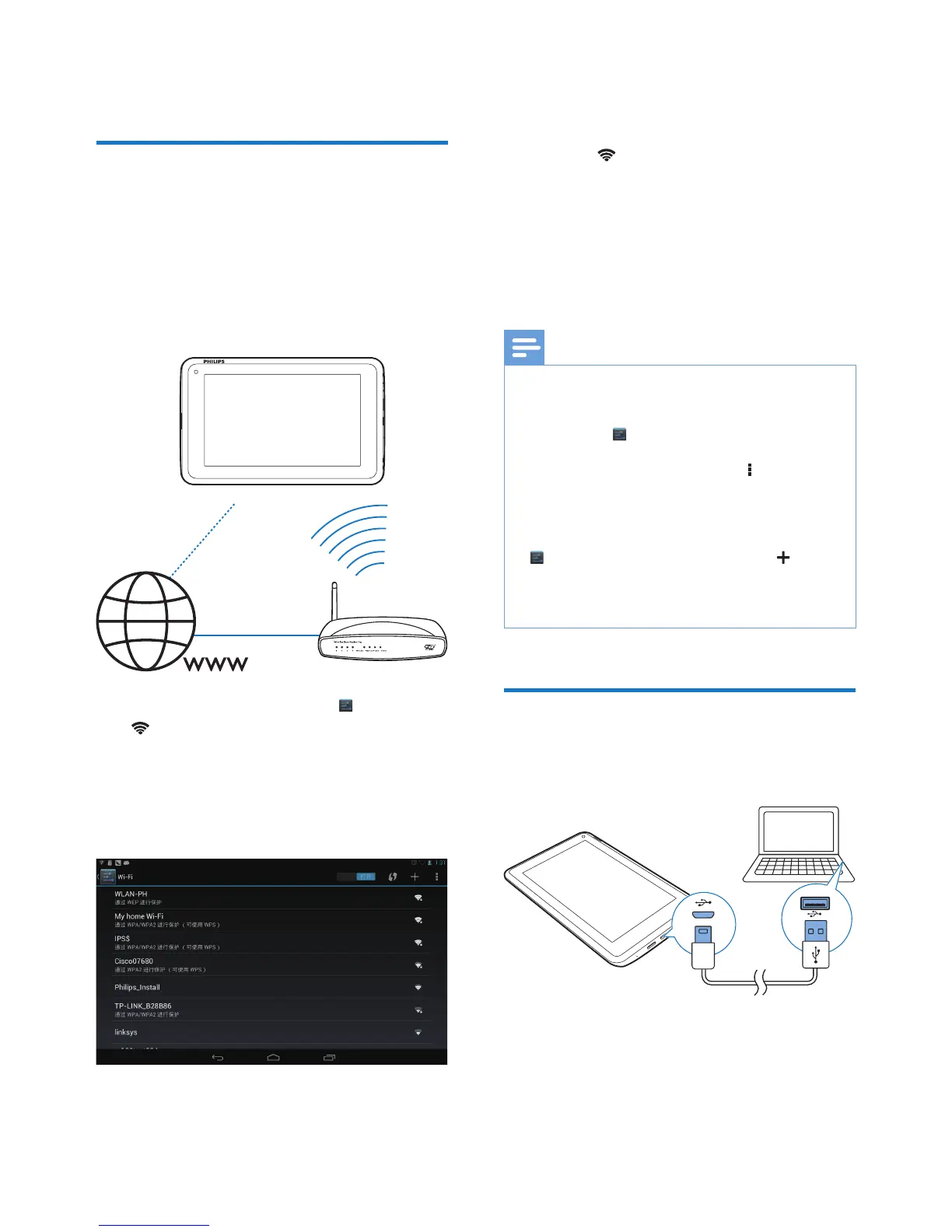
Connect Pi3100 to a wireless router (Access
Point). You can connect Pi3100 to the network
that is built around the router.
To connect to the Internet, make sure that the
router connects to the Internet directly and no
dial-up is required on the computer.
1 From the Home screen, tap Settings >
Wi-Fi.
2 Select the option to switch on the Wi-Fi
function.
» You see a list of Wi-Fi networks in
range.
3 Connect Pi3100 to a network:
a Tap to select a network.
b On the pop-up screen, enter the
password to the network.
» is displayed in the status bar
when the Wi-Fi connection is
completed successfully.
» Next time you switch on Pi3100,
Pi3100 connects to the previously
connected network automatically.
Note
• If MAC address ltering is enabled on your router, add
the MAC address of Pi3100 to the list of devices that
are allowed to join the network. To nd the Wi-Fi MAC
address, go to Settings > About tablet > Status on
the Home screen.
• To refresh the list of networks, select > Scan at the
upper-right corner of the screen.
• If you have disabled SSID broadcasting or hidden the
Service Set Identier (SSID) of the router, manually
enter the SSID or public name for the network. Go to
Settings > Wi-Fi. On the top bar, select .
• If the DHCP (Dynamic Host Conguration Protocol)
is unavailable or disabled on the router, manually enter
the IP address of Pi3100.
Connect to your PC
Connect Pi3100 to a PC through the USB
cable.
Do the following to transfer apps or media les
from your PC to Pi3100,the internal storage or
SD card:
• In Windows Explorer, drag and drop apps
or media les from your PC to Pi3100.


 To Next Page