EasyManua.ls Logo

Philips PM3350A - Plot and Print Via Rs-232 C Interface.5

Philips PM3350A
109 pages
Print Icon
To Next Page IconTo Next Page
To Previous Page IconTo Previous Page
Loading...
5
-6
S
PLOTTING
AND
PRINTING
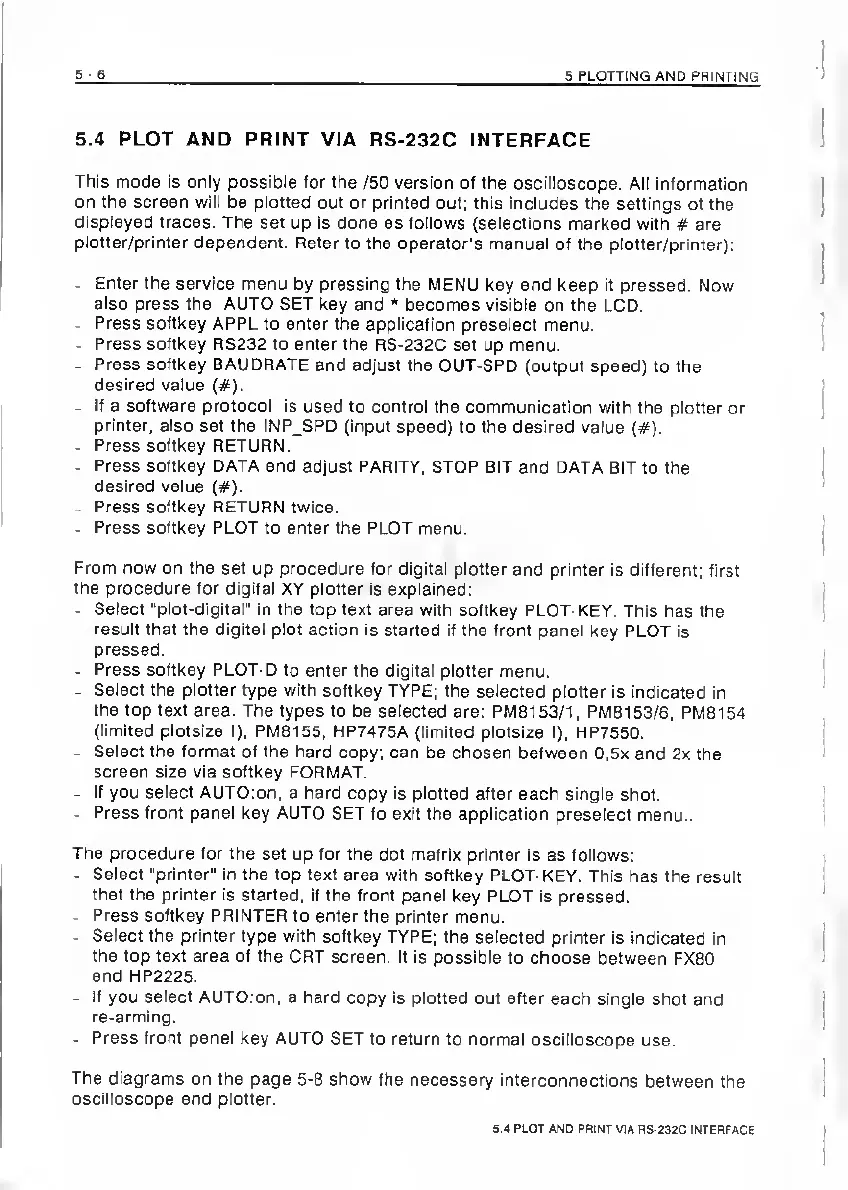
5.4
PLOT
AND
PRINT
VIA
RS-232C
INTERFACE
This
mode
Is
only
possible
lor
the
/50
version
of
the
oscilloscope.
All
Information
on
the
screen
will
be
plotted
out
or
printed
out;
this
includes
the
settings
of
the
displayed
traces.
The
set
up
is
done
as
follows
{selections
marked
with
#
are
plotter/printer
dependent.
Refer
to
the
operator’s
manual
of
the
plotter/printer):
-
Enter
the
service
menu
by
pressing
the
MENU
key
and
keep
it
pressed.
Now
also
press
the
AUTO
SET
key
and
"
becomes
visible
on
the
LCD.
-
Press
softkey
APPL
to
enter
the
application
preselect
menu.
-
Press
softkey
RS232
to
enter
the
RS-232C
set
up
menu.
-
Press
softkey
BAUDRATE
and
adjust
the
OUT-SPD
(output
speed)
to
the
desired
value
(#).
-
If
a
software
protocol
is
used
to
control
the
communication
with
the
plotter
or
printer,
also
set
the
INP_SPD
(input
speed)
to
the
desired
value
(#).
-
Press
softkey
RETURN.
-
Press
softkey
DATA
and
adjust
PARITY,
STOP
BIT
and
DATA
BIT
to
the
desired
value
(#).
-
Press
softkey
RETURN
twice.
-
Press
softkey
PLOT
to
enter
the
PLOT
menu.
From
now
on
the
set
up
procedure
for
digital
plotter
and
printer
is
different;
first
the
procedure
for
digital
XY
plotter
is
explained;
-
Select
"plot-digital"
in
the
top
text
area
with
softkey
PLOT-KEY.
This
has
the
result
that
the
digital
plot
action
is
started
if
the
front
panel
key
PLOT
is
pressed.
-
Press
softkey
PLOT-D
to
enter
the
digital
plotter
menu.
-
Select
the
plotter
type
with
softkey
TYPE;
the
selected
plotter
is
indicated
in
the
top
text
area.
The
types
to
be
selected
are:
PM8153/1,
PMB153/6,
PM8154
(limited
plotsize
I),
PM8155,
HP7475A
(limited
plotsize
I),
HP7550.
-
Select
the
format
of
the
hard
copy:
can
be
chosen
between
0,5x
and
2x
the
screen
size
via
softkey
FORMAT.
-
If
you
select
AUTO:on,
a
hard
copy
is
plotted
after
each
single
shot.
-
Press
front
panel
key
AUTO
SET
to
exit
the
application
preselect
menu..
The
procedure
for
the
set
up
for
the
dot
matrix
printer
Is
as
follows:
-
Select
"printer’'
in
the
top
text
area
with
softkey
PLOT-KEY.
This
has
the
result
that
the
printer
is
started,
if
the
front
panel
key
PLOT
Is
pressed.
-
Press
softkey
PRINTER
to
enter
the
printer
menu.
-
Select
the
printer
type
with
softkey
TYPE;
the
selected
printer
is
indicated
in
the
top
text
area
of
the
CRT
screen.
It
is
possible
to
choose
between
FX80
and
HP2225.
-
If
you
select
AUTO;on,
a
hard
copy
is
plotted
out
after
each
single
shot
and
re-arming,
-
Press
front
panel
key
AUTO
SET
to
return
to
normal
oscilloscope
use.
The
diagrams
on
the
page
5-8
show
the
necessary
interconnections
between
the
oscilloscope
and
plotter.
5.4
PLOT
AND
PRINT
VIA
flS-232C
INTERFACE

Related product manuals