EN
17
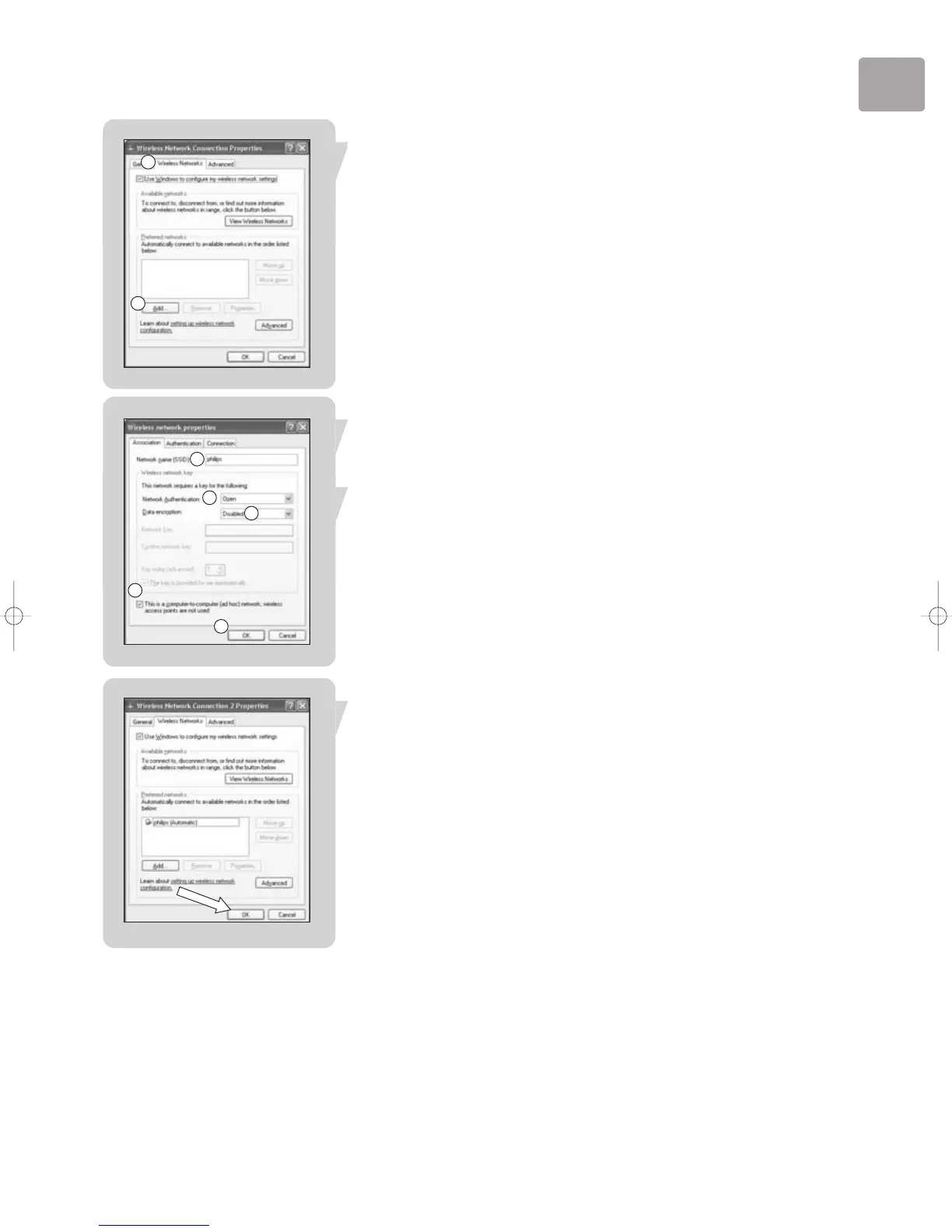
3 Select tab ‘Wireless Networks’.
In this tab you can control your wireless networks.
4 Click on button ‘Add’.
This will open the Wireless network properties window.
Note: If this list is populated, ‘Remove’ all items first.
5a Fill in a Network name (SSID) you would like for your wireless network, for
example: ‘philips’.
This is the name your streamium device will recognize.
5b Select Network Authentication ‘Open’.
5c Select Data encryption ‘Disabled’.
Note: If you want to enable WEP encryption, see details in this User Manual.
5d Mark the box next to ‘This is a computer-to-computer (ad hoc) network; wireless
access points are not used’.
6 Click on ‘OK’.
This will close the Wireless network properties window.
7 Click on ‘OK’.
This will close the Wireless Network Connection Properties window.
Improving the start up time for the SLA5520 to Computer
network (adhoc mode)
You might experience a long wait while the SLA5520 is 'searching for UPnP servers'.
You can reduce this time by running the supplied AutoIP Network Utility.
• Insert the CD-Rom.
• Select ‘TOOLS’.
• Start ‘Auto IP Network Utility’.
• Follow on-screen instructions.
Note: Do not use the Auto IP Network Utility tool if you use a wireless base station or
router in your network or if you have Internet Connection Sharing (ICS) enabled.
3
4
a
b
c
d
6


 To Next Page