EN 20
4 Use your
Soundbar
This section helps you use the
Soundbar to play audio from connected
devices.
Before you start
• Make the necessary connections
described in the quick start guide
and the user manual.
• Switch the Soundbar to the correct
source for other devices.
Turn ON and OFF
• When you rst connect the unit to
the main socket, the unit will be
in STANDBY mode. The STANDBY
indicator will light up white.
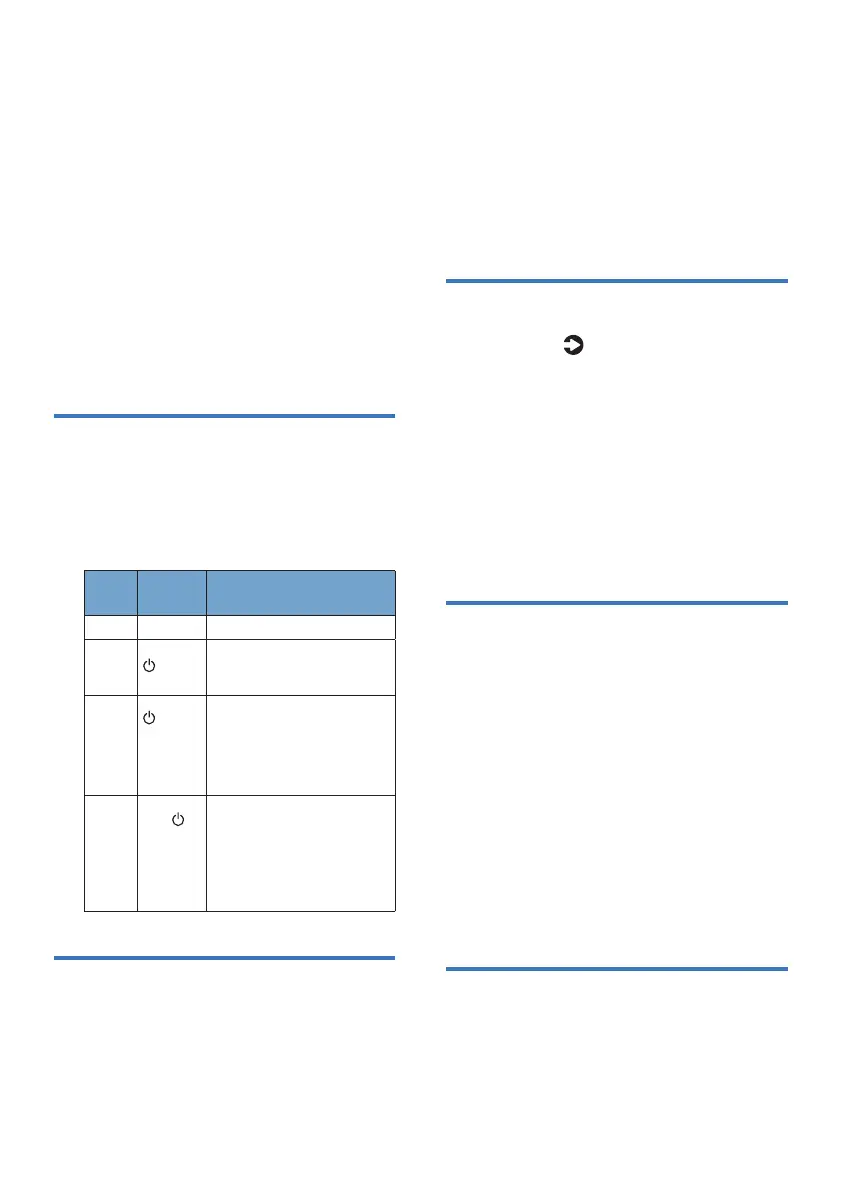
Power
State
Action Function
On
• Follow source state
Semi
Standby
Press the
button
once.
• Wi-Fi is still on.
• It still supports Airplay 2 and
Chromecast for Audio.
Eco
Standby
(Wi-Fi is
on)
Press the
button
once.
Power
LED turns
on.
• Wi-Fi is on.
• The product enters the lower
power consumption mode.
• Restarting the system will
take a relatively longer time.
Eco
Standby
(Wi-Fi is
o)
Press and
hold
button 2
seconds.
Power
LED turns
on.
• Wi-Fi is o.
• The product enters the lower
power consumption mode.
• Restarting the system will
take a relatively longer time.
Auto Standby
The unit automatically turns to Standby
mode after about 15 minutes if the TV
or the external unit is disconnected (or
USB, BT, Airplay 2 and Chromecast for
Audio function bit playback pause),
switched o.
• To switch the unit o completely,
remove the mains plug from the
mains socket.
• Please turn the unit o completely
to save energy when not in use.
Select Modes
1 Press the button repeatedly on
the unit or on the remote control
to select the eARC/ARC, OPT, AUX,
USB, BT, HDMI 1, HDMI 2 mode.
» The selected mode will show on
the display.
» Airplay 2 and Chromecast for
Audio is not an optional source.
Need to be directly controlled
by APP.
Adjust the Volume
Adjust Soundbar and Subwoofer
Volume
1 Press Vol+/Vol- (Volume) to
increase or decrease a volume level.
• To mute sound, press Mute.
• To restore the sound, press
Mute again or press Vol+/Vol-
(Volume).
While adjusting the volume of
Soundbar, the volume of Subwoofer will
be adjusted at the same time.
Dolby sound mode
Experience an immersive audio
experience with Dolby sound modes.


 To Next Page