EasyManua.ls Logo

Phonak Roger Table Mic - User Manual

Phonak Roger Table Mic
22 pages
Print Icon
To Next Page IconTo Next Page
Loading...
www.phonak.com
Phonak Communications AG
Laenggasse 17
CH-3280 Murten
Switzerland
7 613275 461518
User Guide
029-4004-02/V1.00/2016-01/SH © Phonak AG All rights reserved
Roger Table Mic

Other manuals for Phonak Roger Table Mic

Questions and Answers

  • W
    wallacecolinJul 26, 2025
    What to do if the volume of my multimedia device is too low on my Phonak Hearing Aid?
    • R
      rodney17Jul 26, 2025
      If the volume of your multimedia device is too low, the volume settings may be incorrect. Increase the volume of the audio source.
  • C
    Christopher MilesJul 31, 2025
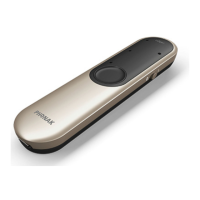
    What to do if my Phonak Roger Table Mic remote control is not responding?
    • L
      Lindsey YoungJul 31, 2025
      If the remote control for your Phonak Hearing Aid isn't responding, the battery may be empty or have a low charge. Replace the battery with a new one (type CR2032). Also, charge Roger Table Mic as soon as possible.
  • C
    Christian Thompson Jr.Aug 4, 2025
    Why does my Phonak Hearing Aid keep losing the audio signal?
    • Y
      Yesenia ValdezAug 4, 2025
      Your Phonak Hearing Aid might be losing the audio signal due to a software issue. Reboot Roger Table Mic by simultaneously pressing the on/off and Connect button. Also, the distance between Roger Table Mic and Roger receiver may be too large, or there might be obstacles. Try moving closer to Roger Table Mic and make sure there's a clear line of sight between you and Roger Table Mic.
  • K
    Kyle McfarlandAug 8, 2025
    What to do if my Phonak Hearing Aid Roger Table Mic has stopped working?
    • S
      Selena CombsAug 8, 2025
      If your Roger Table Mic has stopped working, it might be due to a software issue. To resolve this, reboot Roger Table Mic by simultaneously pressing the on/off and Connect button.
  • J
    Jennifer HermanAug 12, 2025
    Why I cannot hear my multimedia device using my Phonak Hearing Aid?
    • M
      Michelle GreenAug 13, 2025
      If you cannot hear your multimedia device, it could be due to several reasons: the audio source might be muted, Roger Table Mic might be muted, or Roger Table Mic might be using the audio cable but is not switched on. Unmute the audio source, unmute Roger Table Mic, and switch on Roger Table Mic to listen to the audio source via the audio cable.
  • C
    Candice MccormickAug 16, 2025
    How to connect my Phonak Hearing Aid Roger Table Mic with another Roger microphone due to software incompatibility?
    • S
      Sandra MooreAug 16, 2025
      If you are unable to connect your Roger Table Mic with another Roger microphone due to software incompatibility, upgrade all your Roger microphones using the Roger Upgrader available on the Phonak website or contact your local Phonak dealer.
  • K
    Kyle PrinceAug 21, 2025
    Why is my Phonak Hearing Aid Roger Table Mic blinking blue?
    • M
      Matthew BrownAug 21, 2025
      If Roger Table Mic is switched on but its light is blinking blue, Roger Table Mic was part of a network. Press the connect button on Table Mic.

Summary

2. Getting to Know Your Roger Table Mic

3. Getting Started

3.2 Charging Roger Table Mic

Steps for charging the Roger Table Mic using the supplied charger and understanding charging status.

3.6 Connecting a Receiver

Steps to pair a Roger receiver with the Roger Table Mic.

3.7 Connecting the Remote Control

Procedure for pairing the remote control with the Roger Table Mic.

4. Using Roger Table Mic

5. Adding Additional Microphones

6. Special Functions

7. Troubleshooting

8. Important Information

8.1 Important Safety Information

General safety precautions and disposal guidelines for the device.

8.2 Hazard Warnings

Specific warnings regarding device handling, repair, and usage environments.

8.3 Product Safety Information

Guidelines for protecting the device from damage, proper charging, and cable usage.

Phonak Roger Table Mic Specifications

General IconGeneral
TypeMicrophone
TechnologyRoger technology
Microphone TypeOmnidirectional
Charging Time3 hours
CompatibilityCompatible with Roger receivers and hearing aids
ConnectivityWireless
ChargingUSB
Operating ModesAutomatic, Manual
Operating RangeUp to 20 meters

Related product manuals