2. Unplug the scanner’s USB cable from the rear of the computer.
3. From the Windows START menu, click on [Programs] and then [Plustek
USB Scanner]. In the pop-up menu that opens, click on [Uninstall USB
Scanner]. Follow the on-screen instructions to remove all the scanner
software.
4. After uninstallation completes, close all open applications and click the
[Finish] button to restart your computer.
5. Start installing your Windows XP upgrade software by following Microsoft’s
related procedures.
6. When the Windows XP upgrade is done, re-install the scanner’s hardware
and software. Refer to the scanner setup quick guide for details.
Attention
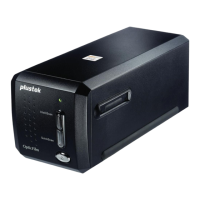
It is strongly suggested NOT to use WIA to control the film scanner.
Please use bundled software (e.g., SilverFast, QuickScan) to operate
the film scanner.
Attention
This scanner is designed and manufactured strictly in compliance
with USB 2.0 High Speed and Full Speed specifications.
Should you encounter scanning problems with this scanner on
Windows 98/Me whereas you have also recently upgraded the
computer hardware to include USB 2.0 High Speed support, it is very
probably resulted from the compatibility between the operating
system and the USB 2.0 chipset on mother boards or interface cards
due to Microsoft's lack of USB 2.0 support in Windows 98/Me.
To rectify the problem, you are recommended to buy an additional
compatible card or upgrade your operating system to Windows
XP/2000.
Attention
Please do not use multiple USB scanners in Windows XP
simultaneously! For more information, please refer to the following
URL.
http://support.microsoft.com/default.aspx?scid=kb;en-us;324756
9









 To Next Page