U
U
s
s
i
i
n
n
g
g
I
I
n
n
t
t
e
e
l
l
l
l
i
i
S
S
c
c
a
a
n
n
b
b
u
u
t
t
t
t
o
o
n
n
The IntelliScan button enables you to activate bundled SilverFast SE 6, which
performs advanced scan features, such as Dust and Scratch Removal, Grain and Noise
Elimination, Negative Optimization…etc.
Attention
For detailed settings and features about SilverFast SE 6, please refer
to SilverFast SE 6 User’s Manual.
U
U
s
s
i
i
n
n
g
g
Q
Q
u
u
i
i
c
c
k
k
S
S
c
c
a
a
n
n
b
b
u
u
t
t
t
t
o
o
n
n
The QuickScan button enables you to conveniently scan images and save them
automatically to the album, and send them to the NewSoft Presto! PageManager
program to perform other image editing tasks.
QuickScan setting
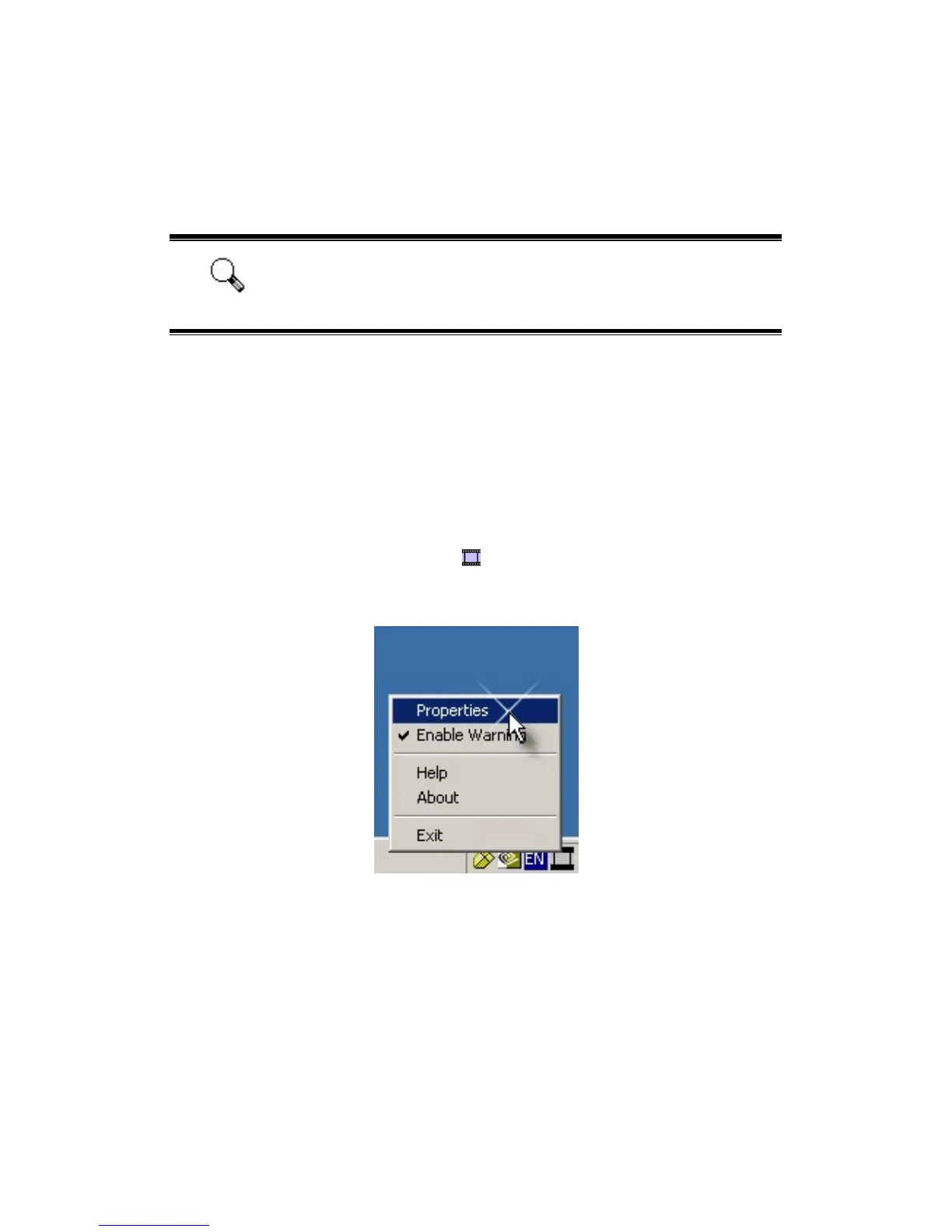
1. Double click on the QuickScan icon located on the Windows system tray, or
right click on the QuickScan icon
, and from the menu that pops up, point to
[Properties].
2. Preference settings
14









 To Next Page