-14-
CONNECTING THE PHONE TO THE DRONE - via WiFi network of the drone
WiFi Name: DR-Eagle_Wifi_XXXXXX
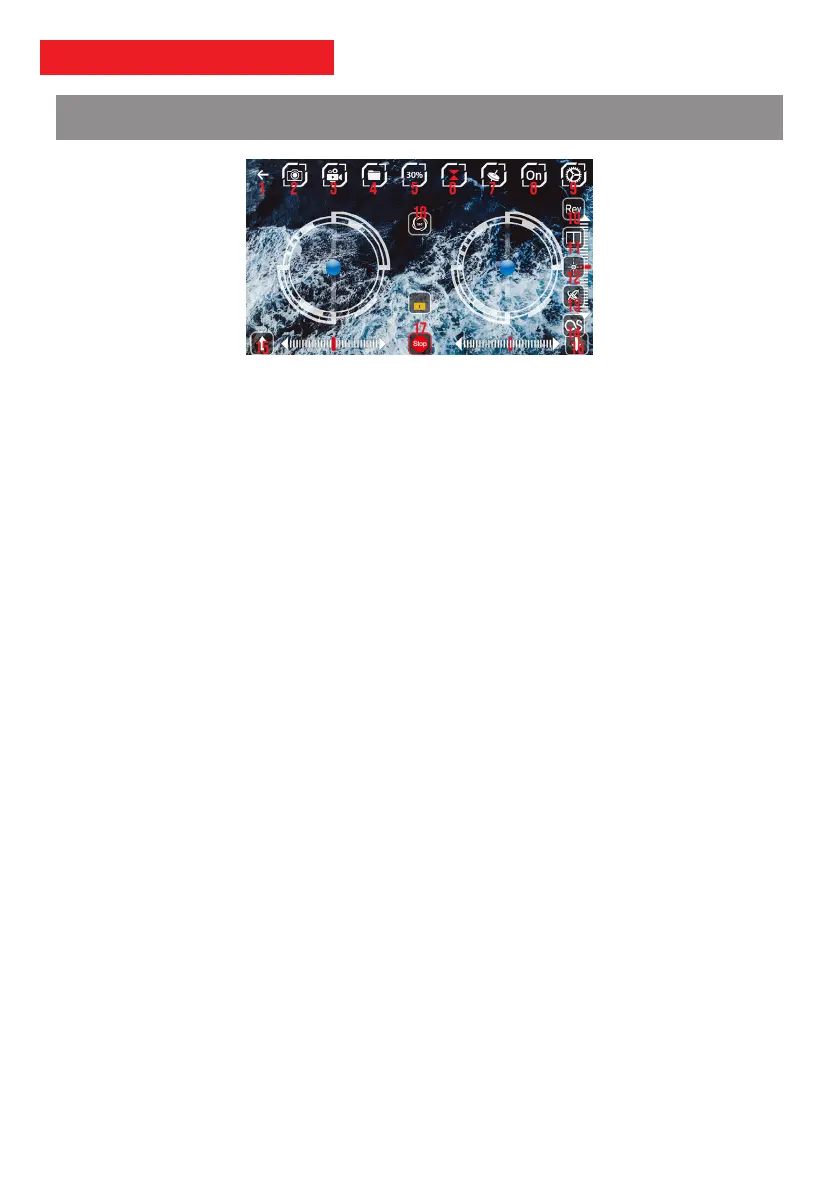
app - Control interface
Orders:
Activation of functions 6 and 8 is required in order to control the drone via the mobile application.
1. Back
2. Taking a photo: Touch to start taking a photo. The photo will be saved directly to your mobile.
3. Video recording: Touch to start / stop a video recording, a counter is triggered under the icon.
4. Gallery (smarphone): View photos and videos saved on the smartphone.
5. Shift: Touch to change flight speed (3 different speeds: Slow, Medium and Fast). The needle indicates the selected
speed level.
6. Altitude Hold: The drone maintains its altitude automatically. Displays the 15/16/17 functions (required).
7. Tilt Control: Refer to "Tilt Control" on page 17.
8. Show / Hide Control Interface: Displays touch joysticks, trimmers and functions 15 and 16.
9. Show / Hide Settings Menu: Displays additional functions: 10/11/12/13/14.
10. Inverting the screen: Touch to reverse the screen, touch again to exit.
11. VR Mode - Immersion Control: Touch this button to divide the screen in half to use a VR smartphone headset
(optional). Touch the icon again to exit.
12. CF Mode: Enables / Disables CF Mode. Refer to "CF Mode" on page 9.
13. Gyroscopic Calibration: Recalibrates the drone's gyro, refer to "Calibration" on page 10.
14. Flight Path: Program a flight path for the drone intuitively (drawing with your finger).
15. Automatic take-off: Touch to activate the automatic take-off.
16. Auto landing button: Touch to activate auto landing.
17. Emergency stop button: Touch to immediately shut down the drone's engines.
18. Flip 360˚: Touch the icon and move the right touch joystick to the desired direction to make a Flip 360˚. Refer to
"Flip 360 °" on page 10.
Note: In the event of an update to the PNJ VISION mobile application, some of the above explanations may become
obsolete. Please refer to the help menu of the application, available from the main menu.



 To Next Page