R38-300 Series v2.2 TelNet OfficeEdge Complete Reference Guide | 1 |
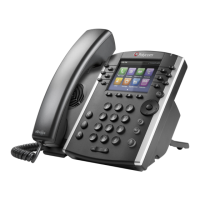
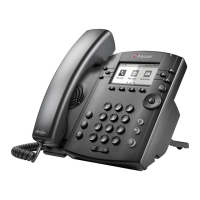
TelNet OfficeEdge℠ Complete | Polycom VVX300 Series IP Phone .
Reference Guide.
IP Phone/Calling Features • Voicemail
Dialing
To dial phone number or extension
Lift your handset and dial the phone number, (OR, with
handset on-hook, dial number and press Dial or press
Speakerphone button ). For:
• Local call – dial the 7-digit local number
• Long distance – dial the 10-digit phone number
(area code + local number)
• International – dial 011 + country code + city code
+ number
• Internal extension – dial the 4-digit extension
To Speed Dial – (requires set up)
1) Press 1-digit code, or # plus 2-digit code assigned to the
number you want to dial.
2) Then lift handset, press Speakerphone button or press
Dial.
NOTE: If authorization codes are assigned to your phone,
you may be prompted to enter a code to complete the
call.
Phone Guide
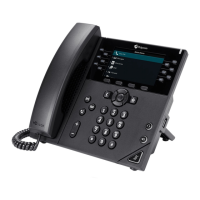
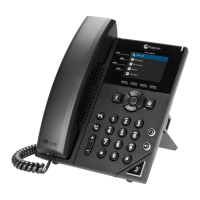
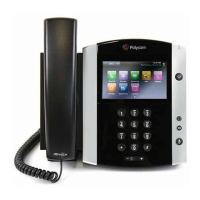
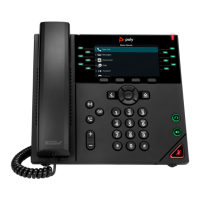
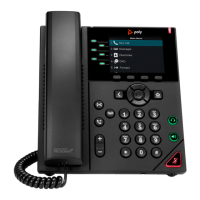
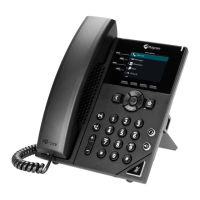
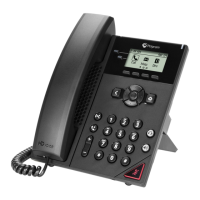
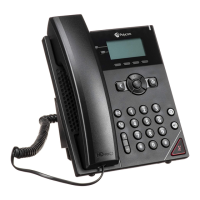
Polycom VVX300 Series model phones
Main Keys
Home
Headset
Mute
Speakerphone
NOTE: Be sure to use a surge protector with your phone.
Your Phone Calling Features
Phone Views
Your phone has four main Views: Home, Calls, Active Call,
and Lines View (the default).
To change Views
• For Home View, press .
• Press again to alternate between Home and
Lines View.
NOTE: If your phone is idle, you can access Home and
Lines view. If your phone has multiple calls, or one held
call, you can access Home, Lines and Calls view.
Home View
Home View displays icons you can select to access phone
functions.
• You can use the right or left arrow keys to display
more icons.
Lines View
Lines View displays your phone Lines, monitored Lines (if
enabled), Favorites, and soft keys.
If your phone is idle, you can:
• Press a Line key to access the dialer.
• Press a monitored Line or Favorite to call that number.
A monitored line (BLF Key) will show a flashing green
bar if it is ringing or a solid red bar if it is on a call.

 Need help?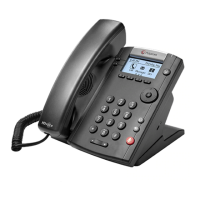



 To Next Page
 General