R38-300 Series v2.2 TelNet OfficeEdge Complete Reference Guide | 2 |
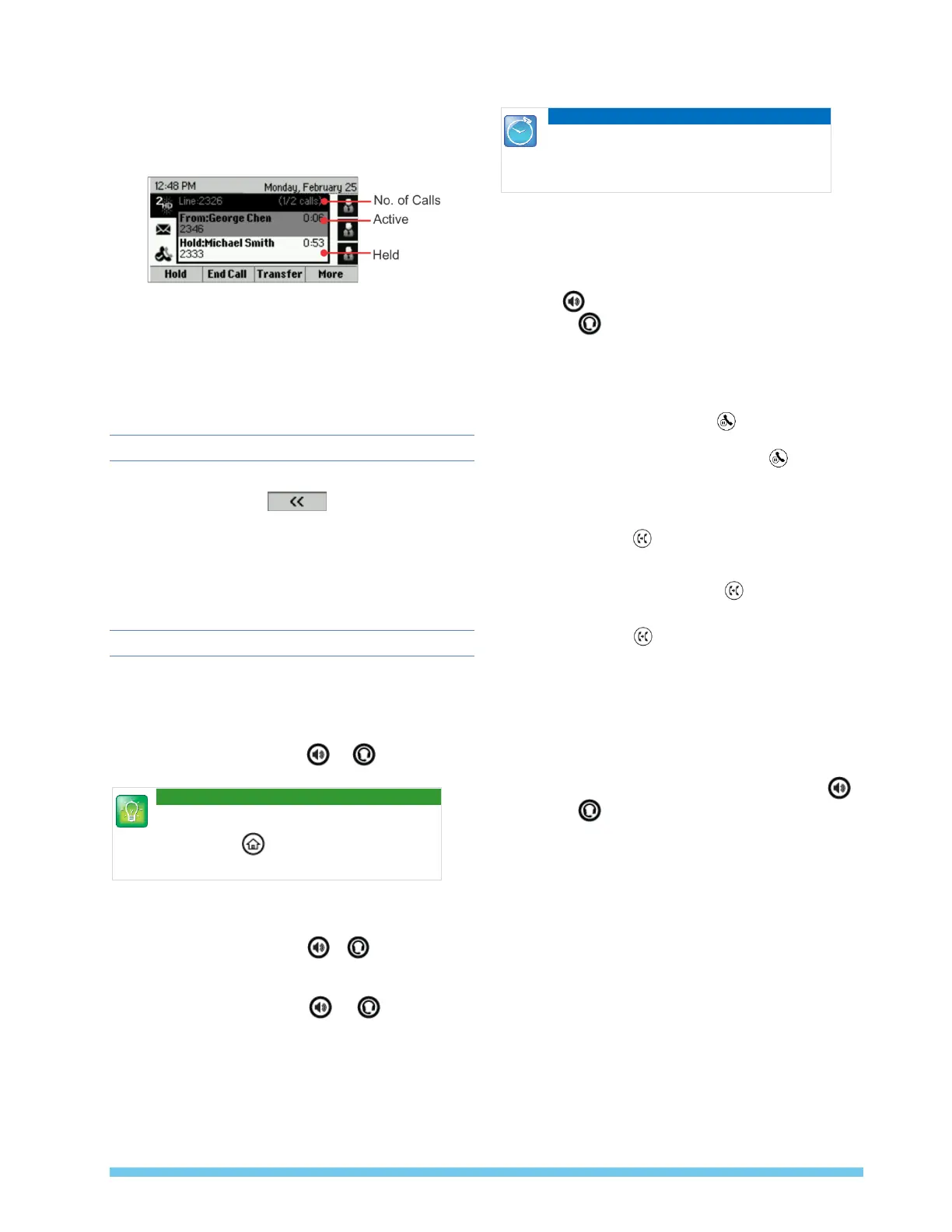
Calls View
You can access Calls View if your phone has multiple calls
in progress, or you have one held call.
Calls View displays a list of all your calls.
Call color indicates status:
• Dark gray: Active call
• Medium gray: Selected Held call
• Light gray: Held call
Use the up and down arrow keys to select a call (highlight
it). The soft keys control the highlighted call
Entering Data
Use the dialpad keys to enter information.
• To backspace, press .
• To type with the dialpad keys, press a key repeatedly
to view the character options and stop to select.
• To type other characters, press Encoding or Mode.
When using the dialpad keys, use the 1, , 0, and #
keys.
About Calls
• Only one call can be active at a time.
• You can use the handset, speakerphone, or headset
for calls.
• During a call, you can change modes by picking up
the handset, or by pressing or .
Tip Returning to Your Calls
If you navigate away from your call(s), press
home button to see Active Call or Calls
View again.
Placing Calls
1) Pick up the handset, or press or .
2) Enter the phone number, and press Send.
OR enter phone number first, then press Dial, and
pick up the handset, or press or .
• From Lines View: Press the phone line key, enter the
phone number, and press Send.
• From Home View: Select New Call using the arrow
keys/center selection button. Enter the phone
number, and press Send.
Timesaver: Placing Calls Quickly
Select a recent call, monitored line (if
enabled), or favorite, or select a contact’s
phone number in the contact directory.
Redial
• To redial the last call placed, press Redial
Answer Calls
• Press , or Answer and pick up the handset,
or press .
• To answer a new call while on an active call, press
Answer. The current call will be held.
Hold Calls
• From Calls View, press Hold or . Remember to
highlight the call first.
• To resume a held call, press Resume or again.
Transfer Calls
For an attended transfer from Calls View
1) Press Transfer or , then dial the other party and press
Send. Active call is held.
2) When you hear the ring back sound, or after you talk with
the other party, press Transfer or again.
For a blind transfer from Calls View
1) Press Transfer or , dial the other party and press
Blind, then Send to complete a transfer without waiting for
the ringback tone.
NOTE: If you hang up after hearing ring back sound, the
call will be transferred blindly/immediately without
speaking to other party.
End Calls
• To end an active call, replace the handset, press ,
or press . Or, press End Call.
• To end a held call, navigate to Calls View and
highlight the held call. Press Resume, and press End
Call.
Transfer Call direct to Voicemail
To transfer directly to voicemail
1) During a live call, press More, then VMxfr.
2) Enter the extension number and press Enter.
Park and Unpark Calls (If Enabled)
To park a live call
1) Press More, then press Park.
2) Listen to the message which identifies the extension the
call is parked to.
3) Notify the intended recipient(s) that a call is parked at
specified extension.














 To Next Page