Appendix 1: Bluetooth pairing options
16 Installation and Operation Guide
Appendix 1: Bluetooth pairing options
Every Bluetooth device must be paired to the computer that will use the
device, just as a Bluetooth headset needs to be paired to a cell phone
before it will work.
The ēno stylus must be paired with one computer that it interacts with.
Pairing only needs to occur once, and even changing the ēno stylus
battery will not un-pair the stylus from the computer. Automatic pairing is
described in Pairing the ēno
stylus and your computer on page 7.
This appendix covers alternative Bluetooth pairing scenarios:
• pairing manually with the PolyVision driver
• pairing with Windows or Apple built-in Bluetooth
• pairing with third-party Bluetooth
Pairing with the PolyVision Bluetooth adapter
The PolyVision Bluetooth adapter that is included with ēno provides
everything you need for wireless Bluetooth communication between your
whiteboard and computer.
To pair your ēno stylus with your computer:
1. Turn on your computer.
2. Plug the PolyVision Bluetooth adapter into any available USB port.
A message appears when device drivers have been installed.
3. Turn on the ēno stylus by removing the cap.
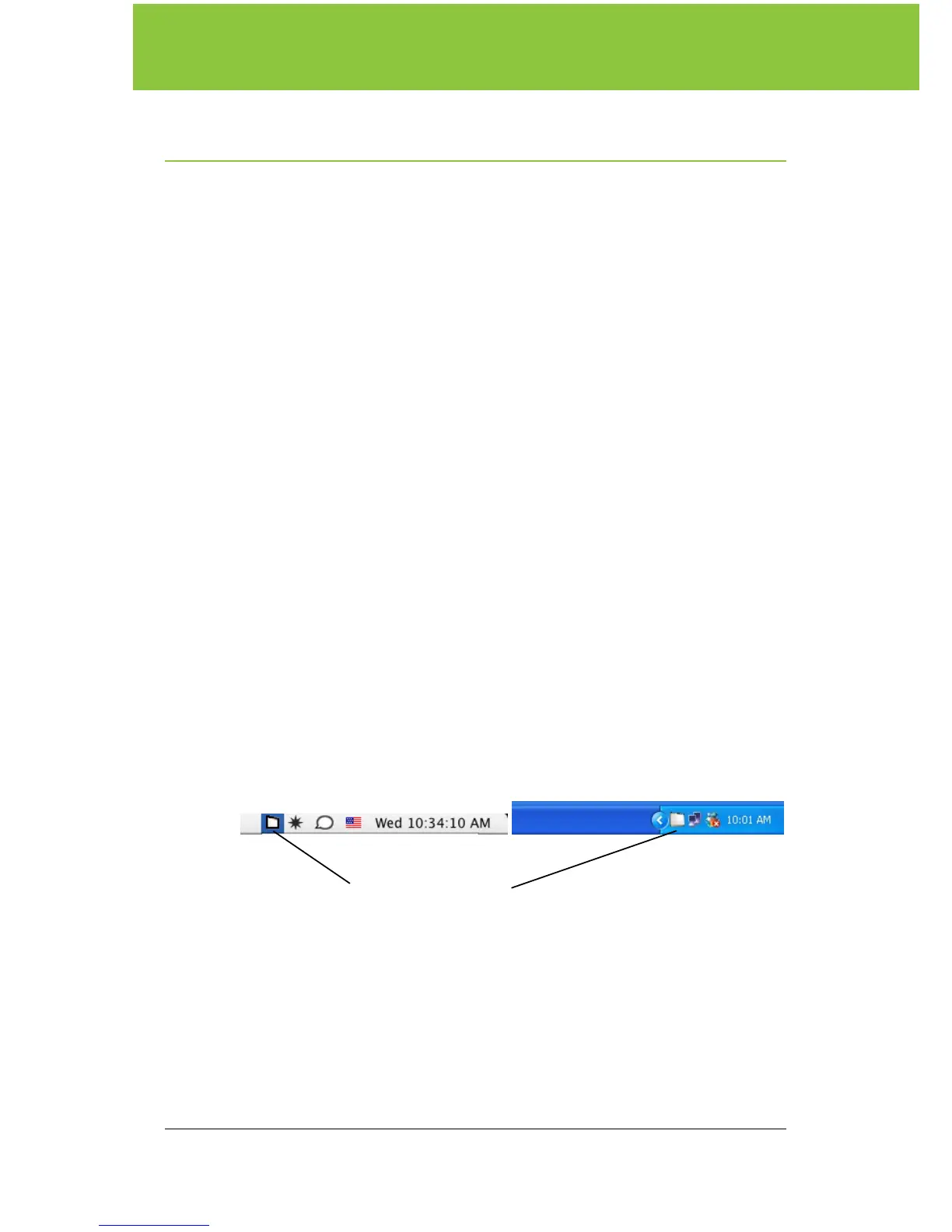
4. On your computer, click the PolyVision icon appears in your system
tray (Windows) or system menu (Macintosh).
.
5. Choose “Configure the PolyVision driver” from the menu.
6. Click the “Hardware” tab.
7. Click “Pair Stylus.” Pairing proceeds automatically for most
computers. If you have a Macintosh with operating system 10.3,
follow the prompts you see on your screen.
8. Repeat these steps to pair additional ēno styli with this computer.
PolyVision icon



 To Next Page