Preparing the ēno whiteboard for use
PolyVision 7
3. Follow the prompts you see on the screen to complete the
installation. On a Macintosh, your system automatically reboots.
When installation is complete, a message appears on your computer
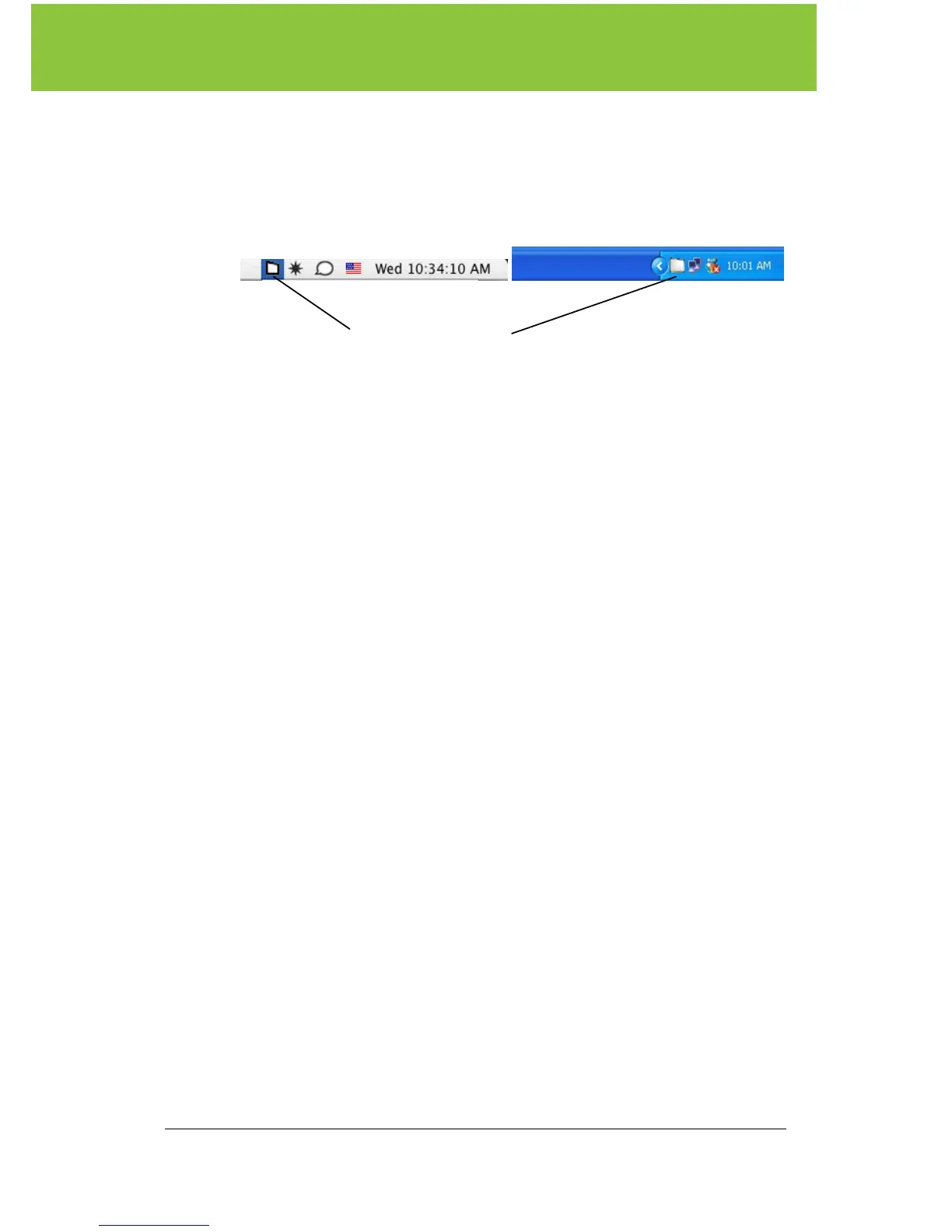
screen and the PolyVision icon appears in your system tray (Windows) or
system menu (Macintosh).
.
The PolyVision driver runs unobtrusively in the background whenever your
computer is on.
Pairing the ēno
stylus and your computer
The ēno interactive whiteboard provides wireless communication with your
computer via the ēno stylus, which is a Bluetooth device. As with all
Bluetooth devices, the ēno stylus must be paired with the computer that it
interacts with. The stylus can be paired with only one computer at a time.
PolyVision provides a USB Bluetooth adapter that automatically initiates
Bluetooth pairing with the ēno stylus. (Refer to Appendix 1 for details
about Bluetooth pairing options.)
To automatically install Bluetooth drivers and pair your ēno interactive
whiteboard stylus with your computer:
1. Turn on your computer.
2. Plug the PolyVision Bluetooth adapter into any available USB port
on your computer and leave it there.
3. When you are asked “Do you want to pair your stylus now?” turn
on the ēno
stylus by removing the cap and then click “Yes.” Pairing
proceeds automatically.
PolyVision icon



 To Next Page