Preparing the ēno whiteboard for use
8 Installation and Operation Guide
To pair your ēno stylus with your computer any time after the Bluetooth
drivers are installed on your computer:
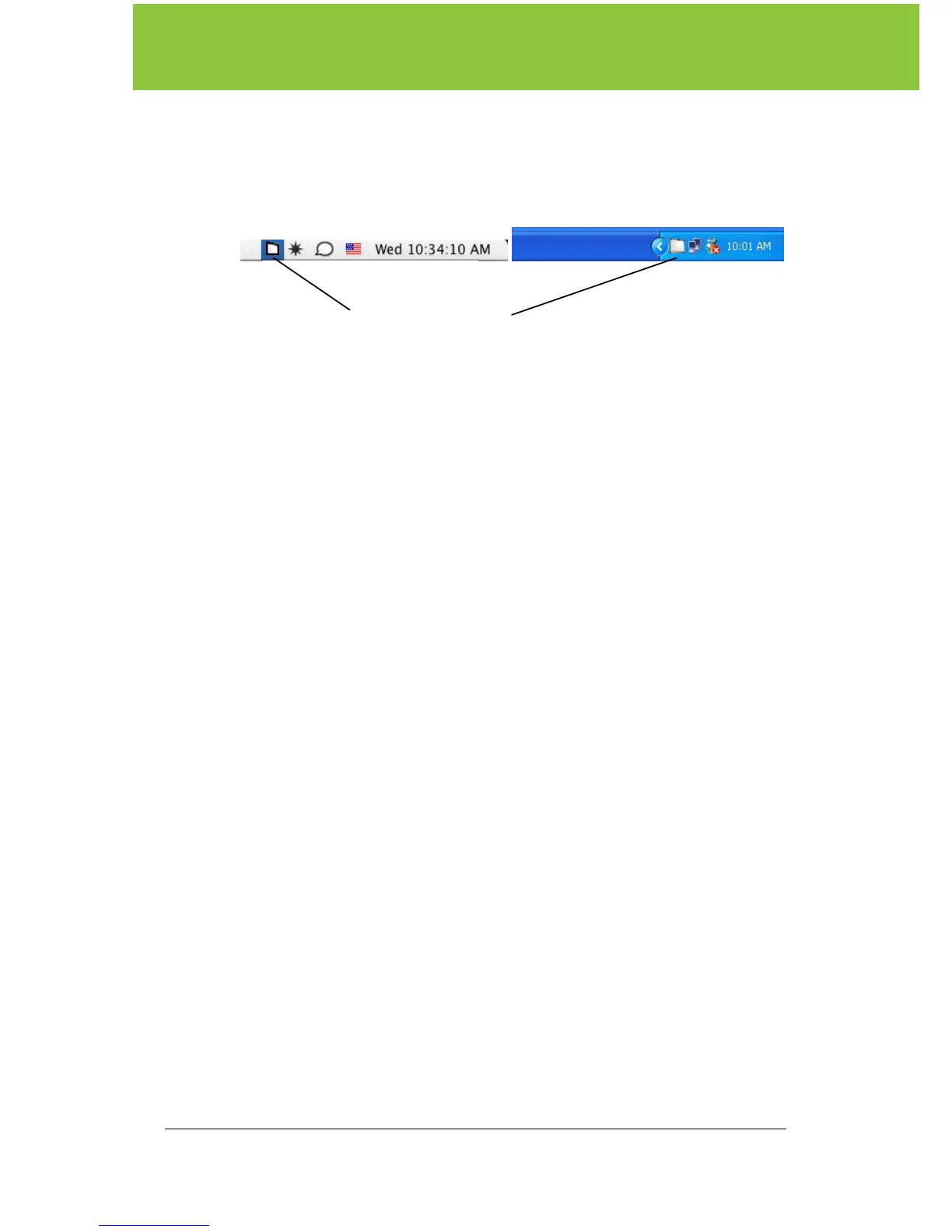
1. On your computer, click the PolyVision icon in your system tray
(Windows) or system menu (Macintosh).
.
2. Choose “Configure the PolyVision driver” from the menu.
3. Click the “Hardware” tab.
4. Turn on the ēno
stylus by removing the cap then click “Pair Stylus.”
Pairing proceeds automatically for most computers. If you have a
Macintosh with operating system 10.3.9, follow the prompts you
see on your screen.
The ēno stylus pairs and communicates with only one computer at a time.
If you want to use the ēno stylus with a different computer, you need to
unpair it from the original computer and pair it with the other computer.
To pair your ēno stylus with a different computer:
1. Unpair the ēno stylus from the original computer using the steps
you would normally use to remove hardware on the computer. For
example, in Windows click the “Start” button, select “Control
Panel,” and click the Bluetooth Devices icon. Then select
“Devices,” click the item listed as “PolyVision Stylus,” and click
“Remove.”
2. Now you can pair the ēno stylus with another computer using the
steps described above or in Appendix 1.
PolyVision icon



 To Next Page