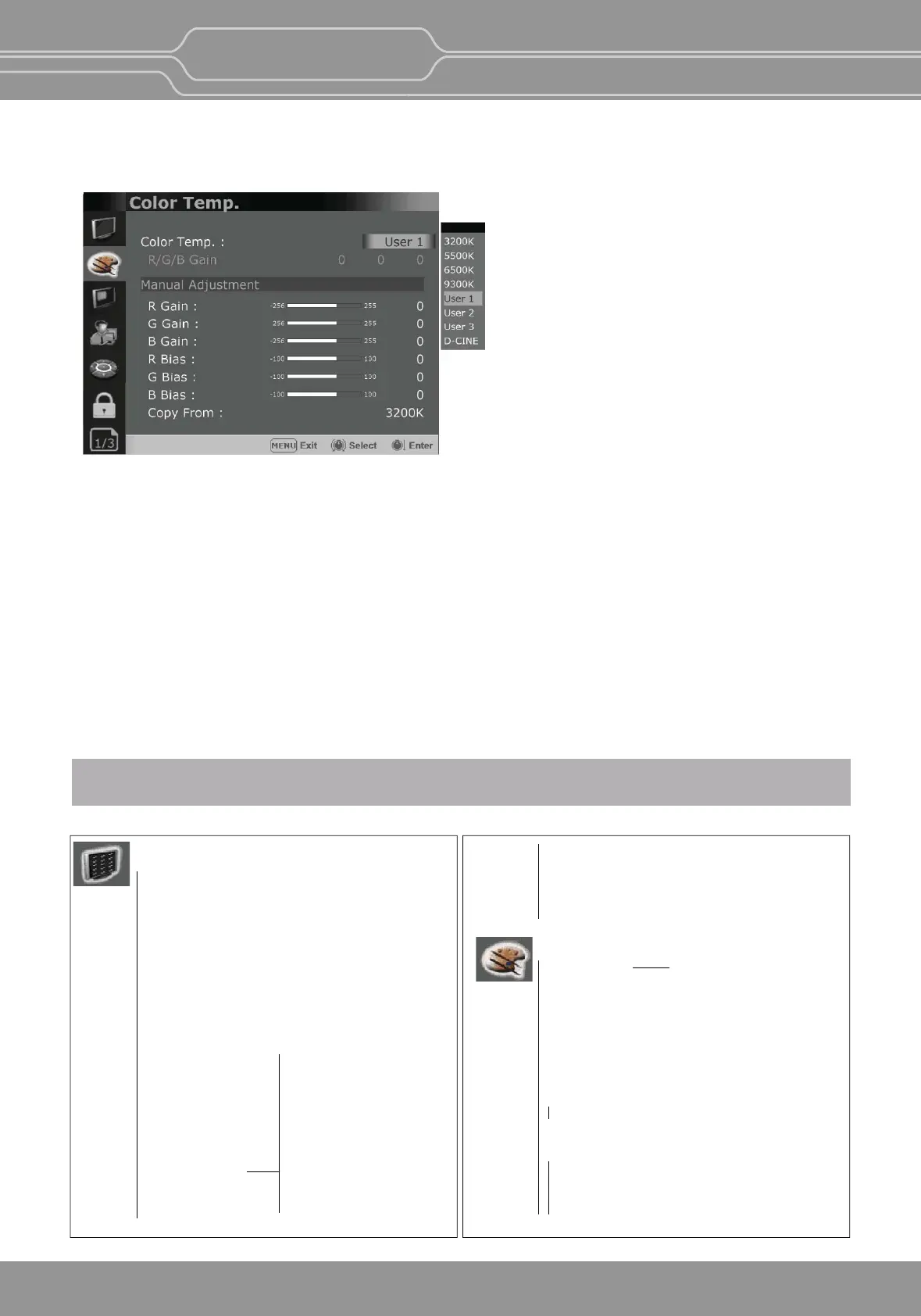
3. Select an item.
Turn SELECT/VOLUME knob to select the item, then press the knob.
The item to be changed is shown highlighted, and the sub menu is displayed on the right.
4. Make the seng or adjustment on an item.
How to change the adjustment level:
To increase the level, turn the SELECT/VOLUME knob right.
To decrease the level, turn the SELECT/VOLUME knob le.
How to change the seng:
Turn the SELECT/VOLUME knob to change the seng, then press the knob to confirm the seng.
**Note - The item displayed in gray cannot be accessed. The item is accessible if it is displayed in white.
To return the display to the previous screen:
Press the MENU buon.
To clear the menu:
Press the MENU buon.
5. Adjustment Using the Menus
Format
Color Temp
Brightness
Contrast
Chroma
Aperture
Color Space
Gamma
User Preset
RGB Range
WFM/Vector
Audio Level Meter
Focus Assist
Time Code
Volume
SDI Input
SDI Payload ID
Model Name
Serial Number
Idenfier
Sampling
Picture Rate
Scanning Method
Bit Depth
Link Assignment
Transfer characteriscs
Colorimetry
The OSD menu of this monitor consists of the following items.
Status menu
(To indicate the current sengs)
Board Version
Operaon Time
Last Calibraon Time
Internal Temperature (OBM-X310 Only)
OBM-U/X Series
4K LCD Professional Monitor
with 12G-SDI, Quad Link 4K
14
Color Temp./Color Space/Gamma menu
Color Temp. R/G/B Gain
Manual Adjustment
R Gain / G Gain / B Gain / R Bias
G Bias / B Bias / Copy From
(OBM-U170/U171/U240/U310/U550L/X310)
Color Space
OBM-HDR
Type
Gamma
Color Space Comparison
Le Color Space
Right Color Space
Right Gamma


 To Next Page