www.powerbox-systems.com
17
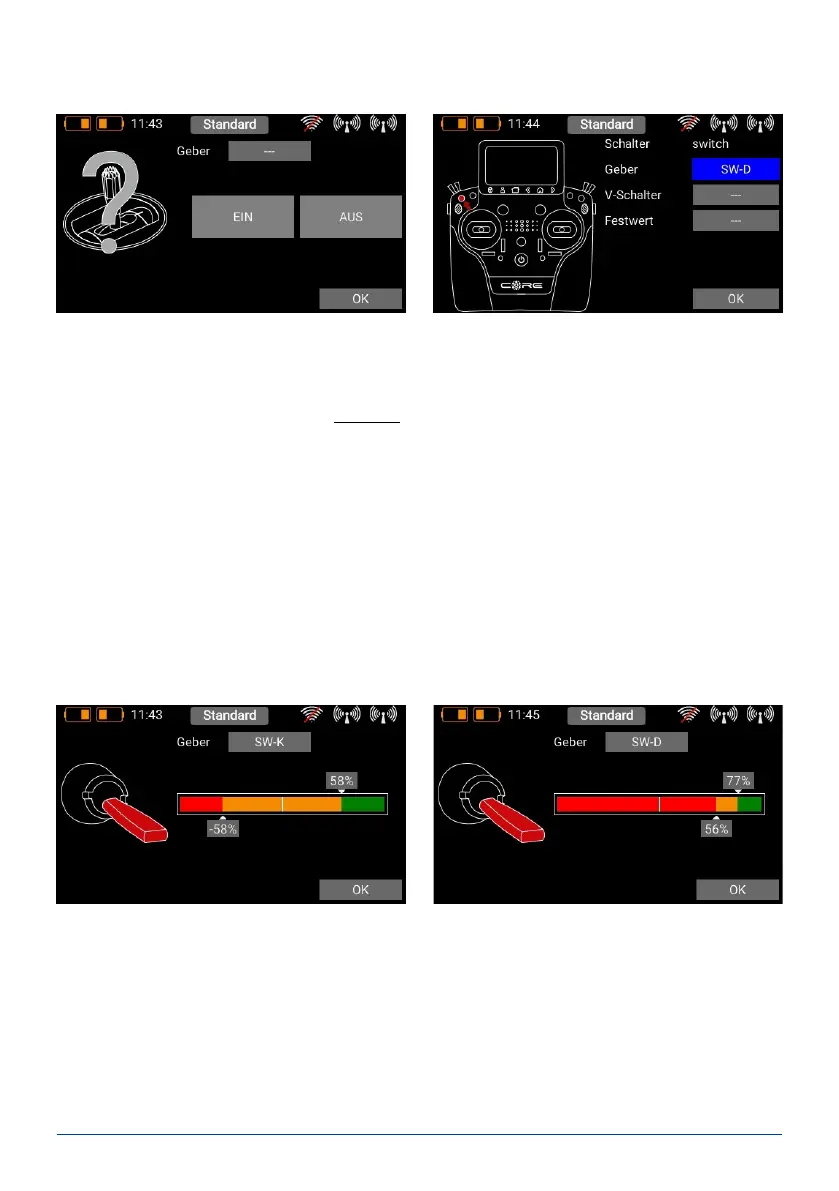
First select a transmitter control by briey pressing the blank eld (three dashes) under Control; press Control
again at the next screen:
You can now select a switch or linear control as transmitter control by operating it.
A further alternative is to dene a xed value - On or Off. This is necessary, for example, if you only wish to assign
a switching threshold to one linear control. In this case select one transmitter control as xed value, and dene a
linear control for the other transmitter control.
Yet another option is to use the output of a previously dened logical switch in turn as a transmitter control input.
In this way you can set up a logical link between three or more switches.
In the following section you will see your transmitter control on the left, and a bar display on the right showing
two switching points.
The two switching points can now be placed in any position you like by moving them with your nger. The red
area indicates the “Off state”; the green area the “On state”. The orange area indicates “hysteresis”, i.e. the area in
which no switching takes place. You can very easily reverse the “Off state” and the “On state” by moving one of
the two switching point sliders in front of or behind the other.
This adaptability provides maximum exibility and simplicity, and you can immediately check the effect of your
settings by moving the switch or linear control. The transmitter control symbol on the left changes colour to
indicate the switched state.
If you wish to use a switch, you can very easily set the desired switch position to ON. If you select a 3-position
switch it is also possible to set two ON positions.
Press OK once you have completed your settings.


 To Next Page