24 PowerBox-Systems − World Leaders in RC Power Supply Systems
11. FILE MANAGER
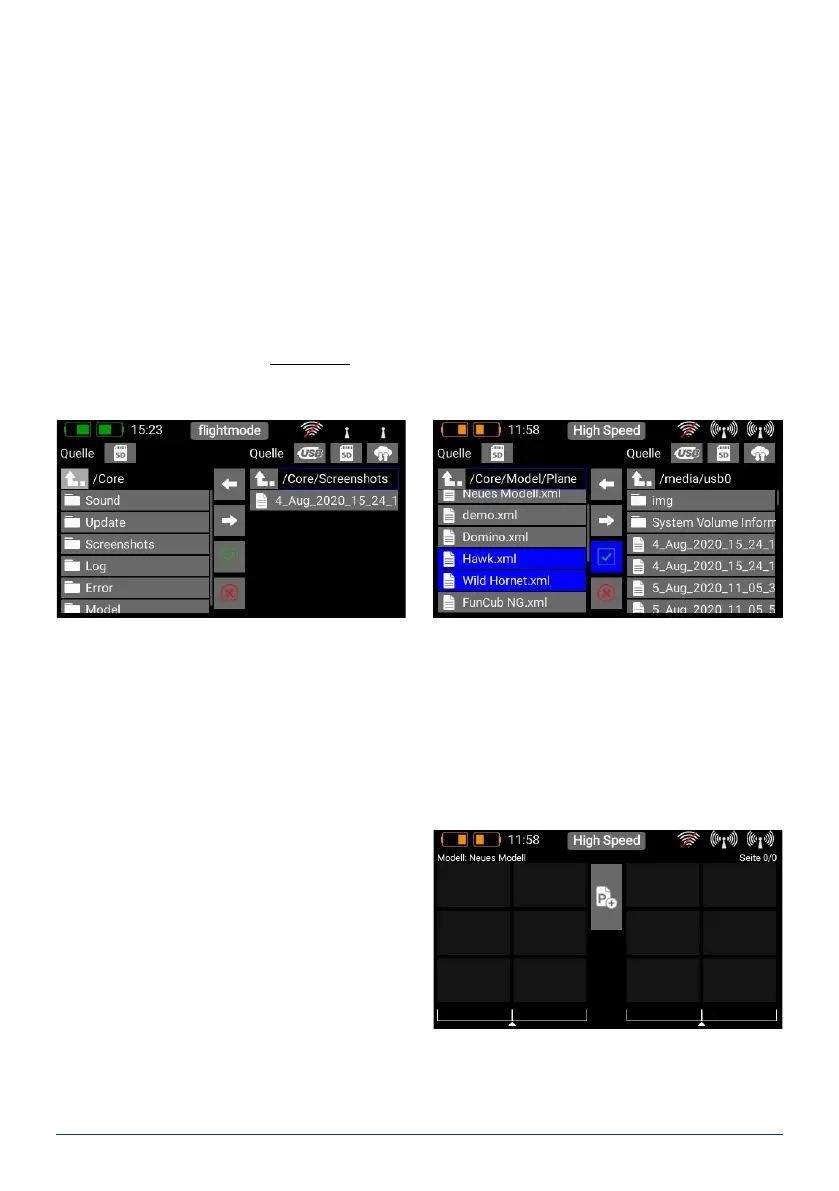
The File Manager enables you to exchange les on the SD card in the CORE transmitter with les stored on a USB
memory stick. File types include model data, log les and also audio les for audible signals.
We have kept the structure and operation of this function simple. On the left-hand side you will see the content of
the CORE transmitter’s internal SD card. At top right you will see the selected source. As of Version 1.60 it is pos-
sible to access the CORE’s USB port; in a later version, le exchange with a PowerBox Cloud will also be possible.
When you plug a USB stick into the CORE transmitter, you can display the content of the memory stick by briey
pressing the USB symbol on the right-hand side.
You now have the opportunity to copy les: navigate to the folder which contains the les you wish to copy, then
briey press the green tick in the center. Now select one or more les which you wish to copy. Once you have
selected your les, press on one of the two arrow buttons in the center – depending on the direction in which
you want to copy the les.
It is also possible to erase les – but caution: if you wish, for example, to erase a sound le for a telemetry alarm,
then that alarm will no longer function! Even though you can quickly copy the les back into the transmitter, you
may well nd yourself wasting a lot of time searching for the cause of the error.
Before removing the USB stick, hold the USB symbol pressed in until the stick is ejected.
12. TELEMETRY, TIMERS, SERVO DISPLAY AND QUICK-SELECT BUTTONS
Once you have created a new model and bound one or more receivers, you can display important information
on the main screen using the telemetry widgets. You can select any of ve different types of widget: Telemetry,
Servo values, Timer, Quick-select menu, Notes
- Creating a widget
To create a widget, touch an empty area of the main
screen, and you will see the following display:


 To Next Page