14
GPU Overclocking
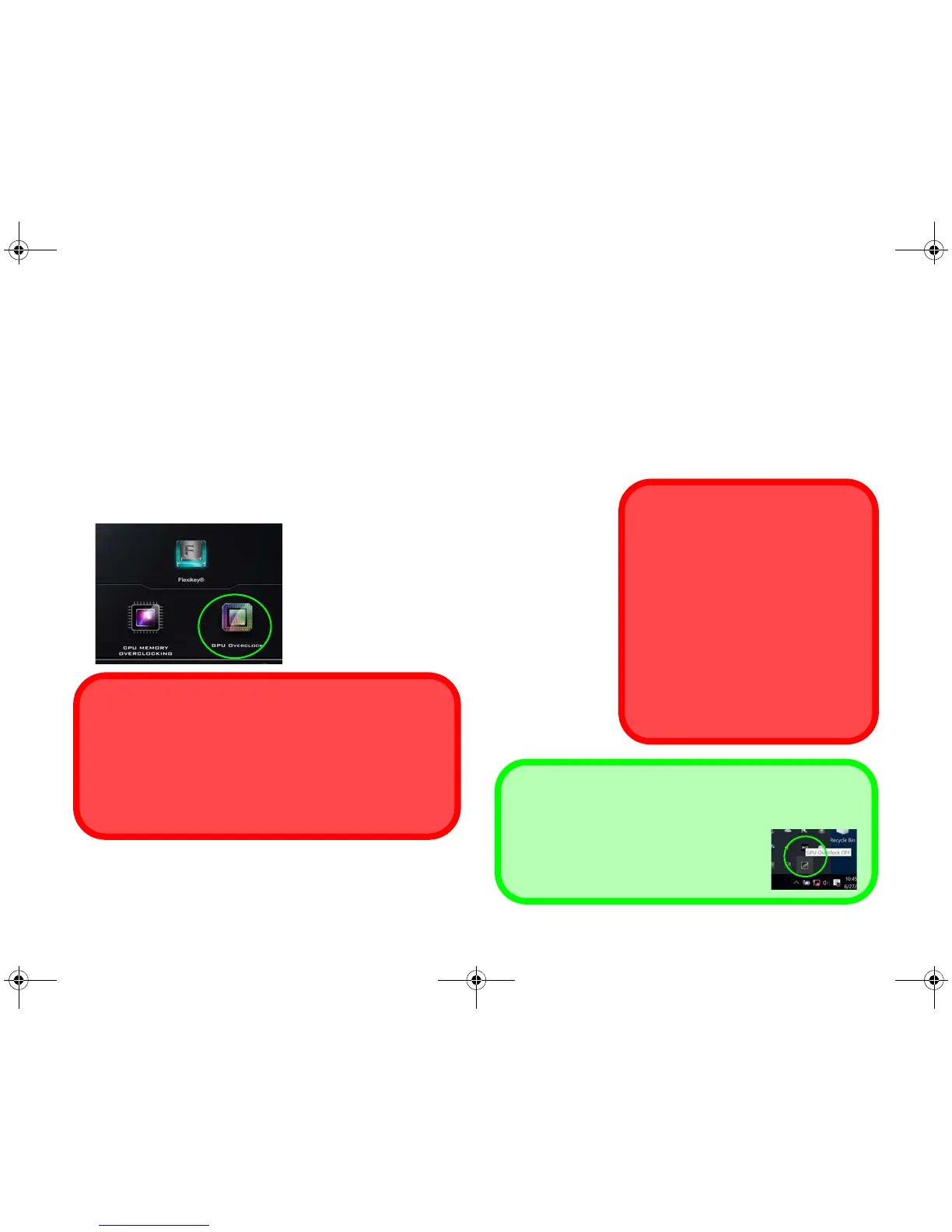
You can access the GPU Overclock utility from the Con-
trol Center or taskbar notification area.
Click the GPU Overclock button to access the Graphics
Processing Unit (or GPU) overclocking menu. Overclock-
ing the GPU involves running your GPU at a faster speed
than was originally intended. GPU overclocking is useful
when performing intensive graphic tasks such as 3D ren-
dering and gaming without dropping framerates.
Overclocking should only be enabled when powered
by a plugged-in AC/DC adapter, and not on battery
power. The Fan Speed will also automatically be set to
Overclock (do not adjust this fan speed setting if you
have enabled GPU overclocking).
1. Click On to enable GPU overclocking.
2. Use the sliders to adjust the settings for Core Increment,
Memory Increment and Fan Speed Offset.
3. Click Save to
retain the setting
changes, and
then click OK
when the
system warning
message
appears, or
Cancel to return
to the utility.
4. Clicking Off will
return to the
standard default
settings.
Figure 11
Gaming with GPU
Overclock
GPU Overclocking Issues
If you get any system errors, to reset the computer press
and hold the power button to force the system to shut-
down. To restart press and hold the power button while
holding down the Fn + G keys. This will change the over-
clocking settings back to the disabled state.
Warning Message
The message highlights the fact that
while overclocking the GPU offers a
boost to graphics performance, it can
cause system instability in certain cir-
cumstances as the harder you push
the processor, the more power you will
need to supply to it, and the hotter the
system will run. Therefore it is not rec-
ommended that you enable GPU over-
clocking for extended periods, only as
and when specifically required.
GPU Overclocking Off Using the Taskbar Icon
Move the cursor over the GPU Overclock
icon in the taskbar, and right-click it and
select Turn off GPU overclocking.
1710.book Page 14 Monday, August 7, 2017 2:45 PM


 To Next Page