21
Display Devices
Note that you can use an HDMI cable connected to the
HDMI-Out port and/or Mini DisplayPort compatible ca-
ble connected to a Mini DisplayPort 1.3 to connect an ex-
ternal display. You can also use the Thunderbolt port
connected to a compatible display device (see Thunder-
bolt Port for Display on page 10). See your external dis-
play device’s manual to see which formats it supports.
Configuring the Displays in Windows
All external and internal displays (up to 4 active displays)
can be configured from Windows by using the Display or
System (in Settings) control panel or the Project menu.
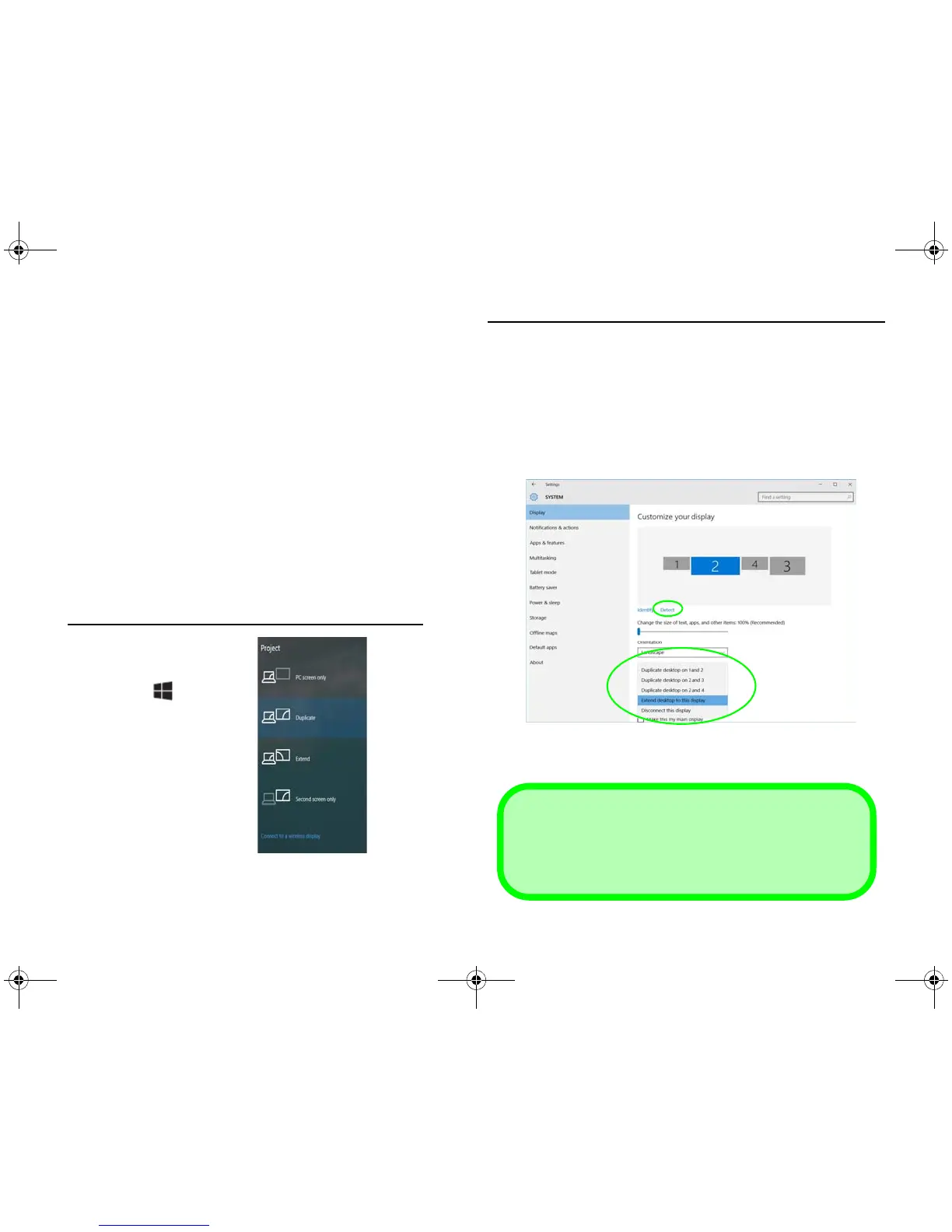
To configure the displays using the Project menu:
1. Attach your external dis-
play(s) to the appropriate
port, and turn it(them) on.
2. Press the + P (or Fn
+ F7) key combination.
3. Click on any one of the
options from the menu to
select PC screen only,
Duplicate, Extend or
Second screen only.
To configure the displays using the Display control panel:
1. Attach your external display(s) to the appropriate port, and turn
it(them) on.
2. Right-click the desktop and select Display settings from the
menu.
3. Click the Detect button.
4. The computer will then detect any attached displays.
5. You can configure up to 4 displays from the Multiple Displays
menu.


 To Next Page