22
Audio Features
You can configure the audio options on your computer
from the Sound control panel in Windows, or from the
Realtek HD Audio Manager
/ icon in the notifica-
tion area/Control panel (right-click the notification area
icon to bring up an audio menu). The volume may also
be adjusted by means of the Fn + F5/F6 key combination
or the Speaker icon in the taskbar.
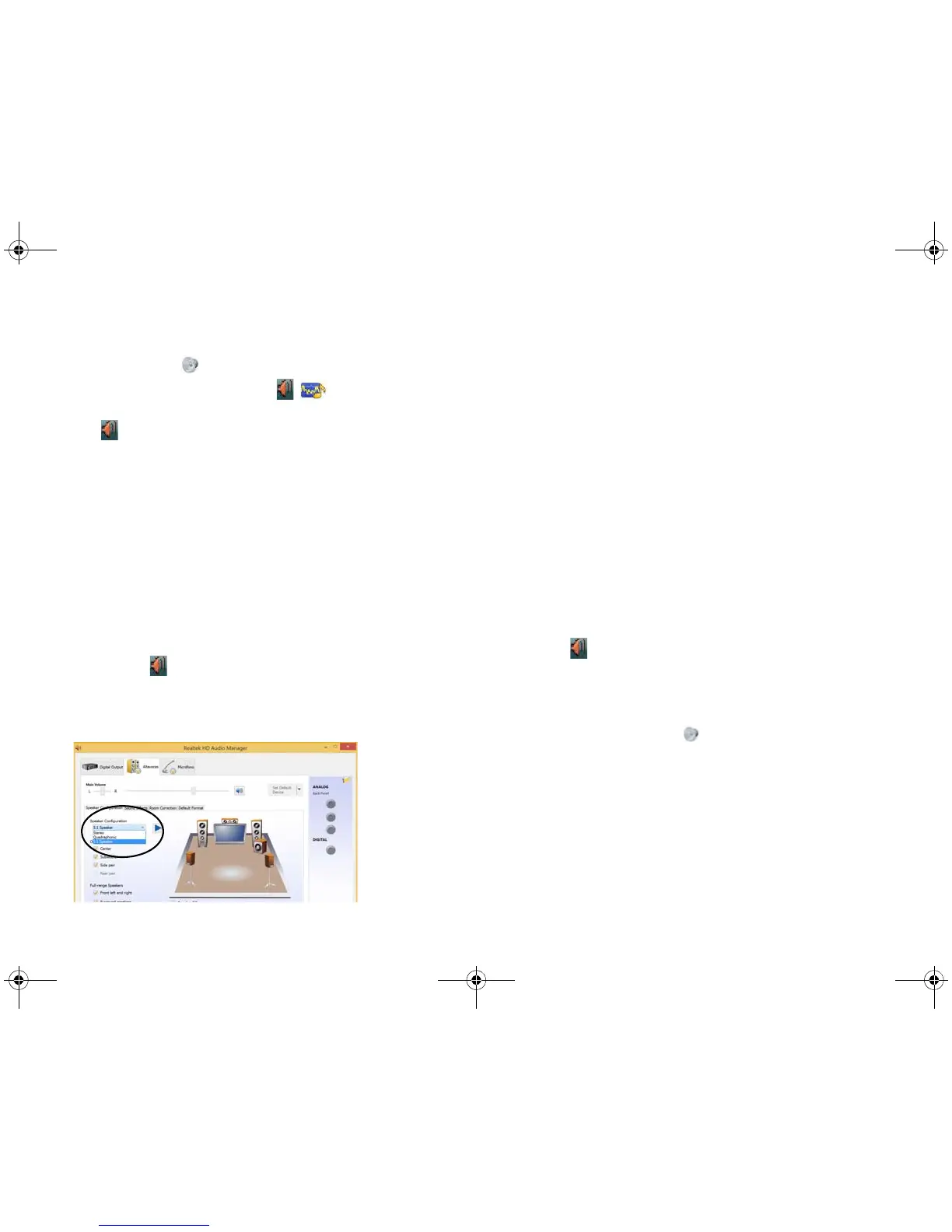
Setup for 5.1 Surround Sound
To setup your system for 5.1 surround sound you will
need to connect the audio cables to the Line-Out & S/
PDIF-Out Combo jack, Headphone-Out jack and Micro-
phone-In jack
.
1. Go to the Control Panel.
2. Click Realtek HD Audio Manager (or right-click the notification
area icon
and select Sound Manager).
3. Click Speakers (tab) and click Speaker Configuration (tab).
4. Select 5.1 Speaker from the Speaker Configuration pull-down
menu.
5. Plug in the cables (you may require an adapter to connect each
cable to the appropriate jack e.g a stereo mini to dual RCA
adapter) from your speakers as follows:
• Line-Out & S/PDIF-Out Combo Jack = Front Speaker Out
• Microphone-In Jack = Center/Subwoofer Speaker Out
• Headphone-Out Jack = Rear Speaker Out
6. As you plug in each cable a dialog box will pop up.
7. Click to put a tick in the appropriate box according to the
speaker plugged-in (e.g. Rear Speaker Out), and then click OK
to save the setting.
8. Click OK to exit Realtek HD Audio Manager.
Setup for Audio Recording
To record audio sources on your computer at optimum
quality follow the instructions below:
1. Go to the Control Panel.
2. Click Realtek HD Audio Manager (or right-click the notification
area icon
and select Sound Manager).
3. Click Microphone Effects (tab) in Microphone (tab), and then
click to select Noise Suppression (button), or adjust the
Recording Volume level to around 60, to obtain the optimum
recording quality.
4. Click OK to close the Sound control panel.



 To Next Page