3
2 Getting Started
2.1 Product Registration
Quantum ES-Series
Owner’s Manual
2 Getting Started
There’s more to your Quantum ES Interface than what comes in the box! Let’s take a moment to register your
Interface and download Universal Control. Universal Control provides updates and upgrades for the Quantum
ES, so make sure to follow the directions below to ensure you get the most out of your new interface.
2.1 Product Registration
Your Quantum ES is a powerful audio interface, loaded with professional audio tools and flexible monitoring
controls. Before connecting to a computer, please visit www.presonus.com and navigate to the Quantum ES
product page to verify the latest system requirements for your interface.
Once you’ve verified that you meet the latest system requirements, follow these steps:
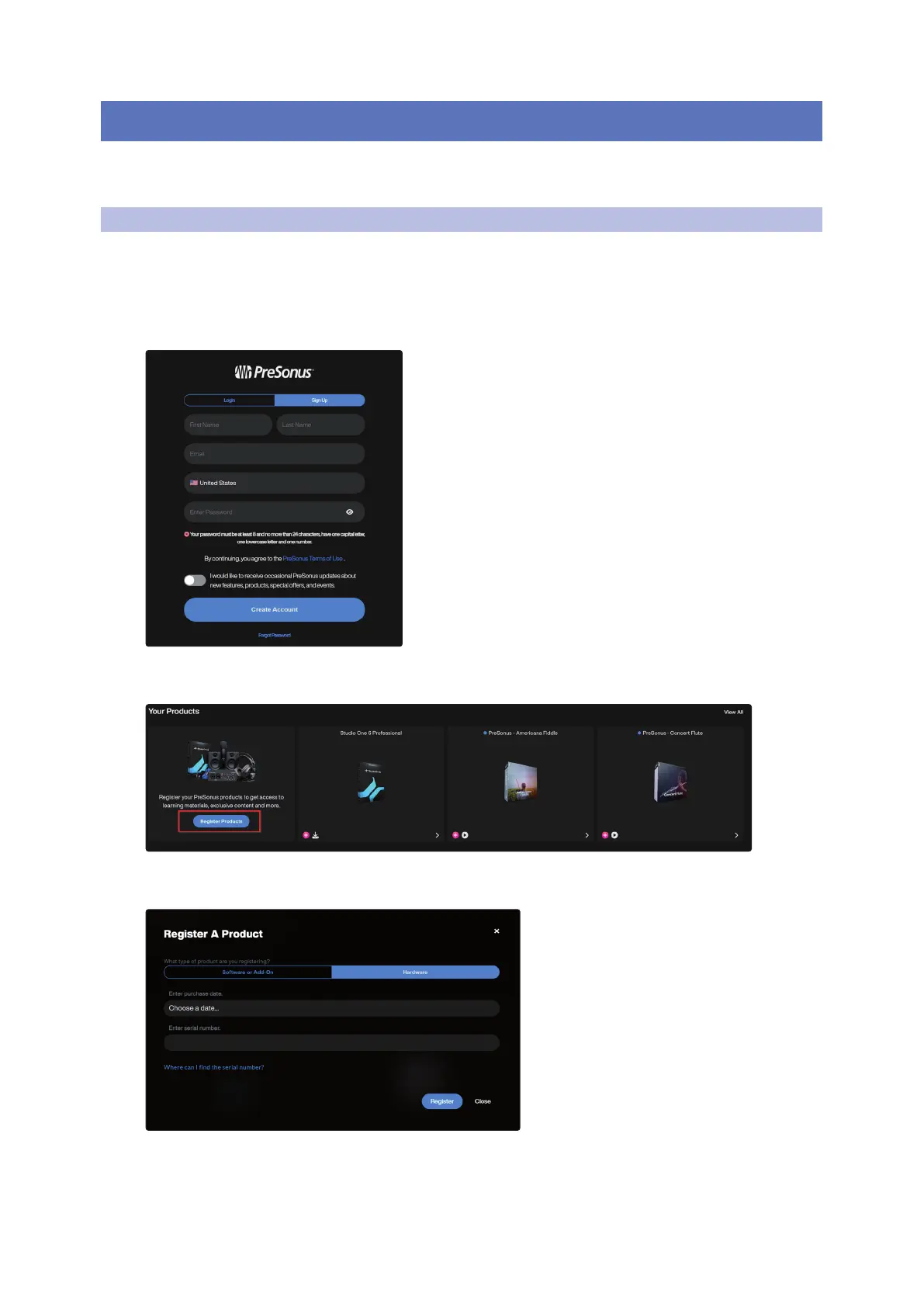
1. Visit My.PreSonus.com and create or log into your user account.
2. At the top of your MyPreSonus homepage, click onto the “Register Products” button. After clicking, a
dialog window will appear.
3. From the dialog window, specify the date you purchased the interface and the serial number on your
interface. After you’re done, click “Register”.
4. After clicking Register, another dialog window will appear where you can initiate your Studio One
downloads.
Note: The speed of your processor, amount of RAM, and capacity, size, and speed of your hard drives
will greatly affect the overall performance of your recording system. A faster processor and more RAM
can reduce signal latency (delay) and improve overall performance.






 To Next Page