48
6 The Fat Channel
6.3 Input Mode
StudioLive™ Series III
Owner’s Manual
8
1
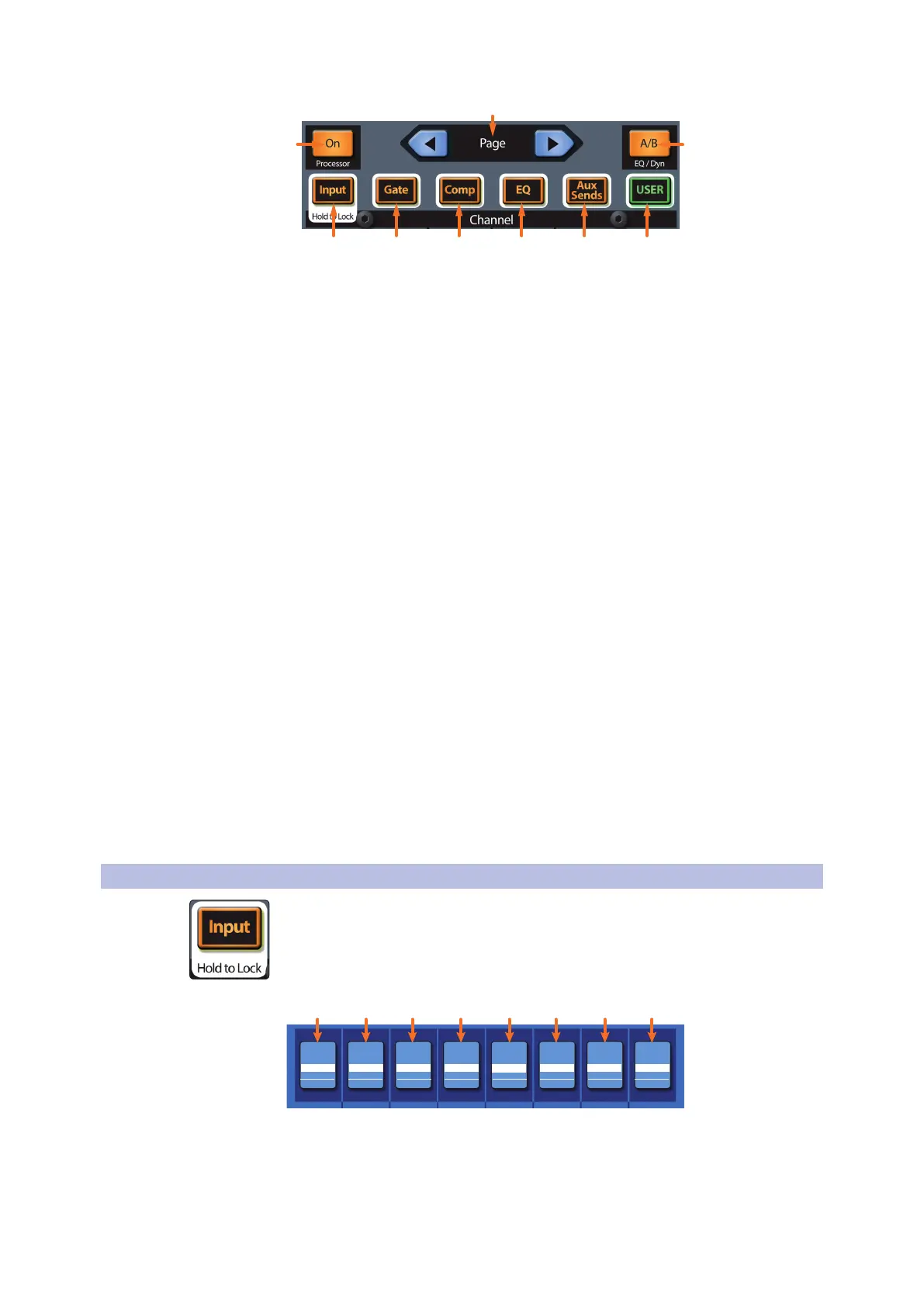
1. Processor On/Off. Enables/Disables the currently active processor.
2. Input. For all StudioLive models, this opens the Channel Overview screen on the
Touch Display. For models equipped with a Dynamic Fat Channel, this button
will spill the Input layer controls onto the Fat Channel displays, encoders, and
buttons. See Sections 6.3 and 6.8.1.
3. Gate. For all StudioLive models, this opens the Gate Overview screen on the
Touch Display. For models equipped with a Dynamic Fat Channel, this button
will spill the Gate controls onto the Fat Channel displays, encoders, and buttons.
See Sections 6.4 and 6.8.3.
4. Comp. For all StudioLive models, this opens the Compressor Overview screen on
the Touch Display. For models equipped with a Dynamic Fat Channel, this button
will spill the Compressor controls onto the Fat Channel displays, encoders, and
buttons. See Sections 6.5 and 6.8.4.
5. EQ. For all StudioLive models, this opens the EQ Overview screen on the Touch
Display. For models equipped with a Dynamic Fat Channel, this button will spill
the EQ controls onto the Fat Channel displays, encoders, and buttons.
See Sections 6.6 and 6.8.5.
6. Aux Sends. For all StudioLive models, this opens the Aux Sends Overview
screen on the Touch Display. For models equipped with a Dynamic Fat Channel,
this button will spill the Aux Send levels, mutes, and pan controls for the
currently selected channel onto the Fat Channel displays, encoders, and buttons.
See Sections 6.7 and 6.8.6.
7. User. Model-dependent:
- StudioLive 32SX and 32SC. Opens User Profile screen on Touch Display.
- All Other Models. Spills user-customizable parameters on Fat Channel
displays, encoders, and buttons. See Section 6.9.
8. Fat Channel A/B. Switches between two different Fat Channel Settings.
See Section 6.1.1.
9. Prev/Next Page. Navigates to additional parameters (if available). Note: These
controls are not available on the StudioLive 32SX and 32SC.
6.3 Input Mode
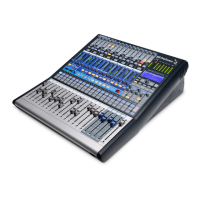
Pressing the Input button in the Fat Channel gives you access to important controls
and informative displays for the currently selected channel or mix.
Note: These controls are fixed on the StudioLive 32SX and 32SC. For all other models,
pressing holding the Input button will lock or unlock these functions to the Dynamic Fat
Channel controls.
EQCOMPGATEPAN
HI PASS
PREAMP
Gain
Filter
Thresh
Gate CompCenter
Thresh Gain
EQ
Freq
EQ
Q
0.601.40 kHz0.00 dB0.00 dB-84.00 dB< C >
off
0 dB
B1 B2 B3 B4AGC
1. Preamp Gain (Input Channels only). Use the encoder to set the amount
of preamp gain applied to the currently selected channel. The scribble strip
displays the current gain level. Press the button below to enable Automatic Gain
Compensation. For more information on Gain Compensation, please see the
NSB-series Stage Box Owners Manual.











 To Next Page