94
9 Master Control
9.6 Scenes and Projects
StudioLive™ Series III
Owner’s Manual
9.6.4 List Editor
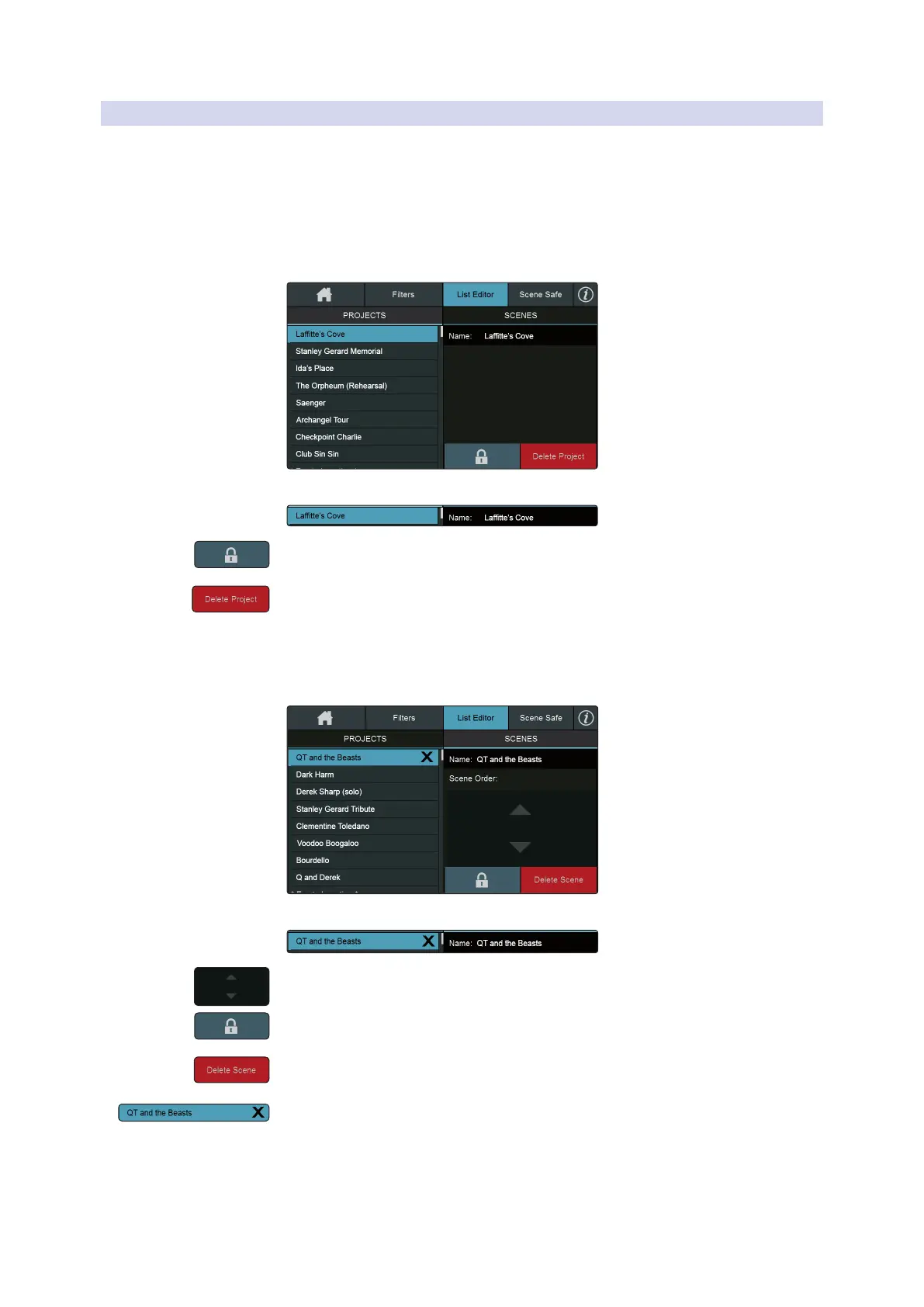
The List Editor allows you to change Project and Scene names, delete them, lock the
ability to make changes to them, as well as reorder your Scene library as necessary.
Tapping on the List Editor tab opens the editor.
Projects
Tap on the Projects list to edit any Project in your library. Once selected you can
choose to rename it, lock it or delete it entirely.
To rename a Project, tap the edit field.
Tapping on the Lock button will prevent overwriting the stored parameters.
Tap the Delete Project button to remove it from your mixer. This will also delete all the
Scenes stored within it.
Scenes
To edit the Scenes within a Project, first select the Project from Project List Editor,
then tap on the Scenes tab.
To rename a Scene, tap the edit field.
Use the arrows to move a Scene up or down in the list.
Tapping on the Lock button will prevent overwriting the stored parameters.
Tap the Delete Scene button to remove it from the Project.
You can also tap on the ‘X’ next to a Scene in the Edit List to remove it from the
Project.
Power User Tip: Your StudioLive mixer will always ask you to confirm your selection
before it deletes a Project or a Scene.











 To Next Page