A Note about IAQ Mode
This programmable/selectable mode will operate the fan 1-4 cycles per
hour, 1-45 minutes per cycle. Once programmed in tech setup, to enable
this mode select “IAQ” with the fan key. Disable this mode by selecting
“ON” or “AUTO” with the fan key.
Technician Setup Menu
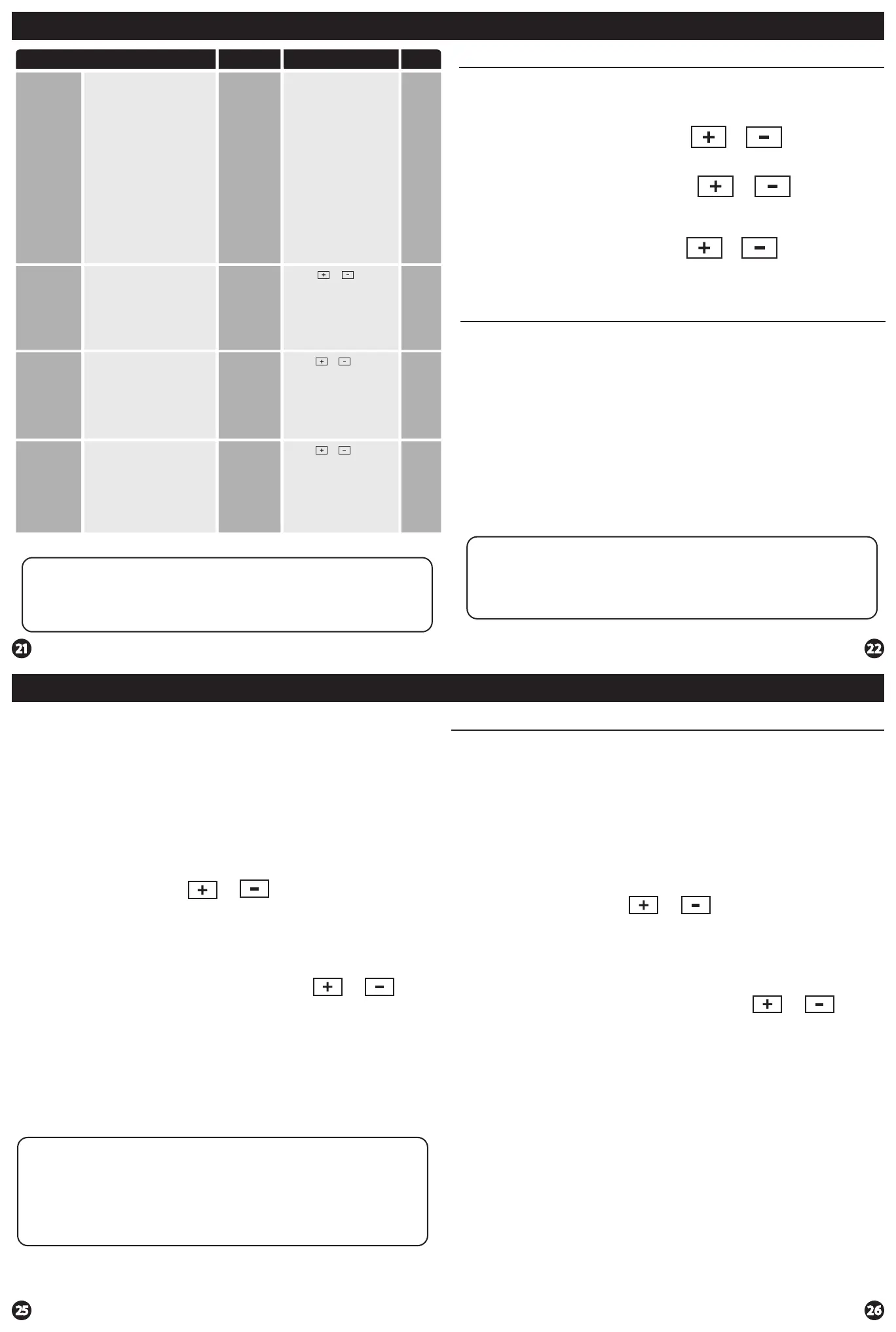
Tech Setup Steps Adjustment Options Default
LCD Will Show
Enables a reminder for the user to
change the UV light bulb.
UV Lamp
Reminder
Use the or key to
select OFF, 1 YR, 2 YR
OFF
UV LAMP
Enables a reminder for the user
to change the IAQ Cell after
25,000 hrs.
IAQ Cell
Reminder
Use the or buttons to
select OFF, or 25 (stands for
25,000 hours).
IAQ CELL
OFF
OFF
OFF
Set Time
Follow the steps below to set the day of the week and current time:
1. Press the MENU button.
2. Press SET TIME.
3. Day of the week is ashing. Use the or key to
select the current day of the week.
4. Press NEXT.
5. The current hour is ashing. Use the or key to
select the current hour. When using 12-hour time, make sure
the correct a.m. or p.m. choice is selected.
6. Press NEXT.
7. Minutes are now ashing. Use the or key to
select current minutes.
8. Press DONE when completed.
All our programmable thermostats are shipped with an energy saving default
program. You can customize this default program by following the
instructions in the set program schedule section starting on page 24.
Programming
Your thermostat can be programmed to have each day of the week
programmed uniquely (7 days), all the weekdays the same with a separate
program for Saturday and a separate program for Sunday (5+1+1), or
non-programmable. For the 7-day and 5+1+1 programming modes, there are
three time period options.
1. “4” Residential (WAKE, LEAVE, RETURN, SLEEP)
2. “2C” Commercial (OCCUPIED, UNOCCUPIED)
3. “4C” Commercial (OCCUPIED 1, UNOCCUPIED 1, OCCUPIED 2, UNOCCUPIED 2)
This thermostat has a programmable fan feature, which allows you to run the
fan continually during any time period.
Reminders
Once a reminder has been turned on and set, the elapsed time can be checked
by navigating to its tech setup step. The elapsed time will then appear in the
text eld. It can also be reset at that time by holding down the set time/run
sched button for 3 seconds. Resetting an expired reminder can be done without
entering tech setup, by holding down the set time/run sched button for 3
seconds from the home screen.
1. Select HEAT or COOL with the SYSTEM key.
Note: You have to program heat and cool each separately.
2. Press the MENU button (If menu does not appear rst, press
RUN SCHED).
3. Press SET SCHED. Note: Monday is displayed and the
WAKE/OCC1 icon is shown. You are now programming the
WAKE/OCC1 time period for that day.
4. Time is ashing. Use the or key to make your time
selection for that day’s WAKE/OCC1 time period.
Note: If you want the fan to run continuously during this time
period, select ON with the FAN key. If you want to use IAQ
mode during this time period, select IAQ with the FAN key.
5. Press NEXT.
6. The setpoint temperature is ashing. Use the or key
to make your setpoint selection for that day’s WAKE/OCC1
period.
7. Press NEXT.
8. Repeat steps 4 through 7 for that day’s LEAVE/UNOCC1
time period, for that day’s RETURN/OCC2 time period,
and for that day’s SLEEP/UNOCC2 time period.
To customize your 7 day 4 time period Program schedule, follow
these steps:
Monday:
Repeat steps 4 through 8 for the remaining days of the week.
A Note About Auto Changeover:
In Auto you have the ability to switch between Auto Heat or Auto Cool
by pressing the system key. This can be done once the current mode has
reached its setpoint. For example: if in Auto Heat, the heat setpoint must
be satised before the thermostat will allow you to switch to Auto Cool.
You can switch out of Auto by holding down the system key. To get back
into Auto, you must toggle the system key to Auto.
Set Program Schedule For Two Time Periods
1. Select HEAT or COOL with the SYSTEM key.
Note: You have to program heat and cool each separately.
2. Press the MENU button (If menu does not appear rst, press
RUN SCHED).
3. Press SET SCHED. Note: Monday-Friday is displayed and the
OCCUPIED text is shown. You are now programming the
OCCUPIED time period for that day.
4. Time is ashing. Use the or key to make your time
selection for the weekday OCCUPIED time period.
Note: If you want the fan to run continuously during this time
period, select ON with the FAN key. If you want to use IAQ
mode during this time period, select IAQ with the fan key.
5. Press NEXT.
6. The setpoint temperature is ashing. Use the or key
to make your setpoint selection for the weekday OCCUPIED
period.
7. Press NEXT.
8. Repeat steps 4 through 7 for the weekday UNOCCUPIED
time period.
To customize your 5+1+1 Program schedule, follow these steps:
Weekday:
Repeat steps 4 through 7 for the Saturday OCCUPIED time period
and for the Saturday UNOCCUPIED time period.
Saturday:
Repeat steps 4 through 7 for the Sunday OCCUPIED time period, and
for the Sunday UNOCCUPIED time period.
Sunday:
(OCCUPIED, UNOCCUPIED)
ProgrammingProgramming
Programming
This allows you to select the
minimum number of minutes
that the fan will run per IAQ
mode cycle. The thermostat will
keep track of fan runtime from
normal heat and cool operation. If
additional fan runtime is needed,
the thermostat will run the fan to
satisfy the IAQ mode minutes.
Notes: This programmable/selectable
mode will operate the fan 1-4 cycles
per hour, 1-45 minutes per cycle. Once
programmed in tech setup, to enable
this mode select “IAQ” with the fan
key. Disable this mode by selecting
“ON” or “AUTO” with the fan key.
IAQ Minutes
Per Cycle
Select 1, 5, 10, 15, 20, 30 or
45 minutes.
When IAQ fan mode is
enabled, it will ensure the
fan runs at least the selected
number of minutes per IAQ
Mode Cycle.
This step will not appear if
previous step is set to “OFF”.
IAQ MODE MIN
1
1
Enables a reminder for the user to
change the humidity pad.
Humidity
Pad
Reminder
Use the or key to
select OFF, 600, 1000, 1500,
or 2000. These represent
hours of heat operation.
OFF
HUMIDITY PAD
OFF


 To Next Page
 Loading...