39
TO CONFIGURE THE GATEWAY / FIRMWARE UPDATE:
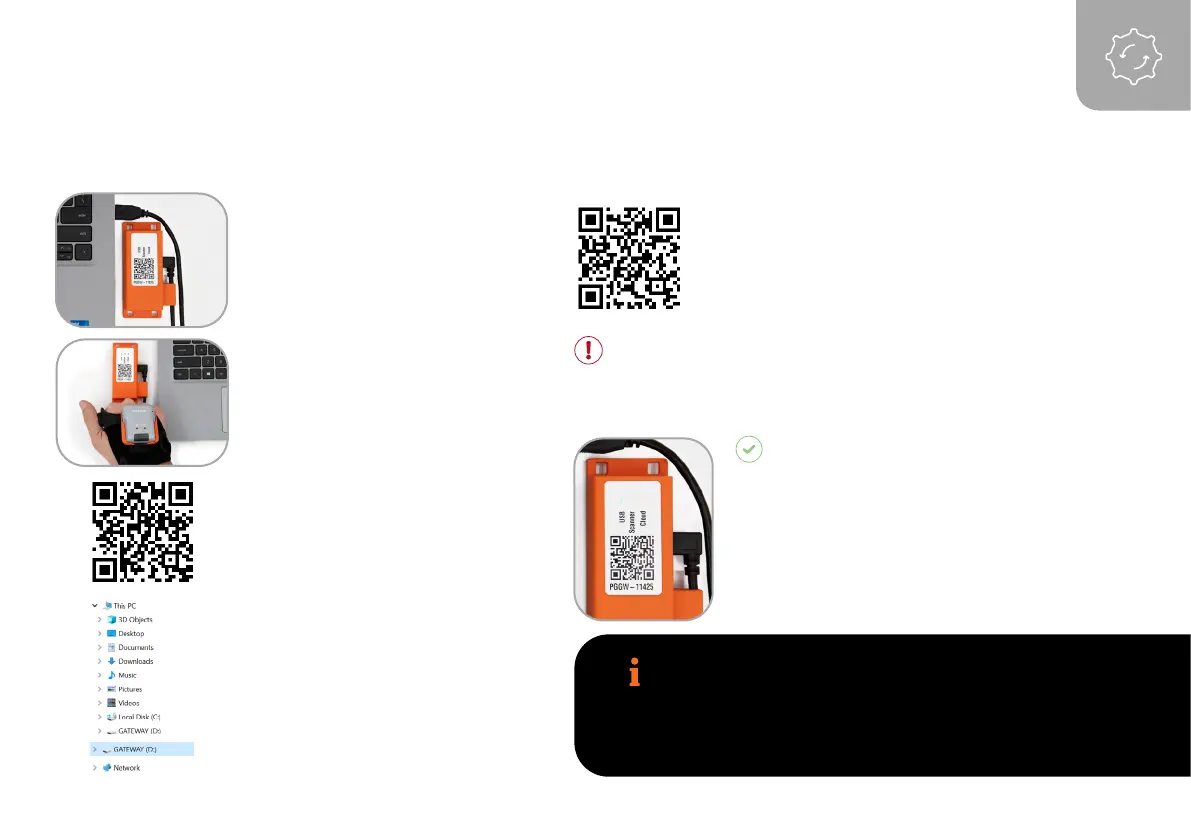
1. Connect the Gateway with the
computer. The Gateway boots
up. This takes about 2 min and is
finished when the USB LED shows
constant green light.
2. Scan the Pairing Barcode on the
Gateway.
3. Scan this barocde to enable the
Gateway as a mass storage device
on the computer.
4. Copy the downloaded
configuration file or the firmware
file into the mass storage device
Gateway.
The upload of the configuration takes about
5 seconds/the upload of the firmware takes
about 2 minutes and is finished when the
USB LED shows constant green light. The
Gateway is now configurated/updated and
can be connected to the scanner.
5. Scan this barcode to disable the Gateway as
a mass storage device on the computer.
CAUTION
Do not disconnect the Gateway from the computer during
the upload!
RESULT
NOTE
The configuration will be applied to the scanner and the Gateway
directly. Scanners, that get connected to the Gateway later will
receive the same configuration!



 To Next Page