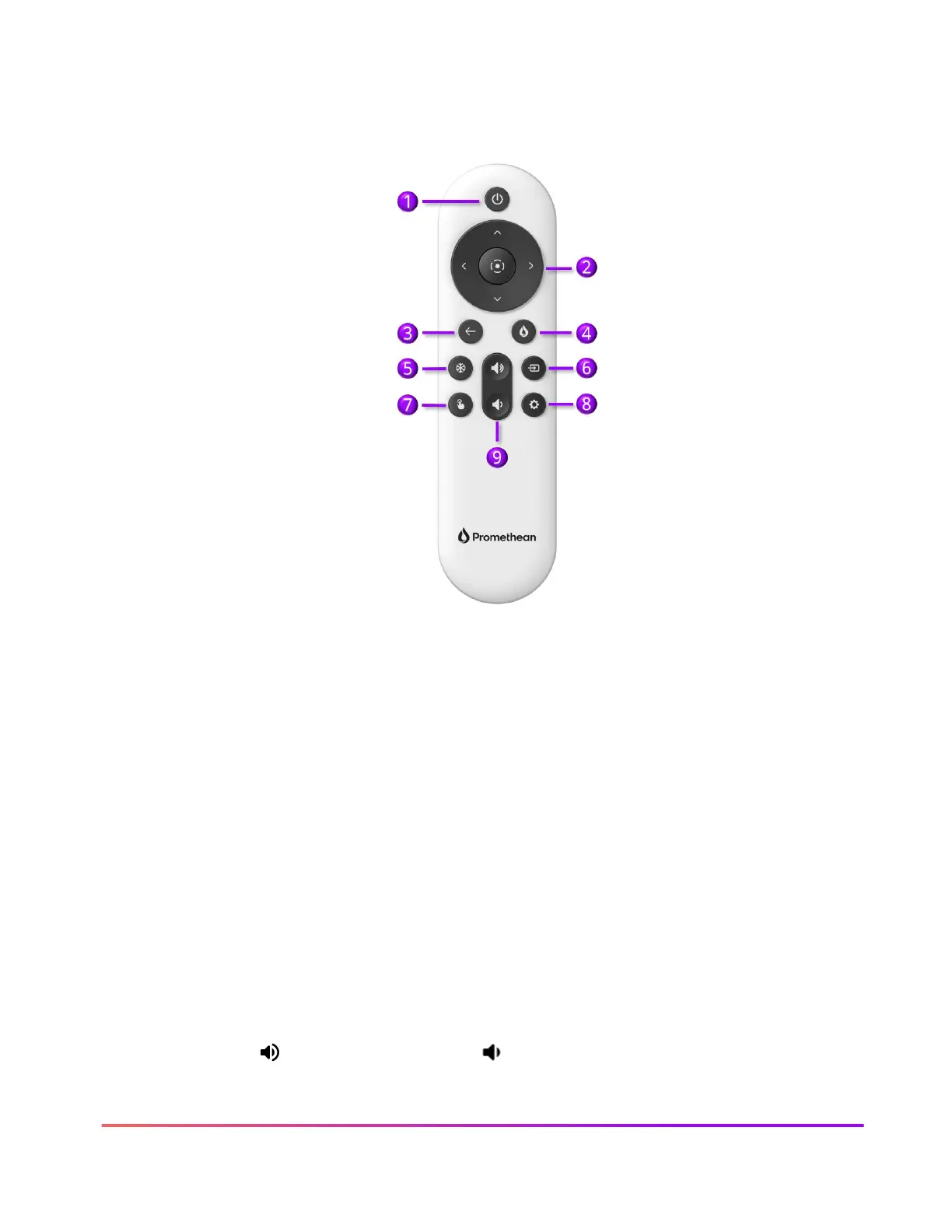
Remote
The Promethean remote allows you to navigate your ActivPanel from anywhere in the classroom.
1. Power: Short tap – black out screen; Long touch – put ActivPanel to sleep
2. Directional Pad: Use the arrows to navigate to the option of your choice and the circle to
select
3. Back: Press to return to the last open application
4. Flame: Press for quick access to the Menu
5. Freeze: Use to freeze the current image, from a connected device, on the screen.
6. Source: Use to switch to any device connected to your ActivPanel.
7. No touch: Turn off touch capabilities on the ActivPanel screen.
8. Settings: Use to quickly access the ActivPanel setting menu.
9. Volume: increases volume and decreases volume on your ActivPanel





 To Next Page