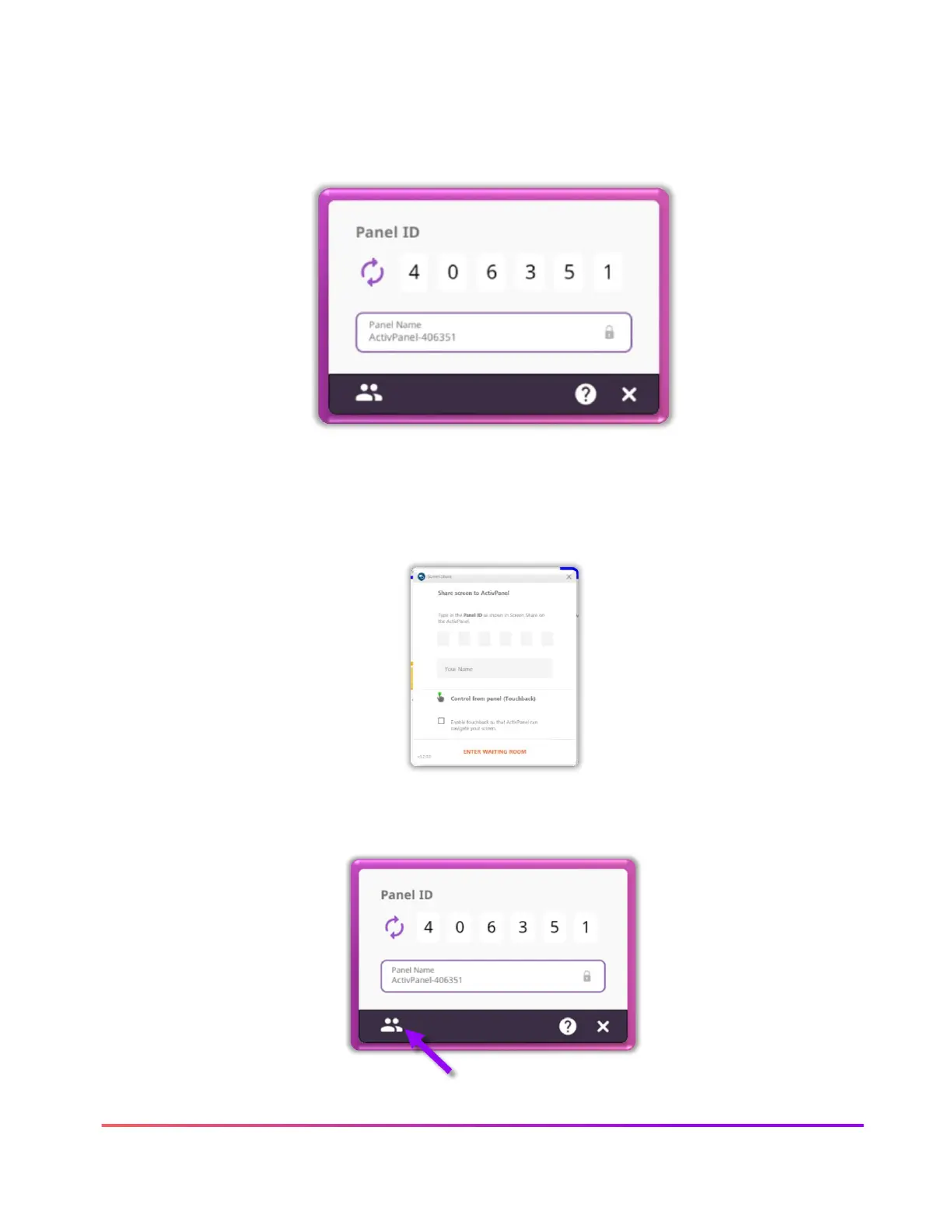
To begin connecting devices, access your Menu, then tap Applications from the Applications Locker, Screen
Share. A floating connection screen appears with your unique Panel ID. You may move this anywhere on
your screen. You may name your panel, tap the reset button to generate a new 6-digit panel ID, or tap the
people icon to enter the waiting room.
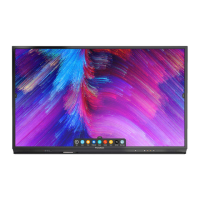
To connect from a device with the Share Screen Sender, enter the Panel ID. Next, enter your name, and be
sure to enable touchback. Please note, touch back is not available with the Chrome extension or when
sharing a mobile device. Then select Enter Waiting Room.
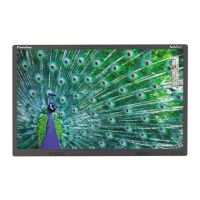
To access the Screen Share waiting room, tap the People icon in the bottom left-hand corner of the
connection screen.





 To Next Page