If the AV device is switched on and correctly connected, and the LCD TV/Monitor is set to AV (or S-VIDEO
if using S-Video cable instead of RGB) then the AV feed will start playing automatically.
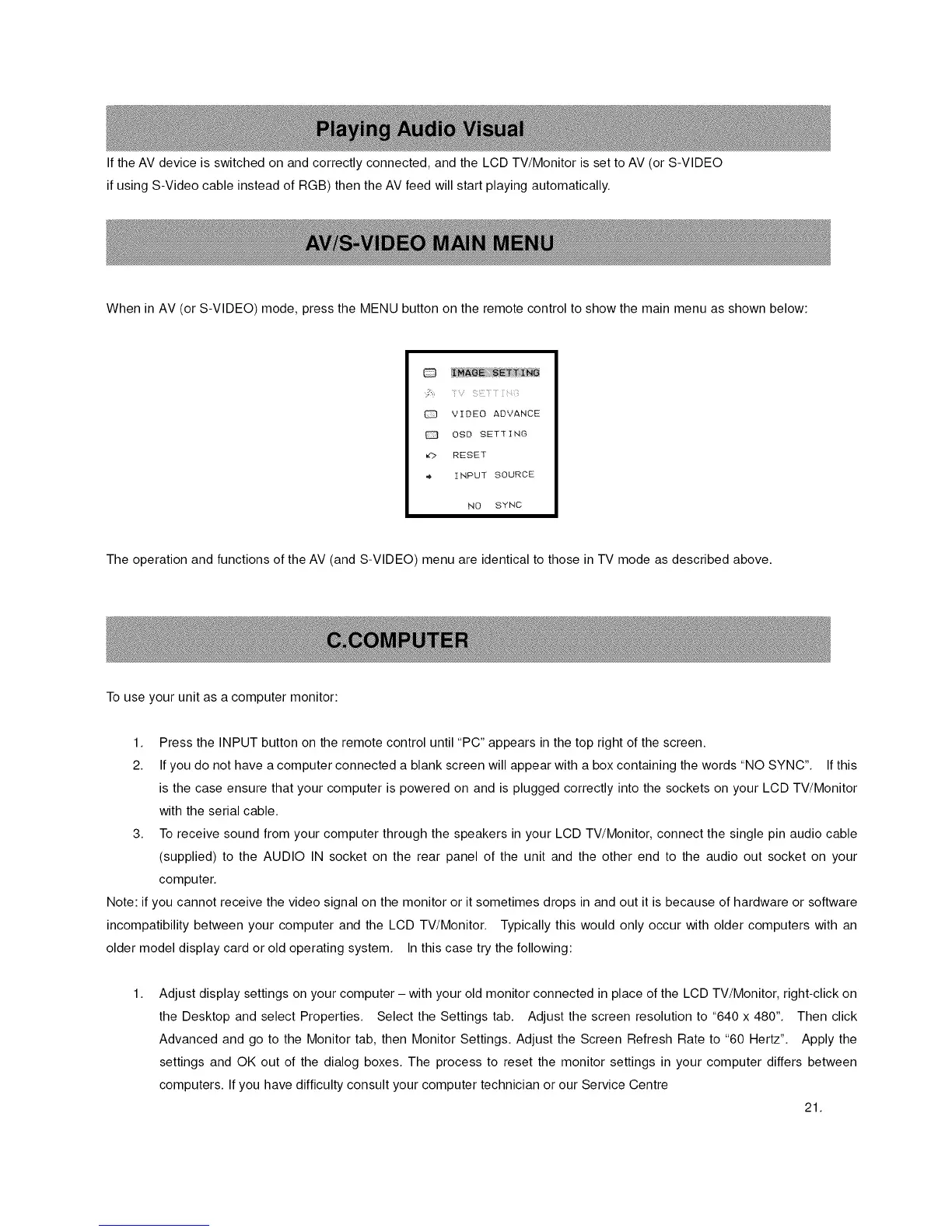
When in AV (or S-VIDEO) mode, press the MENU button on the remote control to show the main menu as shown below:
D
VIDEO ADVANCE
OSD SETTING
RESET
INPUT SOURCE
NO SYNC
The operation and functions of the AV (and S-VIDEO) menu are identical to those in TV mode as described above.
To use your unit as a computer monitor:
1. Press the INPUT button on the remote control until "PC" appears in the top right of the screen.
2. If you do not have a computer connected a blank screen will appear with a box containing the words "NO SYNC". If this
is the case ensure that your computer is powered on and is plugged correctly into the sockets on your LCD TV/Monitor
with the serial cable.
3. To receive sound from your computer through the speakers in your LCD TV/Monitor, connect the single pin audio cable
(supplied) to the AUDIO IN socket on the rear panel of the unit and the other end to the audio out socket on your
computer.
Note: if you cannot receive the video signal on the monitor or it sometimes drops in and out it is because of hardware or software
incompatibility between your computer and the LCD TV/Monitor. Typically this would only occur with older computers with an
older model display card or old operating system. In this case try the following:
1.
Adjust display settings on your computer - with your old monitor connected in place of the LCD TV/Monitor, right-click on
the Desktop and select Properties. Select the Settings tab. Adjust the screen resolution to "640 x 480". Then click
Advanced and go to the Monitor tab, then Monitor Settings. Adjust the Screen Refresh Rate to "60 Hertz". Apply the
settings and OK out of the dialog boxes. The process to reset the monitor settings in your computer differs between
computers. If you have difficulty consult your computer technician or our Service Centre
21.



 To Next Page