[↓], [←], [→] key to select items in main menu and press [Menu] key to enter the submenu and set the parameters. In the
submenu, the operation will be canceled if you press “Cancel” button. Press “OK” and the setting will be saved. Return to main
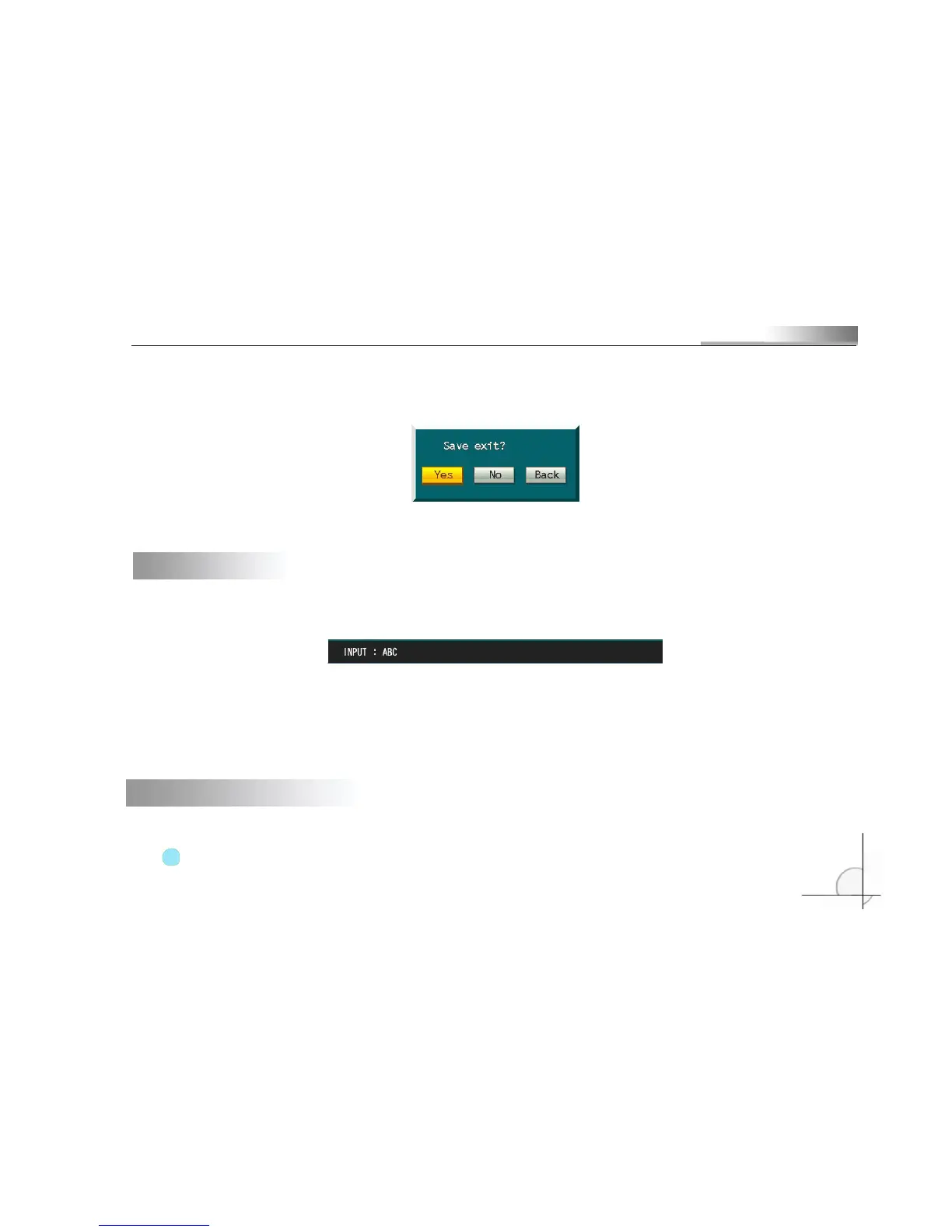
menu and move cursor to “Exit”, then, press [Menu] key and the following message box will popup:
To save the setting, click “Yes”. Click “No” to exit without saving. To continue the setting, click “Back”.
3.5 Input method
In menu operation interface, enter text edit box (e.g. “Name” box in “Image setting”) and input method will be displayed
in status bar at the bottom of the screen, as shown below:
Press [Menu] key on front panel to switch input method. For example, to input numbers, switch the input method to “123”
and then press 0-9. To change input method, press [Menu] key. Available input methods include: capitalized letter, small letter,
number and location (see “Location input method” in appendix). To input letters, press numerical keys 1-9. Press a key
consecutively to switch letters. After input the letter, wait for 2 seconds to input next letter.
3.6 Screen display in running state
Press [Display] key on front panel consecutively and different symbols will be displayed on the screen.
Video recording symbol: The blue round icon indicates manual recording state.



 To Next Page