CONFIGURATION PRO-VISION® Video Systems
DVR-906M SYSTEM GUIDE
60 provisionusa.com
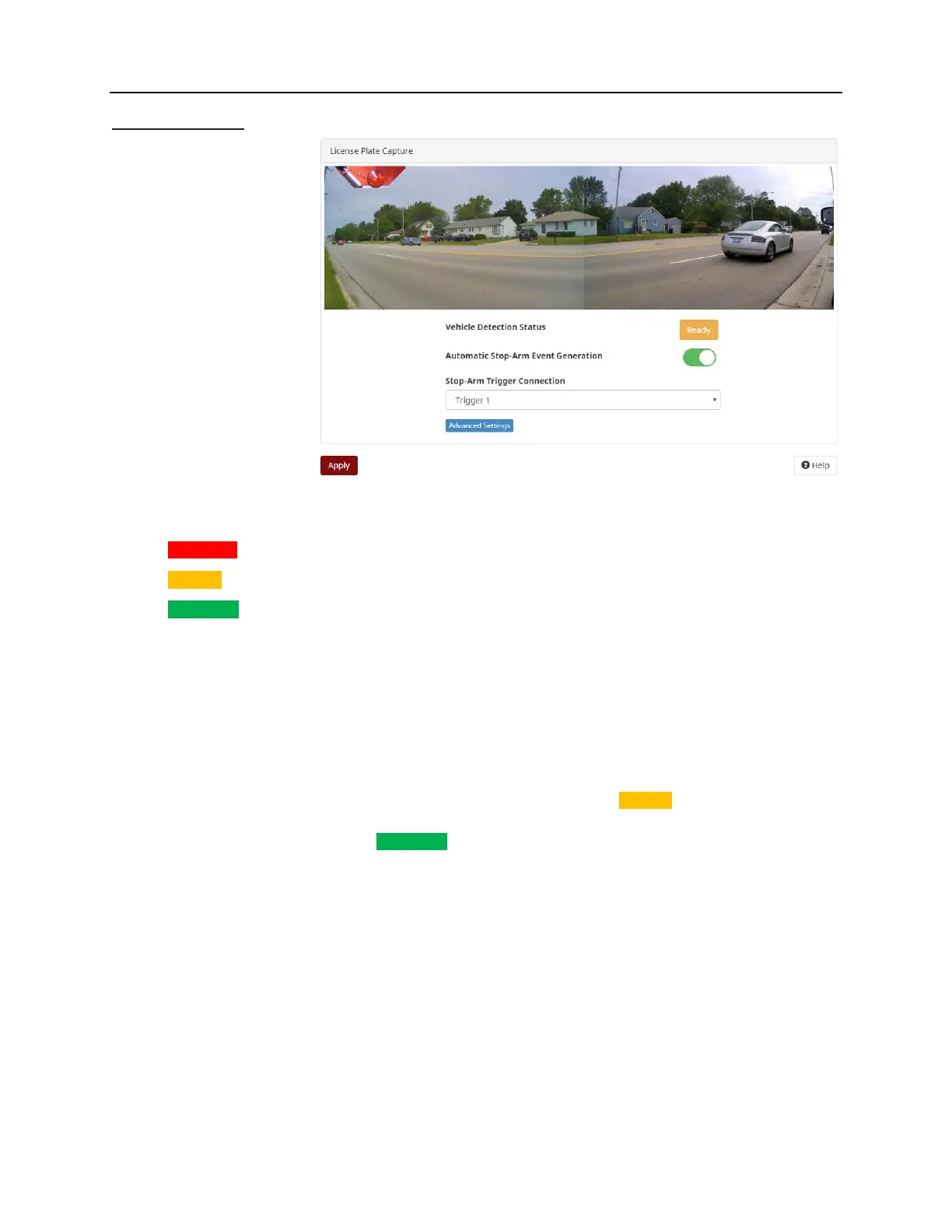
Stop-Arm Camera
If a DVR-824 Stop-Arm
camera is connected to the
DVR unit, the “Stop-Arm
Camera” settings page will
appear in the DVR unit’s
web menu under
“Advanced” settings.
Vehicle Detection Status: Shows the current status of the detection feature.
Disabled Feature is disabled
Ready Feature is enabled and ready to use
Detected Trigger is active and a vehicle or object has passed the stop-arm camera.
Automatic Stop-Arm Event Generation: The switch will enable the automatic event generation. Slide
this switch to the right to enable the detection feature.
Stop-Arm Trigger Connection: Select the desired trigger that is connected to the stop-arm open trigger
signal. The event detection feature will only be looking for events when this trigger signal is present.
Testing:
To test the stop-arm camera functionality, ensure the page says status of Ready , turn on the trigger for
the stop-arm by activating the red lights, and then physically move hand across from one camera lens to
the other, the status should change to Detected .
The DVR unit will create a “Stop-Arm” folder in the root directory of the primary recording disk. Then a
folder will be created with the date/time of the event. This folder will contain video files from both cameras
for 5 seconds before and 5 seconds after the test event:
SD/StopArm/20200101/20200101_10/7_201200101_102511_PVVS.avi Rear Facing Camera View
SD/StopArm/20200101/20200101_10/7_201200101_102511_PVVS.avi Front Facing Camera View



 To Next Page