21
7.1 Install Software
Download uPyxis software from www.pyxis-lab-lab/supports/, unzip and install uPyxis, The Bluetooth
adapter driver will be installed as well. Plugin the Bluetooth adapter shipped along with your SP-800 device,
open uPyxis app.
7.2 Turn on SP-800 Bluetooth
The SP-800 Bluetooth function is normally switched off in order to reduce power consumption, to turn on
Bluetooth, select SYS in the main menu and click BTLE in the SYS screen.
7.3 Connect uPyxis to SP-800
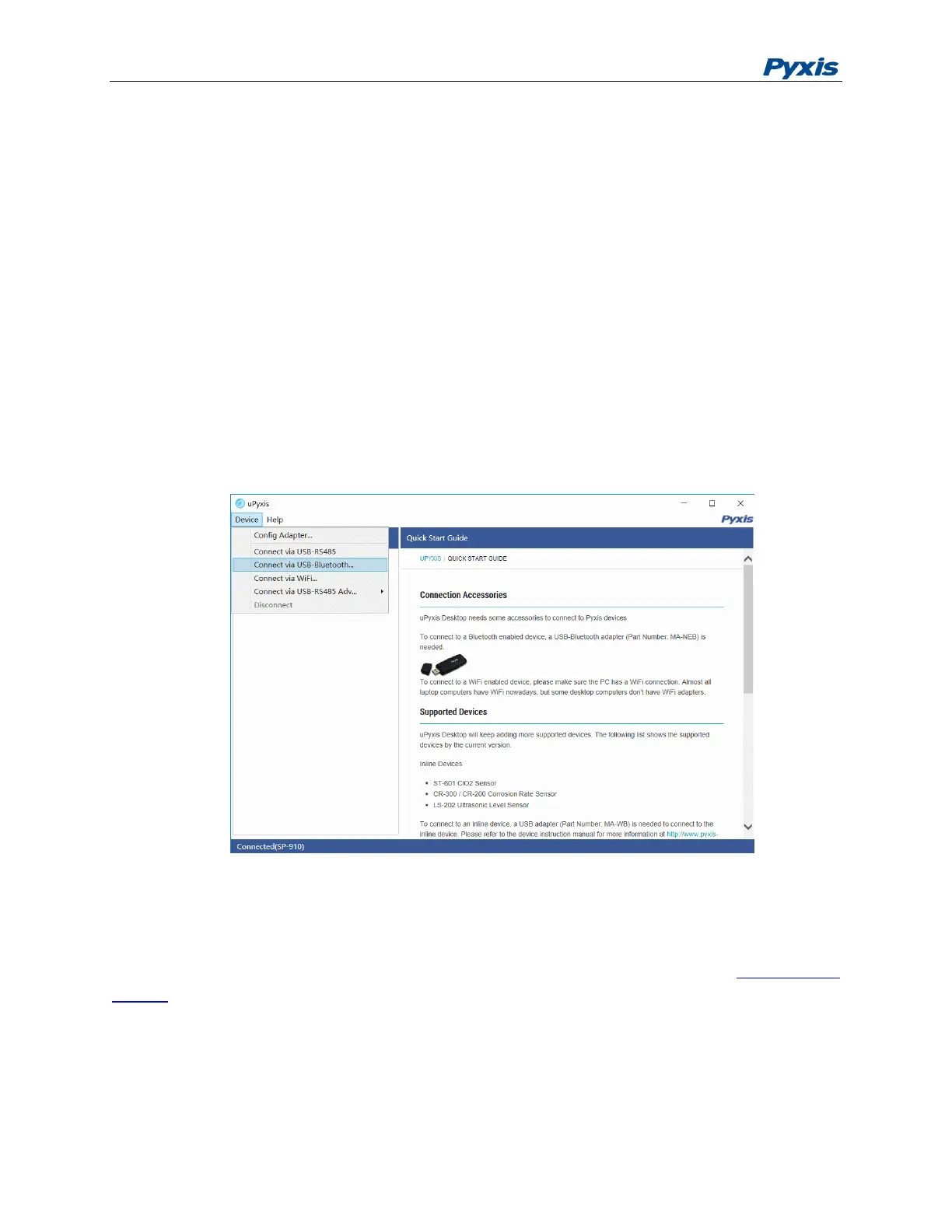
Click Device tap on the top right of uPyxis app. Select UBS-Bluetooth in the dropdown menu. uPyxis will
scan nearby Pyxis Bluetooth devices including SP-800 units. Click the discovered SP-800 to connect.
If the SP-800 is being automatically powered off during connection, please push the OK key to power on
the SP-800 again. The SP-800 will automatically turn on the Bluetooth and repeat the connection steps
again in uPyxis.
Figure 17. uPyxis Scans Bluetooth Devices
Upgrade Firmware
When connected, click System tap to view the device information. The user can upgrade the SP-800
firmware to the latest. The latest version of the SP-800 firmware can be obtained from service@pyxis-
lab.com.



 To Next Page