EasyManua.ls Logo

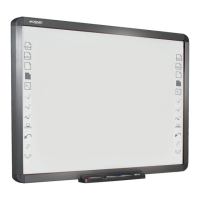
Qomo Interactive Whiteboard - User Manual

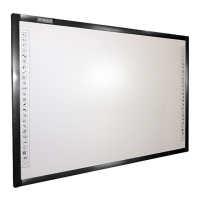
Qomo Interactive Whiteboard
37 pages
Print Icon
To Next Page IconTo Next Page
Loading...
Interactive Whiteboard
Owners Manual
V20100107
Qomo HiteVision, LLC
www.QOMO.com

Questions and Answers

  • R
    Robert GardnerSep 12, 2025
    What to do if my Qomo Whiteboard does not work?
    • R
      richard55Sep 12, 2025
      If your Qomo Whiteboard isn't working, several things could be the cause. First, ensure the server program is running; if not, run it. If the program isn't installed, install it. Check the USB connection between the whiteboard and the computer. A faulty server program may need to be uninstalled and reinstalled. Recalibrate the whiteboard. Also, check the pen battery for connection issues by removing and reinstalling it, or replace/charge the pen battery if it's low. Finally, the pen itself may be damaged and need replacement.
  • R
    Robin Whitney MDSep 13, 2025
    Why can't I search and bind my Qomo Whiteboard?
    • D
      dawnpatelSep 13, 2025
      If you cannot search for and bind your Qomo Whiteboard, it could be due to several reasons. Ensure the DC 5V power adapter is properly connected to supply power to the whiteboard. Verify that the wireless receiver is plugged into the computer via USB. Check for any obstructions between the wireless receiver and the whiteboard that might be shielding the electromagnetic wave; adjust the receiver's position to ensure good communication. If the connection between the computer and whiteboard is broken, try shutting off the power to the whiteboard or wireless receiver and then binding the whiteboard again. Finally, make sure the distance between the wireless receiver and the whiteboard is not more than 15 meters.
  • D
    David AlvaradoSep 15, 2025
    How to fix Qomo Whiteboard calibration points not appearing?
    • B
      barrlisaSep 15, 2025
      If the calibration points are not appearing on your Qomo Whiteboard, the projector's vertical or horizontal adjustment might be incorrect. This can cause part of the screen to overstep the whiteboard projection area. Adjust the projector to correct this.

Summary

System Requirements

Instruction

Software Features

How to install hardware

Install whiteboard on wall

Steps for mounting the whiteboard onto a wall using mounting parts and screws.

Install whiteboard on floor stands

Instructions for assembling and setting up the whiteboard on A (SD10) and B type floor stands.

Install whiteboard behind blackboard

Guide for installing the whiteboard to work in conjunction with a traditional blackboard.

Install whiteboard pen

Pen Usage and Maintenance

Covers pen usage modes, replacing the pen tip, and replacing the pen battery.

Install eraser

Replace Eraser Battery

Instructions for replacing the battery in the eraser.

Eraser Usage

Guide on how to operate the eraser for clearing whiteboard strokes.

Whiteboard Connection

USB and RF Wireless Connection

Details on connecting the whiteboard via USB or RF wireless methods.

Software Installation and Uninstallation

Install Software and Drivers

Step-by-step guide for installing the whiteboard software and necessary drivers.

Uninstall Software

Procedure for removing the whiteboard control software from the computer.

Search and Bind Whiteboard

Calibration

Two Pen Writing (Optional)

Problem Trouble Shooting

Questions and Answers

Specification

Qomo Interactive Whiteboard Specifications

General IconGeneral
TechnologyInfrared
Multi-touchYes
Software CompatibilityWindows, Mac, Linux
Touch TechnologyInfrared
ConnectivityUSB
Display Size78"
Operating System CompatibilityWindows, macOS, Linux

Related product manuals