True to the Music
Radial Engineering Ltd.
SW8-USB™ Owner’s Manual
11
USING THE SYNC LOCK FEATURE
SYNC LOCK on the SW8-USB allows the primary (A) computer to
pass MTC (MIDI Time Code) to the backup (B) computer over the USB
connection. This makes it possible to synchronize both computers by
setting the backup computer to start playback when MTC is recieved, so
that you only have to press play on your primary computer to start both
machines simultaneously.
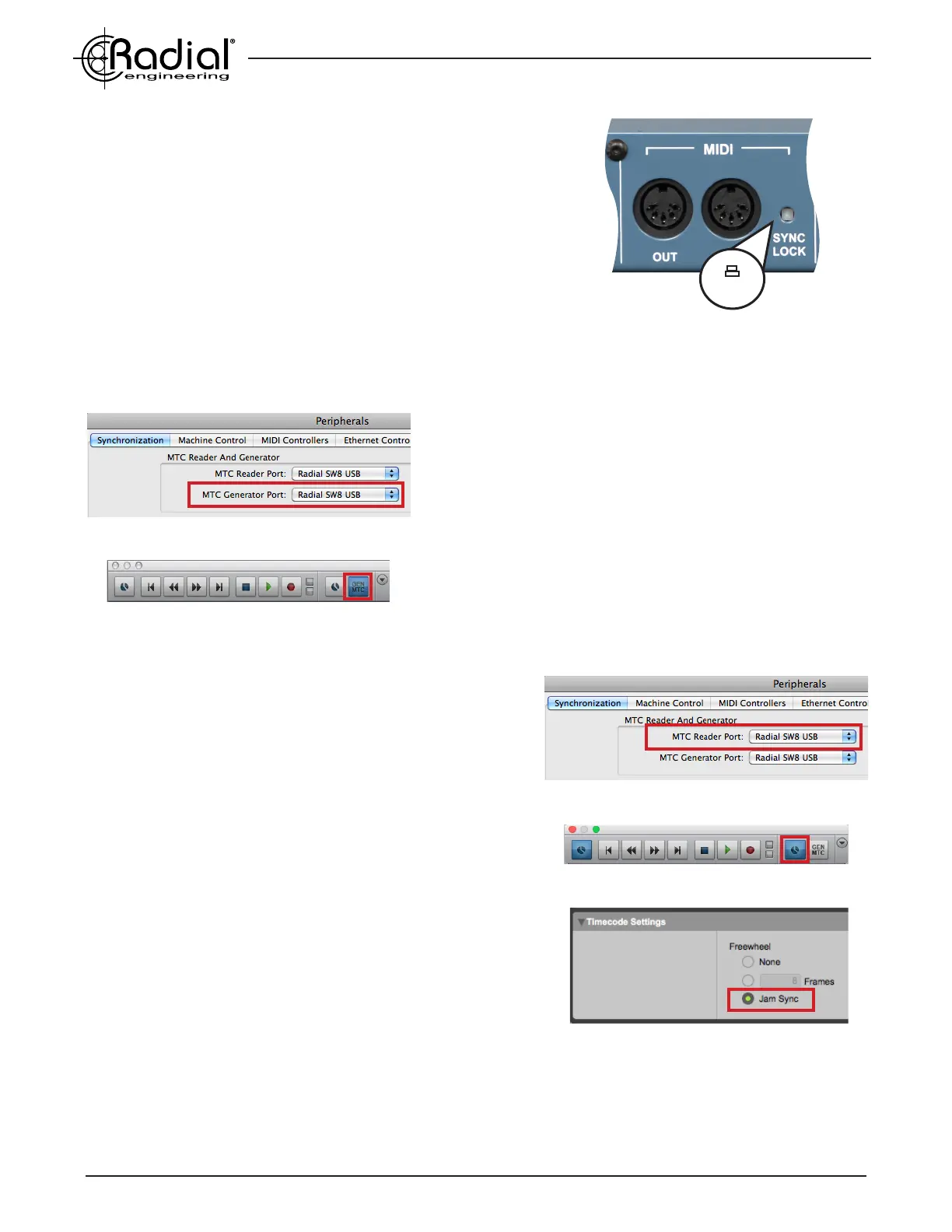
To use SYNC LOCK, rst engage the recessed switch on the rear panel
of the SW8-USB.
Engage SYNC LOCK to pass MIDI
information from your primary (A) computer to
the backup (B) computer
In
On your primary (A) computer, change the settings in your
Digital Audio Workstation (DAW) to select the SW8-USB as your
MTC destination, and to generate MTC upon playback. You may
need to refer to the manual for your DAW to nd these settings.
You can check that your primary computer is sucessfully
generating MTC by setting the rear panel AUTO-SWITCH input
selector to the ‘in’ position. When you begin playback on your
primary computer, the front panel PLAYBACK ACTIVITY A LED
will illuminate if the SW8-USB is receiving good MTC.
On the backup (B) computer, change your DAW synchronization
settings so that the SW8-USB is selected as the MTC source. You
will also need to set your DAW to syncronize to incoming timecode:
in ProTools this is accomplished by pressing Command+J to
enable online playback, or by pressing the clock face icon in the
transport window.
When syncronizing your backup computer to follow the primary
computer via SYNC LOCK, it is important to ensure that the
backup system will continue playback even if the primary system
fails. This type of synchronization is known as Jam Sync, and it
means that the backup system continues to generate MTC on its
own even if the original MTC source fails or becomes unstable.
Not all Digital Audio Workstations (DAWs) offer this feature - if
this is the case for your preferred DAW, use one of the other
synchronization methods described in this manual.
One nal setting to check is the timecode frame rate, which is
usually found in your session settings window. The value of this
setting is not important to the operation of the SW8-USB (24, 25,
29.97, and 30fps can all be used), but it is critical that both of your
DAWs are set to the same timecode rate to ensure syncronization
via SYNC LOCK.
Primary (A) Computer settings
Select the SW8-USB as the MTC destination
Enable MTC generation in your DAW
Set your DAW to sync to incoming timecode
Backup (B) Computer settings
Enable Jam Sync to ignore timecode dropouts
Select the SW8-USB as the MTC source


 To Next Page