True to the Music
Radial Engineering Ltd.
SW8-USB™ Owner’s Manual
7
MANUAL SWITCHING VS. AUTO SWITCHING
The SW8-USB can be used to manually select between the two playback computers, or it can be set to automatically
detect a drop-out or failure on your primary system and immediately switch to the backup system to ensure a
seamless performance. Even if you plan on using the SW8-USB in Auto-Switch mode, it is important to review how
to manually switch between inputs as this is useful when setting up and testing your playback system.
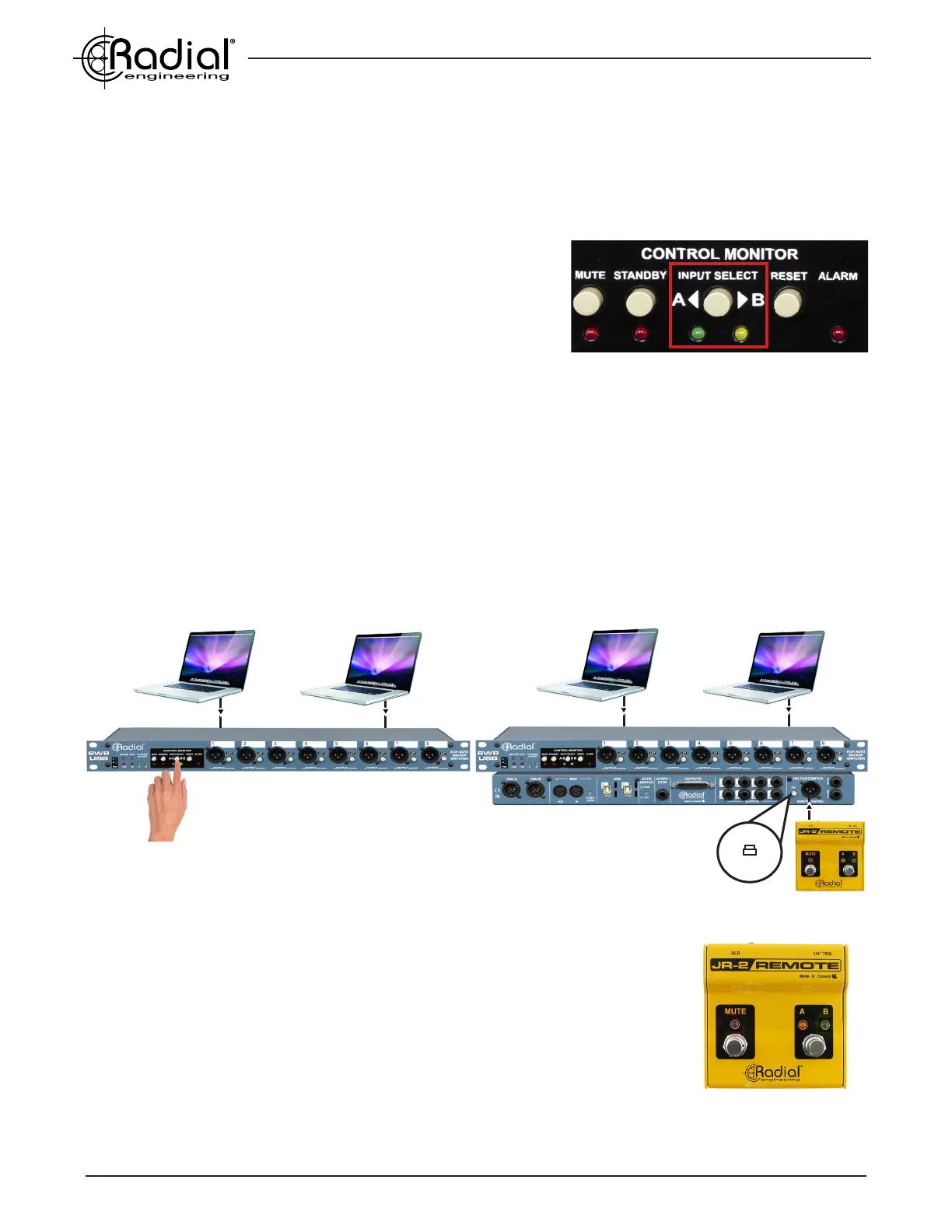
Primary Computer (A)
Backup Computer (B)
Manually switching to the backup computer
using the INPUT SELECT switch
OPERATING IN MANUAL SWITCHING MODE
In manual switching mode, the operator decides whether the A or B
inputs are selected. This is accomplished with the INPUT SELECT
switch. Note that three features on the SW8-USB will override this
switch and render it inactive:
1. The AUTO ON switch (front panel): This gives switching control over to the SW8-USB Auto-Switch function.
2. The JR-2 ON switch (rear panel): This allows a remote footswitch to select between the A and B inputs.
3. The STANDBY switch (front panel). This switch tells the SW8-USB to hold on the A inputs.
This feature is covered in detail in the Operating in Auto-Switch Mode section of the manual on page 9.
USING THE JR-2 REMOTE FOOTSWITCH
Manual switching can also be accomplished remotely using the optional JR-2
footswitch. The JR-2 can be connected using balanced XLR or 1/4” TRS cables: both
connector types are provided on the rear panel of the SW8-USB for convenience.
Once connected, the JR-2 ON switch (next to the XLR connector) must be engaged
for the remote to operate and to provide power to the LEDs - when the JR-2 is turned
on, the front panel INPUT SELECT switch will be inactive.
The JR-2 has two footswitches: the left ‘mute’ switch controls the STANDBY
feature of the SW8-USB, while the right footswitch will select between the A and B
inputs. The LED indicators on the JR-2 will sync with the front panel LEDs on the
SW8-USB, allowing you to check your settings at a glance on either device.
The Radial JR-2 Footswitch
Manually switching to the backup computer
using the JR-2 REMOTE footswitch
Primary Computer (A)
Backup Computer (B)
On
The INPUT SELECT switch on the front panel


 To Next Page