True to the Music
Radial Engineering Ltd.
SW8-USB™ Owner’s Manual
SW8-USB TROUBLESHOOTING GUIDE
PSU A or B LED does not light up.
Check that both your power supplies are plugged in and using the correct adaptor cable for your region.
USB A and B LEDs are lit on the back panel of the SW8-USB even though the device is not powered.
This is normal operation for the SW8-USB, the USB cards in the device that connect to your computers are bus
powered, meaning that the connected computer provides the power to the USB converter. This means that these
will remain powered even if you unplug the PSUs for the SW8-USB.
The Playback Activity LEDs are always off even though I can hear audio from both computers.
The Playback Activity LEDs will only turn on if you are feeding MTC or Tone via SPDIF from each computer to the
SW8-USB, which allows for auto switching to occur. These LEDs will not indicate audio output from channels 1-8
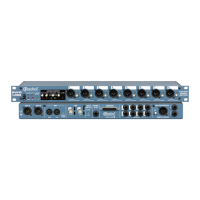
on either computer. To monitor the audio outputs from your active computer, use the 1/4” TRS or DB25 outputs on
the rear panel of the SW8-USB.
I can still hear playback from my computer even when the Mute switch is pressed.
The front panel Mute switch will cut the XLR outputs which will normally be feeding the PA system, but it will leave
the rear panel 1/4” TRS and DB25 outputs active. This allows you to monitor playback and cue up your track if
necessary before sending it out to the audience.
When the Alarm LED is ashing, pressing Reset will not allow me to switch back to the A inputs.
When the SW8-USB is in auto-switching mode, it will stay on the B inputs once a dropout has been detected from
the A computer. Pressing Reset will normally allow you to switch back to the A inputs, but only if good Tone via
SPDIF or MTC information is being received from the A computer. Check that the Playback Activity A LED is lit
before pressing Reset. To switch back to the A inputs even if the Playback Activity A LED is not lit, use the Standby
switch.
The Auto ON LED is off even though the switch is pressed in.
Whenever the Standby switch is engaged on the front panel of the SW8-USB or on the JR-2 remote (labeled as
Mute on the remote), this will turn off the AUTO ON LED to indicate that the user has temporarily overridden the
auto-switching function. Once the Standby switch is deactivated when in Auto-Switch mode, the AUTO ON LED
should illuminate.
The front panel Input Select switch has no effect.
There are three cases where the front panel Input Select switch is defeated; if the JR-2 remote is connected and the
ON switch on the rear panel is activated, if the Auto switch is engaged, or if the Standby switch is engaged. Ensure
that all three of these features are deactivated to use the local Input Select feature on the front panel.
The JR-2 footswitch won’t allow me to select between the A or B inputs.
Check that STANDBY and AUTO ON are disengaged on the front panel, and the rear panel JR-2 ON is engaged.
The JR-2 footswitch won’t allow me to put the SW8-USB into standby.
Check that the STANDBY switch on the front panel is disengaged, and the rear panel JR-2 ON is engaged.


 To Next Page