True to the Music
Radial Engineering Ltd. SW8-USB™ Owner’s Manual
8
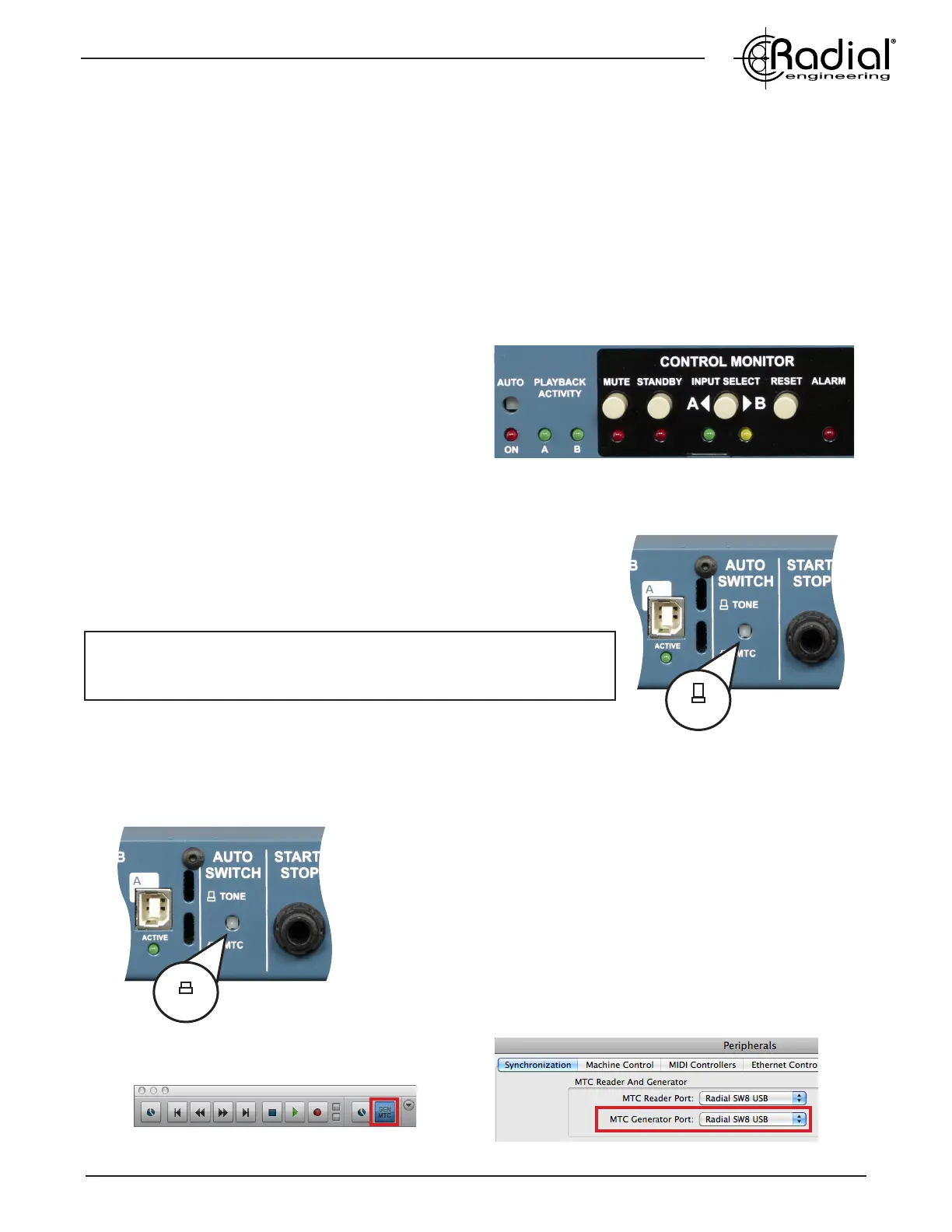
AUTO-SWITCH MODE OVERVIEW
The SW8-USB has the ability to automatically switch over to the backup (B) inputs should a dropout occur on your
primary (A) playback computer. This is accomplished by conguring each computer to send a constant signal during
playback to the Auto-Switch inputs of the SW8-USB. This signal can be either MTC (MIDI Time Code) or an audio
tone track that is fed to the SW8-USB via the SPDIF inputs. The PLAYBACK ACTIVITY LEDs on the front panel light
up when this signal is detected from each computer.
Should a failure occur on your primary computer, the SW8-USB will switch over to the backup (B) inputs and the
ALARM LED will ash. The SW8-USB will then remain on the B inputs until playback is restored on your primary
computer and the RESET switch is pressed. The STANDBY switch is used between songs to prevent the SW8-USB
from auto-switching when your primary playback computer is intentionally stopped.
When setting up for automatic switching, rst select
whether you will feed the Auto-Switch inputs using
MTC or Tone via SPDIF. Whichever method you choose
will need to be congured the same way on both the
primary and backup computers. For the lowest latency
when switching, we recommend using Tone via SPDIF
when in Auto-Switch mode.
The AUTO-SWITCH controls on the SW8-USB
SENDING TONE VIA SPDIF TO THE AUTO-SWITCH INPUTS
First ensure that the rear panel AUTO-SWITCH input selector is in the
‘out’ position to receive Tone via SPDIF. Using your preferred Digital Audio
Workstation (DAW), print a 1kHz sine wave that lasts the length of your audio
session le. Set this audio tone track to feed outputs 9-10, which are the
SPDIF input channels of the SW8-USB.
Tip: if using Avid ProTools, selecting a region on any track and pressing
Control+Option+Shift+3 will automatically print a 1kHz test tone across the
selection.
Begin playback in your DAW on the primary computer. You should see the
PLAYBACK ACTIVITY A LED illuminate to indicate that tone is being received
by the Auto-Switch input. Repeat these steps with your backup computer.
Tone
MTC
SENDING MTC TO THE AUTO-SWITCH INPUTS
To feed MTC (MIDI Time Code) to the Auto-Switch inputs, set the rear panel
AUTO-SWITCH input selector to the ‘in’ position. Then setup your Digital
Audio Workstation (DAW) to feed MTC to the SW8-USB. This will require
you to enable the MTC generate/transmit function in your DAW, and to
select the SW8-USB as the output destination. Refer to the user guide for
your DAW for details on where these settings are located (ProTools MTC
settings shown below).
Begin playback in your DAW on the primary computer. You should see the
PLAYBACK ACTIVITY A LED illuminate to indicate that good MTC is being
received by the Auto-Switch input. Repeat these steps with your backup
computer.
Select the SW8-USB as the MTC destinationEnable MTC generation in your DAW


 To Next Page