EasyManua.ls Logo

Radio Shack PRO-136 - User Manual

Radio Shack PRO-136
28 pages
Print Icon
To Next Page IconTo Next Page
Loading...
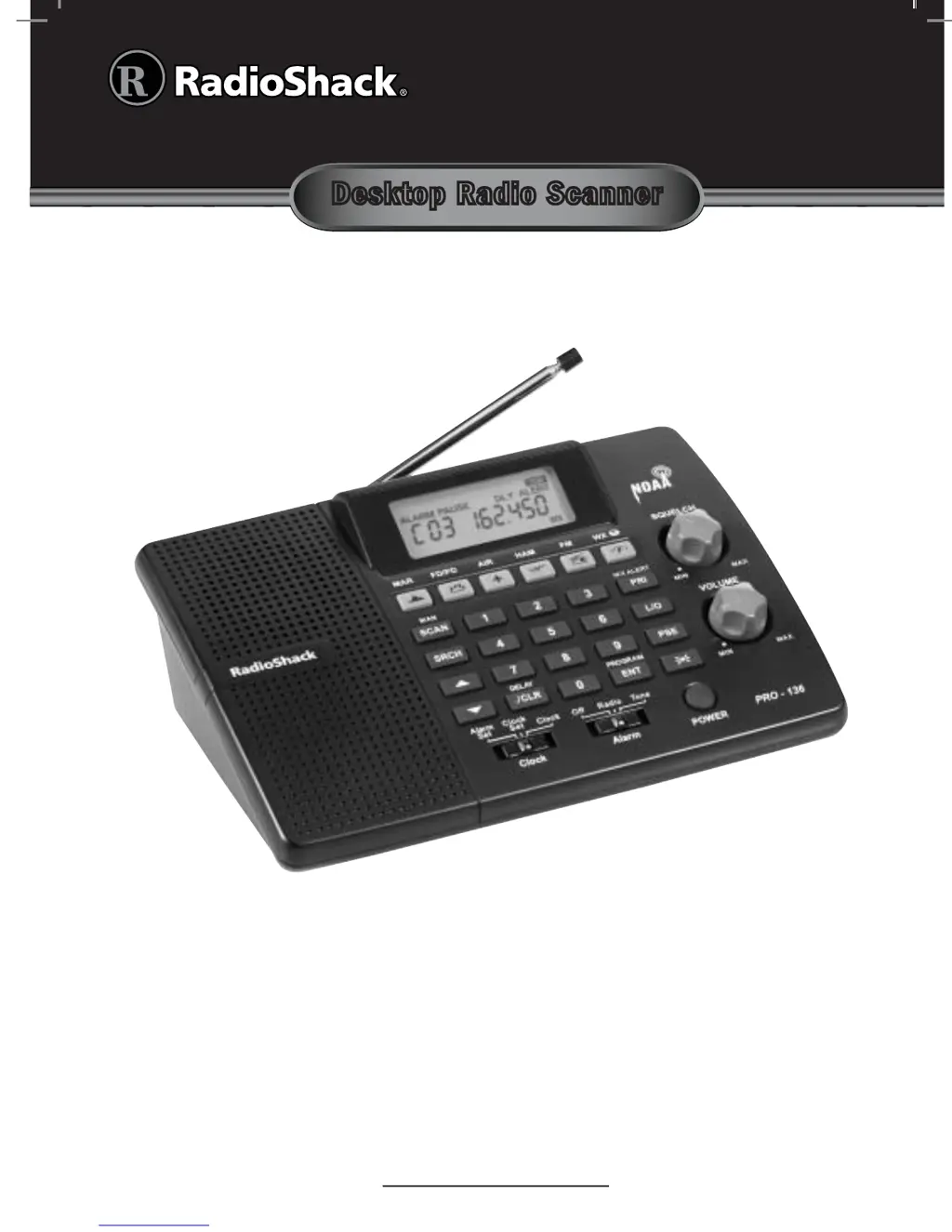
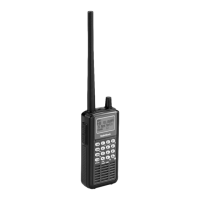
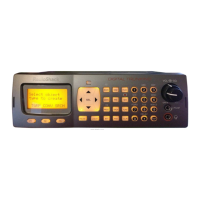
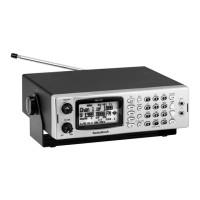
Thank you for purchasing your 200 Channel Desktop Radio Scanner from
RadioShack. Please read this user’s guide before installing, setting up and
using your new scanner.
20-136
PRO-136
www.radioshack.com
Scanner
AC adapter
Antenna
User’s guide
Preprogrammed frequency list
Quick start guide
Desktop Radio Scanner
What’s Included

Questions and Answers

  • A
    Andrew GregoryAug 8, 2025
    What to do if my Radio Shack PRO-136 is on but not scanning?
    • J
      Julie MaddenAug 8, 2025
      If your Radio Shack Scanner is on but not scanning, it might be due to the SQUELCH not being adjusted correctly. Try adjusting the SQUELCH. Also, ensure you have frequencies stored in more than one channel, as the scanner may not scan if only one or no channels are stored.
  • J
    Jessica WrightAug 14, 2025
    Why is my Radio Shack PRO-136 reception poor?
    • F
      franksarahAug 14, 2025
      Poor or no reception on your Radio Shack Scanner can be due to a loose antenna. Ensure an antenna is securely connected to the scanner. Alternatively, the scanner might be receiving interference or electrical noise. Try moving the scanner or its antenna away from the source of interference and change the height or angle of the antenna.
  • K
    Kathleen GreenAug 20, 2025
    How to fix 'Error' on Radio Shack PRO-136?
    • C
      cdixonAug 20, 2025
      If an 'Error' appears on your Radio Shack Scanner, it indicates a programming error. Re-enter the frequency correctly, making sure to include the decimal point.
  • W
    Willie WebbAug 27, 2025
    What to do if the light is flashing on my Radio Shack Scanner?
    • M
      michele86Aug 27, 2025
      If the light is flashing on your Radio Shack Scanner, it means the batteries are low. Replace them to resolve the issue.
  • J
    Jeffrey WhiteSep 1, 2025
    What does it mean when my Radio Shack Scanner shows (not flashing)?
    • K
      Kevin GonzalezSep 1, 2025
      If your Radio Shack Scanner shows (not flashing), it indicates that batteries are not installed. Install batteries to power the device.

Summary

Scanner Setup Guide

Scanner Features Overview

Overview of the scanner's capabilities and functions.

Antenna Connection Procedure

Instructions for attaching the antenna for optimal reception.

Powering the Scanner

Details on connecting the AC adapter and powering the device.

Battery Installation

Steps for inserting AA batteries for backup power.

Battery Usage Notes

Important information regarding battery usage and care.

Scanner Placement Recommendations

Recommendations for optimal scanner positioning to avoid interference.

Headphone Connection

How to connect headphones for private listening.

Safe Listening Practices

Guidelines to protect hearing while using the scanner.

External Alert Output Connection

How to connect external alert devices like strobes or sirens.

Understanding Scanner Terminology

Explanation of basic terms and scanner features.

Turning On the Scanner

Step-by-step guide to powering on the scanner.

Clock and Alarm Setting

Instructions for setting the current time and alarm functions.

Alarm Function Configuration

Configuration options for alarm sounds and behavior.

Programming Frequencies into Channels

Detailed steps for storing radio frequencies into memory channels.

Searching for Frequencies

Fine Tune Search Operation

How to search up or down from a specific frequency.

Service Bank Search Method

Searching pre-programmed service bands like Marine, Police, etc.

Storing Found Frequencies

Procedures to save frequencies discovered during a search.

Using Search Skip Memory

How to skip unwanted frequencies during a search.

Understanding Search Speeds

Information on normal and hypersearch speed settings.

Scanning Operations

Scanning Stored Channels

How to scan programmed channels in active banks.

Manually Selecting a Channel

Steps to directly access and monitor a specific channel.

Weather Scan Mode

How to scan for NOAA weather transmissions.

Receiving Weather Alerts

Understanding and receiving weather alerts based on SAME codes.

Enabling Digital Weather Alert

Activating the scanner's feature to alert for weather advisories.

Standby Mode Alerts

How the scanner alerts for weather even when powered off.

Testing Weather Alarm Tones

How to test the different weather alert tone levels.

Programming County Alerts

Setting up alerts for specific geographical areas using FIPS codes.

FIPS Code Programming

Detailed guide to entering FIPS codes for county-specific alerts.

About Skywarn Network

Information about the Skywarn weather spotter network.

Scanner Settings Configuration

Setting Transmission Delay

Adjusting the 2-second delay for transmissions.

Channel Bank On;Off Control

How to enable or disable specific channel banks for scanning.

Locking Out Channels

Marking channels to be skipped during scanning.

Setting Priority Channels

Designating channels to be checked periodically during scanning.

Display Backlight Usage

How to control the scanner's display backlight.

Advanced Programming Options

Scanner Cloning Procedure

Transferring programmed data to another scanner via cable.

Wired PC Programming

Uploading or downloading data from a PC using a cable.

Additional Information and Care

FCC Compliance Notice

Regulatory information and compliance statements from the FCC.

Legal Scanning Practices

Guidance on legal listening practices and prohibited transmissions.

Scanner Care and Maintenance

Instructions for maintaining and cleaning the scanner.

Service and Repair Information

Information on obtaining professional assistance for malfunctions.

Scanner Technical Specifications

Technical details, frequency ranges, and performance metrics.

Troubleshooting Guide

Scanner Reset Procedure

Procedures to restore the scanner to its default state.

Limited One-year Warranty

Radio Shack PRO-136 Specifications

General IconGeneral
BrandRadio Shack
ModelPRO-136
CategoryScanner
LanguageEnglish

Related product manuals