EasyManua.ls Logo

Raymarine E140 - User Manual

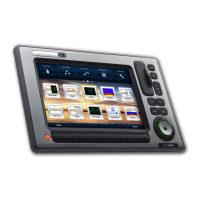
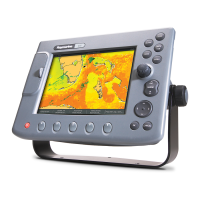
Raymarine E140
104 pages
Print Icon
To Next Page IconTo Next Page
Loading...
E-Series
Widescreen
Multifunction Display
Installation instructions
E90W, E120W and E140W models
E-SeriesWidescreeninstallation

Table of Contents

Other manuals for Raymarine E140

Questions and Answers

  • A
    Ann GuzmanAug 18, 2025
    Why does my Raymarine E140 GPS display not start up?
    • R
      Robert IngramAug 18, 2025
      The display may not start due to a problem with the power supply. Check the following: * Relevant fuses and breakers. * The power supply cable, ensuring it is sound and all connections are tight and free from corrosion. * The power source, making sure it is of the correct voltage and sufficient current.
  • J
    Jason CalderonAug 20, 2025
    What to do if my Raymarine GPS shows a 'No Fix' status?
    • J
      justin55Aug 20, 2025
      If your Raymarine GPS displays a 'No Fix' status, the issue could be due to several reasons: * Your current geographic location or weather conditions might be preventing a satellite fix. Periodically check to see if a fix is obtained under better conditions or in a different location. * There may be a fault with the external GPS connection. Ensure that all GPS connections and cabling are correct and fault-free. * The external GPS antenna might be poorly positioned, such as being below decks or too close to transmitting equipment like a VHF radio. Ensure the GPS antenna has a clear view of the sky.
  • J
    Jerry SantosAug 23, 2025
    How to troubleshoot a 'No Data' or 'No scanner' message on my Raymarine GPS?
    • D
      David HillAug 23, 2025
      A 'No Data' or 'No scanner' message on your Raymarine GPS can be caused by several factors: * Check the scanner power supply cable to ensure it is sound and that all connections are tight and free from corrosion. Also, check the relevant fuses and breakers, and verify that the power source provides the correct voltage and sufficient current. * Verify that the scanner is correctly connected to the display via a crossover coupler or SeaTalkhs switch, and check the status of the SeaTalkhs switch. Also, inspect the SeaTalkhs cables for any damage. * Ensure the scanner pedestal switch is in the ON position.
  • A
    anna27Aug 26, 2025
    Why is instrument data missing from some Raymarine GPS displays?
    • Z
      zkennedyAug 26, 2025
      If instrument data is missing from some, but not all, Raymarine GPS displays, it could be due to a SeaTalkhs network problem. Check that all required equipment is connected to the SeaTalkhs switch, verify the status of the SeaTalkhs Switch, and ensure that SeaTalkhs cables are free from damage.
  • S
    Steven EllisAug 28, 2025
    How to fix incorrect target bearing on Raymarine radar screen?
    • J
      Jordan JohnsonAug 28, 2025
      If the bearing of a target on the radar screen is incorrect, the radar bearing alignment likely requires adjustment. Check and adjust the radar bearing alignment.
  • A
    Ashley OsborneAug 30, 2025
    How to fix a Raymarine GPS touchscreen that is not working correctly?
    • T
      Thomas JonesAug 31, 2025
      If the touchscreen on your Raymarine GPS is not operating as expected: * Ensure that the touch lock is disabled. Use the Trackpad to turn off the touch lock on the home screen. * Make sure you are using bare fingers to operate the screen. Bare fingers must make contact with the screen for correct operation; alternatively, you may use conductive gloves. * Calibrate the touchscreen using the setup menus. * Clean and dry the screen carefully, as saltwater deposits can interfere with operation.
  • U
    ubraunSep 2, 2025
    What causes a Raymarine fishfinder to show no data source?
    • J
      Joseph JenningsSep 2, 2025
      If your Raymarine fishfinder displays 'No data source', it could be due to: * A DSM power supply fault. Check the DSM power supply and cables. * A SeaTalkhs network problem. Check that the DSM is correctly connected to the display or SeaTalkhs switch. Verify the status of the SeaTalkhs Switch and ensure that SeaTalkhs cables are free from damage.
  • A
    Anna CarrSep 4, 2025
    Why is instrument data unavailable on all Raymarine E140 displays?
    • R
      ruthmendozaSep 4, 2025
      If instrument, engine, or other system data is unavailable on all displays, it means the data is not being received at the display. Check the data bus wiring and connection to the display, and verify the overall integrity of the data bus wiring. Also, check the source of the missing data.
  • S
    Samuel HernandezSep 7, 2025
    What causes problematic depth readings on my Raymarine E140 GPS?
    • A
      Abigail YoungSep 7, 2025
      Problematic depth readings or sonar images on your Raymarine GPS can be caused by: * Inappropriate gain or frequency settings for the current conditions. Check the fishfinder presets, gain, and frequency settings. * A DSM cable fault. Ensure that the power, transducer, and all other cables to the DSM unit are properly connected and free from damage.
  • R
    Rebecca KelleySep 9, 2025
    How to fix radar initialization issues on Raymarine E140?
    • B
      brendarobertsSep 9, 2025
      If the radar will not initialize due to the Voltage control module (VCM) being stuck in “sleep mode”, check the power connection at the VCM. Verify the voltage at the input (12 / 24 V) and the output (40 V). The cause is most likely an intermittent or poor power connection.

Summary

Important Information

Product Installation and Operation Warning

Ensures product is installed and operated per Raymarine instructions to prevent injury or damage.

Potential Ignition Source Warning

Product not approved for hazardous/flammable atmospheres. Do not install near fuel tanks.

High Voltages Warning

Product contains high voltages. Do not remove covers or access internal components.

Product Grounding Warning

Ensure product is correctly grounded before applying power.

Switch Off Power Supply Warning

Switch off boat's power supply before installation. Do not connect/disconnect with power on.

Radar Scanner Safety Warning

Ensure all personnel are clear before rotating the radar scanner.

Radar Transmission Safety Warning

Scanner transmits electromagnetic energy. Ensure personnel are clear when transmitting.

Sonar Operation Warning

Never operate sounder out of water; avoid touching transducer face when powered.

Power Supply Protection Caution

Ensure power source is protected by a suitably-rated fuse or automatic circuit breaker.

EMC Installation Guidelines

Ensure correct installation for EMC performance; maintain separation from other equipment and cables.

Planning the Installation

Installation Checklist

Lists the key activities for system installation, from planning to final testing.

E-Series Widescreen System

Illustrates basic system connectivity for the E-Series Widescreen display.

System Protocols

Explains various protocols (SeaTalkhs, SeaTalkng, NMEA 2000, SeaTalk, NMEA 0183) for system connectivity.

Data Master

Designates a multifunction display as the primary data source for networked systems.

Cables and Connections

General Cabling Guidance

Provides guidelines on cable types, routing, strain relief, circuit isolation, and shielding.

Power Connection

Details the correct power connection for the display, including distribution and protection.

SeaTalkhs Network

Explains how to connect compatible displays and devices using the SeaTalkhs network.

Sonar Connection

Details how to connect the display to a sonar module (DSM) for fishfinder applications.

Location and Mounting

System Checks

Radar Check

Guides through checking radar operation, including scanner initialization and transmission.

Troubleshooting

Troubleshooting

Provides causes and corrective actions for common marine electronics installation problems.

Power Up Troubleshooting

Lists problems, causes, and solutions for issues encountered during power-up.

Radar Troubleshooting

Addresses common radar problems like 'No Data' or incorrect bearing alignment.

GPS Troubleshooting

Diagnoses and resolves issues related to the GPS status icon and connection.

Sonar Troubleshooting

Troubleshoots common sonar issues like 'No data' or problematic depth readings.

Technical Support

Technical Specification

Options and Accessories

Raymarine E140 Specifications

General IconGeneral
BrandRaymarine
ModelE140
CategoryGPS
LanguageEnglish

Related product manuals