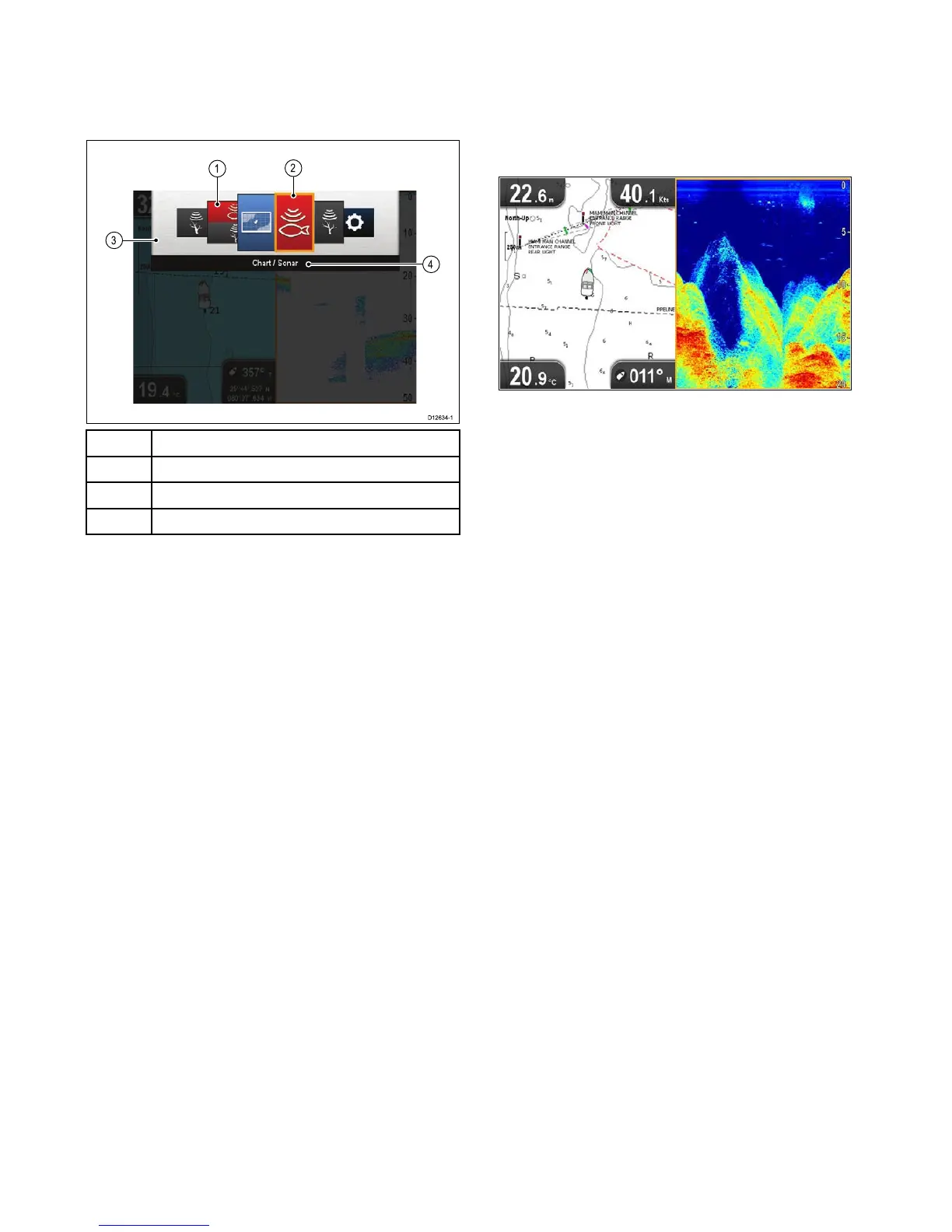
1Viewthumbnails
2Activeapplication
3Viewswitcher
4Viewswitchertitlebar
Theviewsavailablearedependentonproduct
variantbutcaninclude:
•Chartapplication
•Sonarapplication
•DownVisionapplication
•DownVision/Sonarapplication—splitscreen
•Chartapplication/Sonarapplication—splitscreen
•Chartapplication/DownVisionapplication—
splitscreen
•Tools&Settings
OpeningtheViewswitcher
Fromthetoplevelapplicationstate(Motionmode
orScrollingmode):
1.PresstheBackbutton.
UsingtheViewswitcher
Toselectaviewfollowthestepsbelow.
WiththeViewswitcherdisplayed:
1.UsetheDirectionalcontrolstohighlightaview.
2.PresstheOKbuttontodisplaythechosenview.
Selectingtheactivepaneinsplitscreen
views
Whenasplitscreenviewisdisplayedyoucan
changetheactivepane(thepanethatyouwantto
control)usingtheViewswitcher.
Withasplitscreenviewdisplayed.
1.IfrequiredpresstheBackbuttontochangethe
ChartapplicationtoMotionmode,ortheSonar
andDownVisionapplicationstoScrollingmode.
2.PresstheBackbuttonagain.
TheViewswitcherisdisplayed.
3.UsetheDirectionalcontrolstohighlightthe
paneyouwanttomakeactive.
4.PresstheOKbuttontoconrm.
Theselectedviewisdisplayedandaborderis
placedaroundtheactivepane.
56
Dragony–4/Dragony–5/Dragony–7/Wi–Fish





 To Next Page