EasyManua.ls Logo

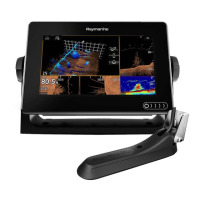
Raymarine REALVISION 3D - User Manual

Raymarine REALVISION 3D
60 pages
Print Icon
To Next Page IconTo Next Page
Loading...
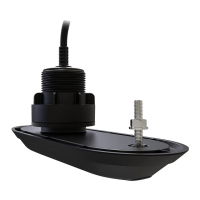
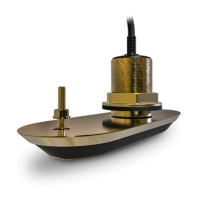
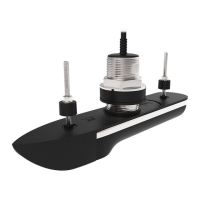
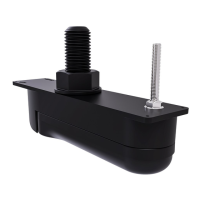
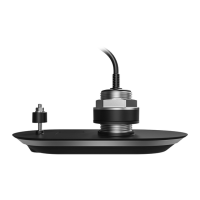
RV-4xx Stainless Steel Through-Hull
Transducer Installation Instructions
English (en-US)
Date: 02-2021
Document number: 87375 (Rev 2)
© 2021 Raymarine UK Limited
REALVISION
3D

Table of Contents

Questions and Answers

  • J
    Jennifer MitchellAug 7, 2025
    Why is the scrolling image not being displayed on my Raymarine REALVISION 3D?
    • G
      Glenn CalderonAug 7, 2025
      If the scrolling image isn't showing on your Raymarine Transducer, there might be a few reasons: * The sonar might be disabled. To fix this, enable Ping in the Fishfinder app’s sounder settings: go to Menu > Settings > Sounder > Ping. * The wrong transducer could be selected. Verify the correct transducer is selected in the Fishfinder app’s Transducer tab: Menu > Settings > Transducer > Ping. * There may be an issue with the SeaTalkhs / RayNet network connection. Ensure the unit is properly connected to the display or network switch and that all connections are secure, clean, and free from corrosion. Replace if necessary. * Software mismatch may prevent communication. Ensure all Raymarine products have the latest software by checking the Raymarine website.
  • P
    penastacyAug 11, 2025
    What to do if my Raymarine Transducer image is poor?
    • M
      Mr. Scott WilliamsAug 11, 2025
      If you're experiencing a poor image quality with your Raymarine Transducer, here are a few things to check: * Try increasing your vessel speed, as targets can appear differently when stationary. * Ensure that the sonar scrolling isn't paused or set too low. Adjust the scrolling speed as needed. * The sensitivity settings might not be right for the current conditions. Adjust the sensitivity settings or try performing a sonar reset. * Inspect the cables for damage. Check the unit’s connector for broken or bent pins, ensure the cable connector is fully inserted and locked, and look for any signs of damage or corrosion. Replace if necessary. Also, check the vessel’s battery voltage and the condition of the battery terminals and power supply cables.
  • S
    Shawn FigueroaAug 16, 2025
    Why does my Raymarine REALVISION 3D have no depth reading?
    • W
      Wesley SmithAug 16, 2025
      If your Raymarine Transducer isn't showing a depth reading or has lost bottom lock, consider these potential causes: * The transducer might not be correctly installed. Verify that the transducer has been installed according to the provided instructions. * The transducer angle might be too great. Adjust the transducer angle and recheck. * If your transducer has a kick-up mechanism, it might have been triggered. Check that it hasn't kicked up due to hitting an object. * The power source might be insufficient. Check the power supply voltage as close to the unit as possible to ensure it meets the product's technical specifications.
  • L
    Lauren ReynoldsAug 20, 2025
    How to check Raymarine REALVISION 3D Transducer cables if scrolling image is not displayed?
    • T
      Todd SanchezAug 20, 2025
      If the scrolling image isn't being displayed on your Raymarine Transducer, the transducer cable may be damaged. Start by checking if the transducer cable connector is fully inserted and locked. Then, inspect the power supply cable and connectors for damage or corrosion, replacing them if needed. With the unit on, flex the cable near the display connector to see if it causes the unit to reboot or lose power; replace if necessary. Also, check the vessel’s battery voltage, the condition of the battery terminals, and power supply cables, ensuring they are secure, clean, and free from corrosion. Finally, with the product under load, use a multi-meter to check for high voltage drop across all connectors/fuses; replace if necessary.
  • G
    georgechristopherAug 25, 2025
    What to do if Raymarine Transducer scrolling image is not displayed and transducer is damaged?
    • R
      Rachel JohnsonAug 25, 2025
      If the scrolling image isn't showing on your Raymarine Transducer, the transducer itself might be damaged or fouled. Inspect the transducer to ensure it is not damaged and is free from debris or fouling. If necessary, clean or replace the transducer. After cleaning or replacement, apply a water-based anti-fouling paint to the transducer.
  • A
    Anita WestAug 28, 2025
    How to check transducer compatibility for Raymarine if scrolling image is not displayed?
    • I
      Isaiah MunozAug 28, 2025
      If the scrolling image isn't showing on your Raymarine Transducer, the wrong transducer might be fitted. Verify that the transducer is compatible with your system by checking both the product and transducer documentation.
  • B
    Beth TylerSep 1, 2025
    How to solve software mismatch for Raymarine Transducer if scrolling image is not displayed?
    • S
      Susan ValdezSep 2, 2025
      If the scrolling image isn't showing on your Raymarine Transducer, there may be a software mismatch between equipment. Ensure all Raymarine products contain the latest available software by checking the Raymarine website.

Raymarine REALVISION 3D Specifications

General IconGeneral
TypeTransducer
CompatibilityRaymarine Axiom Pro, Axiom
Sonar ChannelsCHIRP DownVision, CHIRP SideVision, RealVision 3D
Beam WidthVaries by model and frequency. Consult specific transducer documentation.
ConnectivityRayNet
Mounting TypeThru-Hull, Transom, In-Hull

Related product manuals