Page 20 of 28
minutes (3-5) depending on material and ambient condition influences. During this time, prepare a small
piece of tape for Step 7-8: “Spooler Ready”.
5. Once the output filament has stabilized you will hear another chime and a prompt on the UI screen saying
“Spooler Ready”. The fan speed will reduce to allow the filament to soften to a point that it is able to start
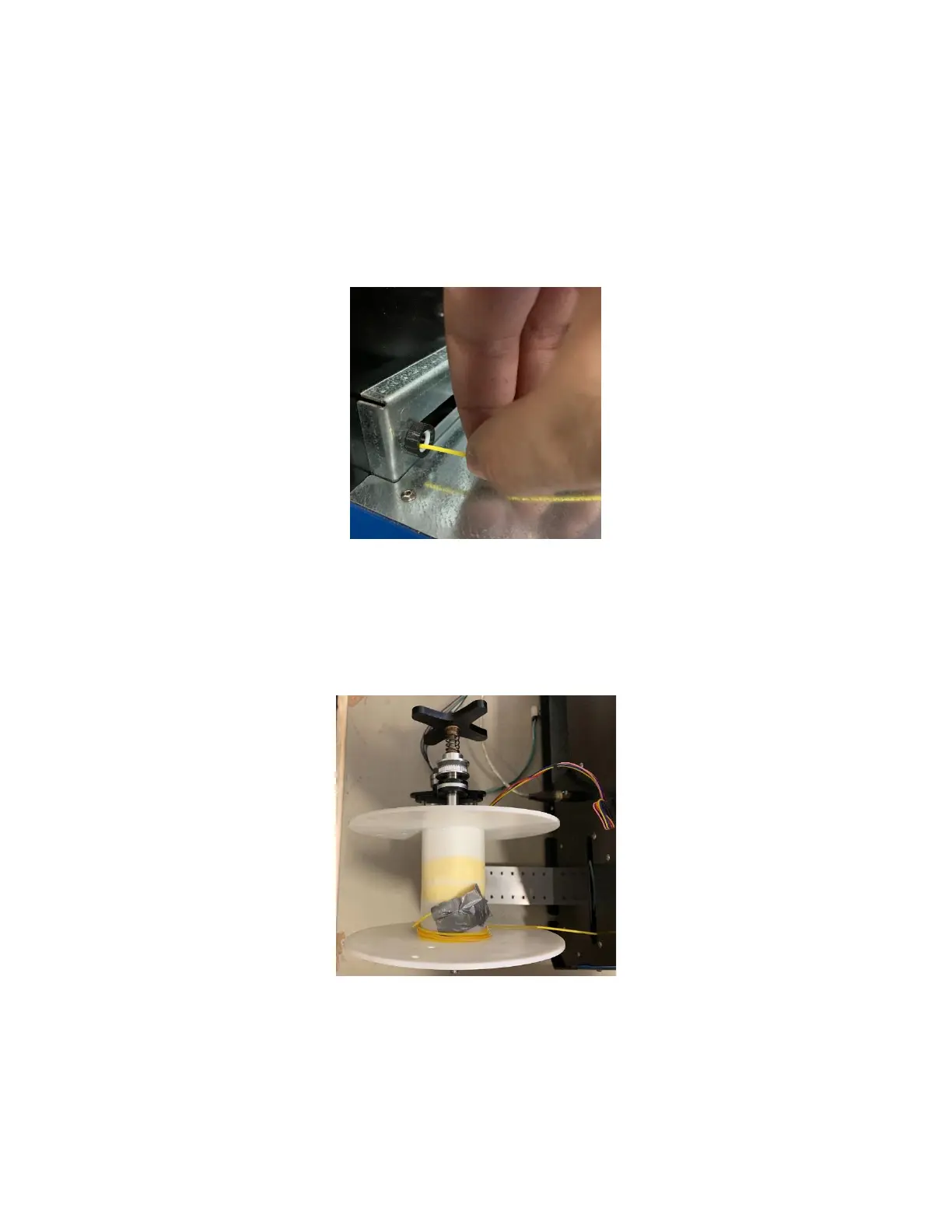
spooling. Using the yellow handle snips that come with every ProtoCycler, snip the excess filament that has
been extruding off the front side of your UI. Now feed the filament through the spreader guide. See Figure
16 for reference.
Figure 16: Feeding filament through the Spreader Guide.
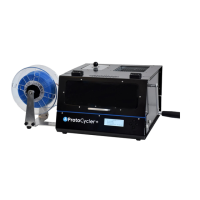
6. Remember that piece of tape we prepped at the end of Step 4? After feeding the filament through the
spreader guide, stick the piece of tape to the end of the filament (if you need a little more runway, snip the
filament a little more after feeding through the spreader guide before sticking tape to it). Now, stick the
taped filament to the bottom side of your spool. Note, it is best to stick the filament as close to the front
(starting side) of your spooler as possible. See Figure 17 for reference.
Figure 17: Above view of starting spool using tape.
7. Once filament is taped to the spool, select “Spooler Ready” using the d-pad. If you don’t do this, the
extrusion cycle will timeout and we will have to restart this process by disconnecting the ProtoCycler (if
connected to your computer) and quickly power cycling the unit.
8. Now that we’ve accomplished all of the setup work required to begin extrusion, the control system will take
over fully. Before the diameter control engages, the ProtoCycler waits 60 seconds to allow filament to reach


 To Next Page